Custom Tasks (Flink/Spark Jar & PySpark)
Custom task development primarily focuses on running Jar tasks. Users can upload custom Jar packages, set task parameters, and configure runtime resource parameters.
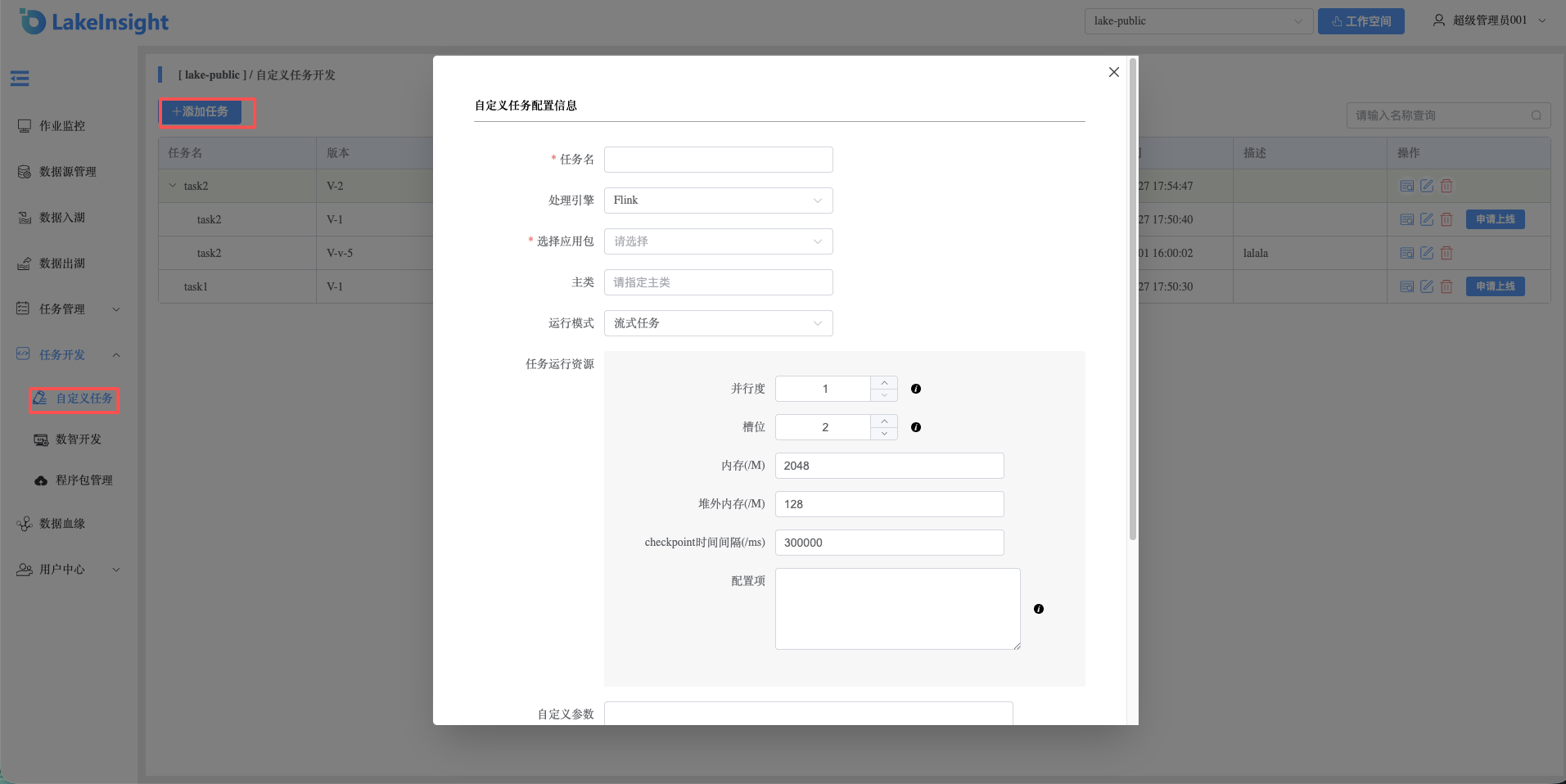
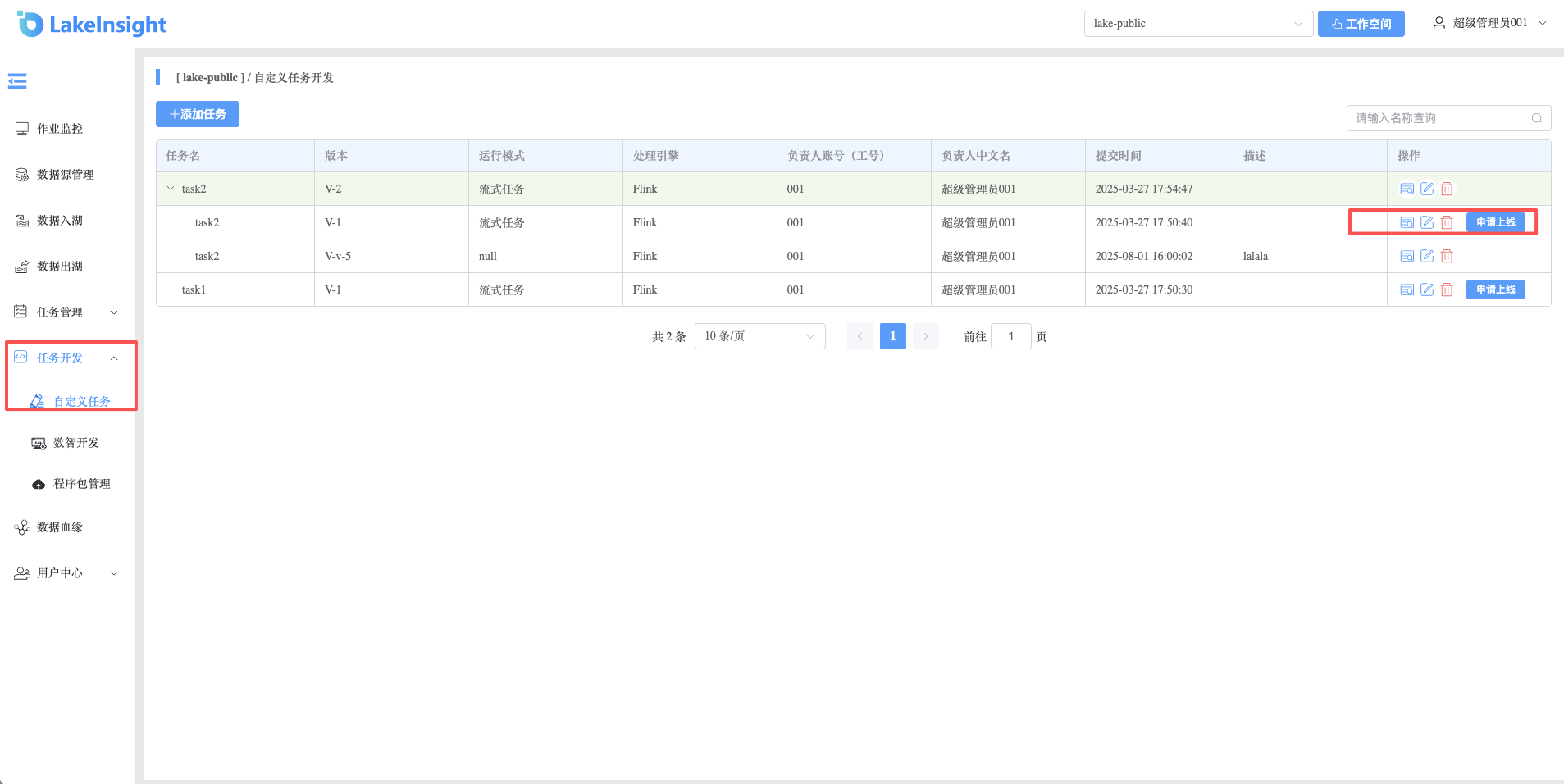
Click Task Development > Custom Tasks in the left navigation to enter the custom task management page, where you can see all custom tasks under the current workspace along with historical versions of each task.
Click the Add Custom Task button, and in the popup interface, set the task name, processing engine, select an application package, set the main class, parameters, and configuration items.
Processing engines include Flink and Spark. After selecting Spark, you can choose Spark App Jar type or PySpark mode.
After adding a task, an Apply for Launch button appears in the right action bar. Click it to submit the task for launch approval.**
Task Update: Click the edit button in the action bar to publish a new version of the current task. After updating, a new Apply for Launch button appears for another launch application.
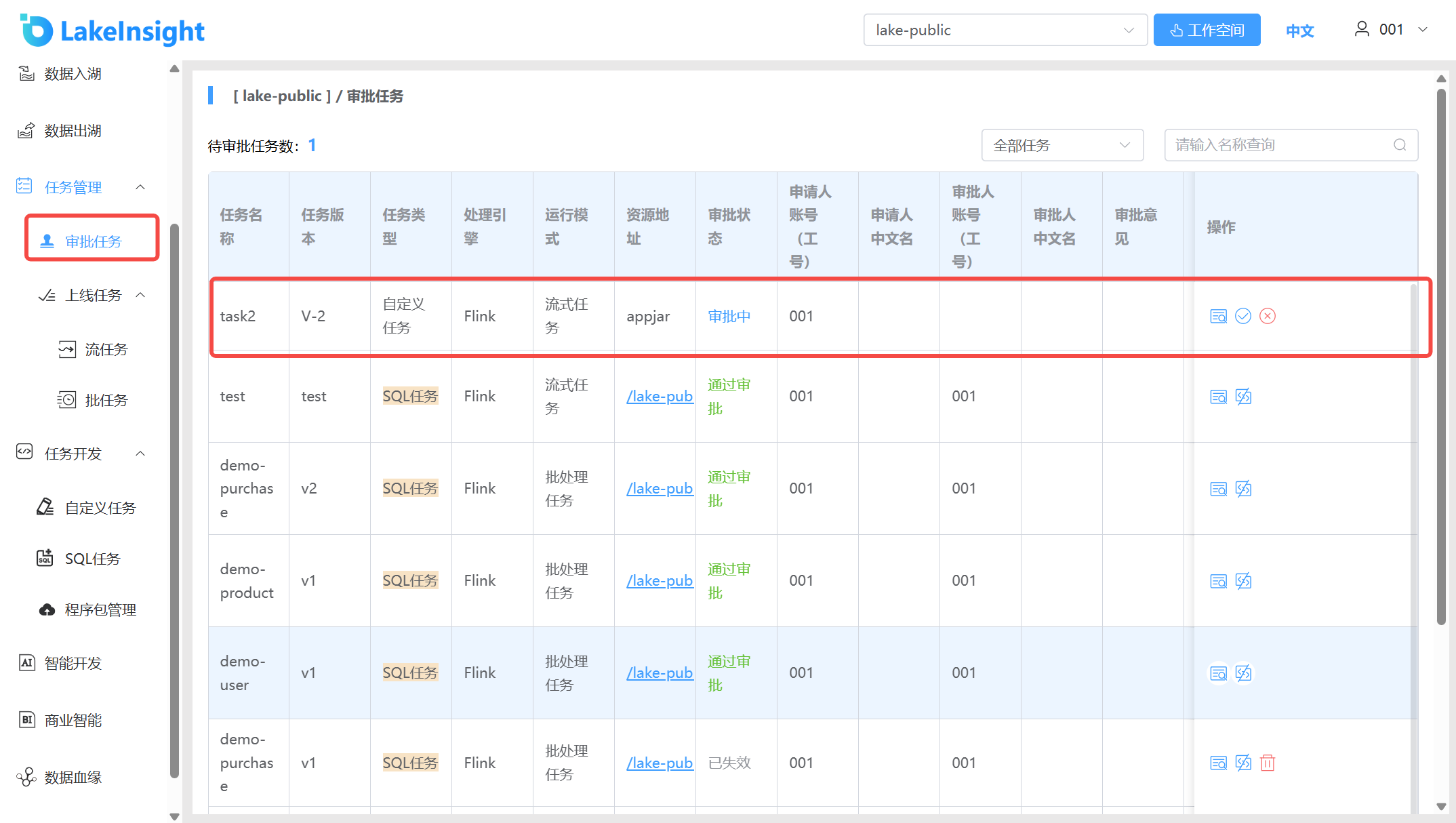
After applying for launch, the task appears in the Approval Task interface where administrators can review and process it.