Data Intelligence Development
Click Task Development > Data Intelligence Development in the left navigation to enter the Data Intelligence Development management interface, where you can view the list of development Notes under the current workspace. From this page, you can create, edit, start/stop Note IDEs, view logs, and enter the Note IDE interface.
Create Note IDE
Click the Create Note button to open the Note configuration page. Fill in the required fields including name, resource configuration (CPU, memory, storage size), and description. Click Create to create a new Note IDE.
View Details, Edit, Delete, Start/Stop, and Logs
Each Note record in the list includes View Details, Edit, Delete, Start/Stop, View Logs, and Enter IDE buttons on the right side for managing the current Note.
Enter the Note IDE Editor
For a running Note IDE, click the Go to Develop button to enter the code development interface, where you can write Flink SQL, Spark SQL, and Python code, and publish completed code as approval tasks.
Upon entering the Note IDE interface, select the /home/coder/work-dir directory for code editing.
Create Flink/Spark SQL and Publish for Approval
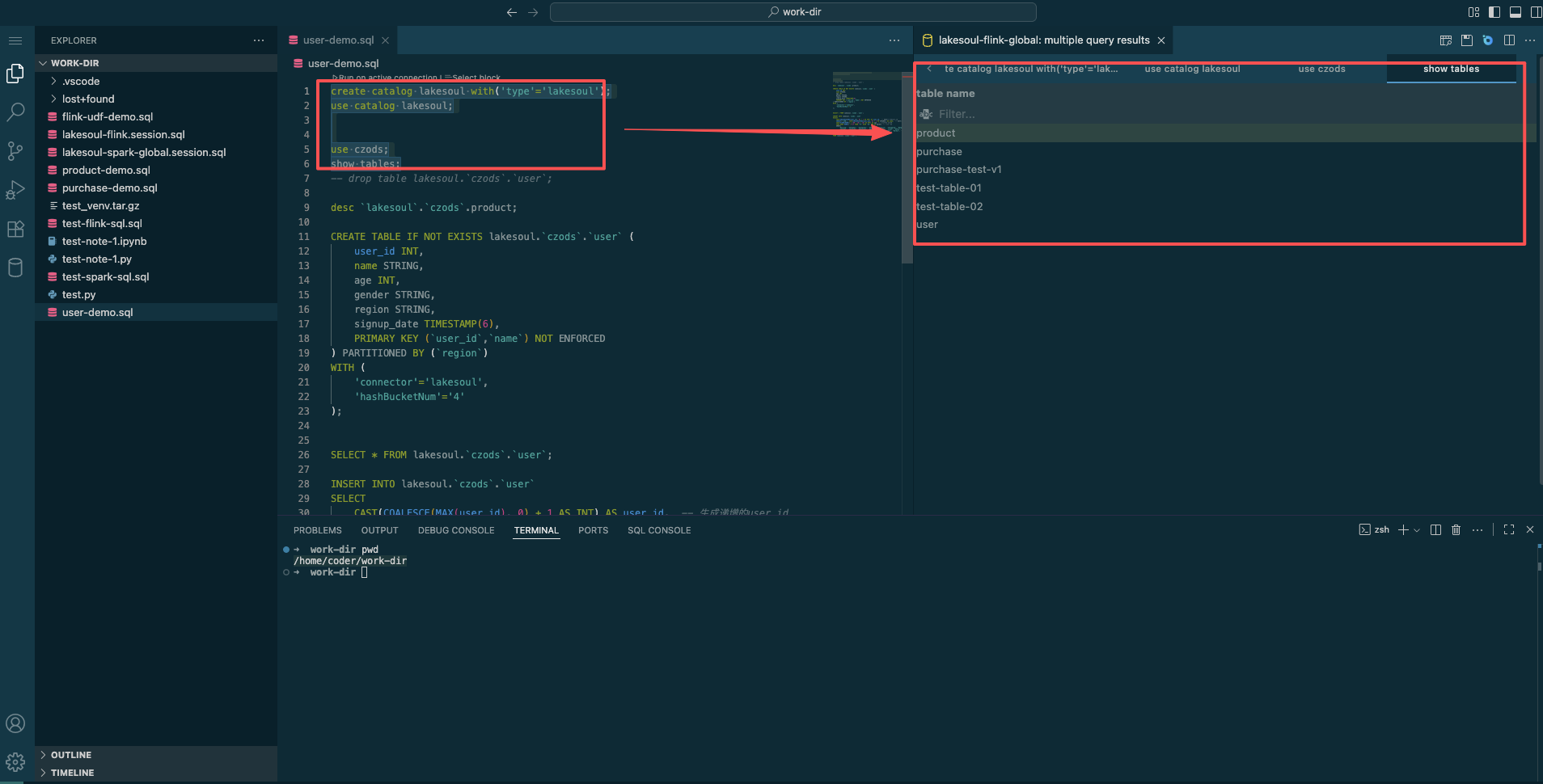
Right-click in the left tree panel to create a Flink/Spark SQL note named user-demo.sql. Once created, you can edit Flink/Spark SQL and execute the SQL statements.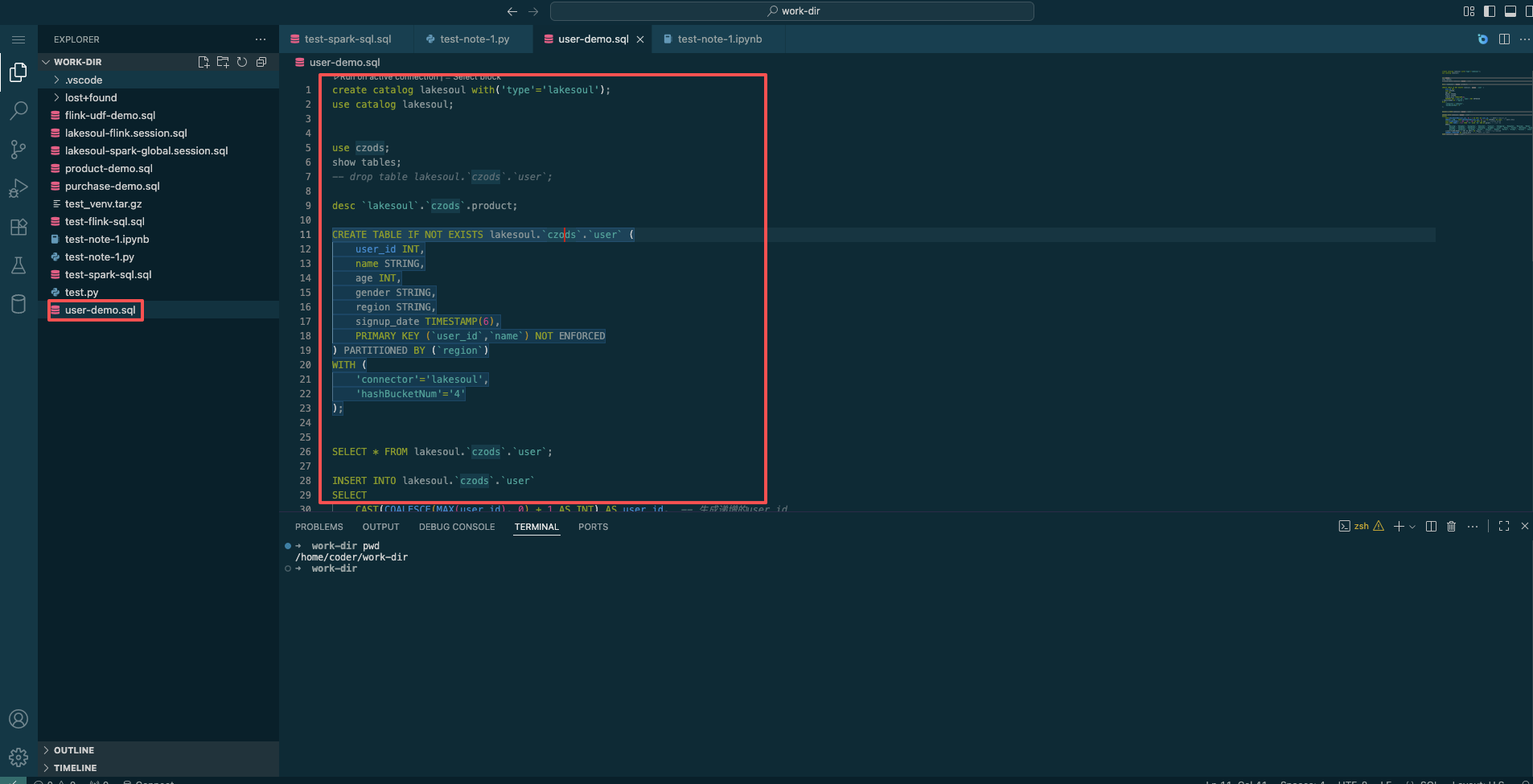
- Click
Run on activate connectionand select thelakesoul-flink-globalorlakesoul-spark-globalconnection in the SQL Tool Connection dialog to execute the current SQL.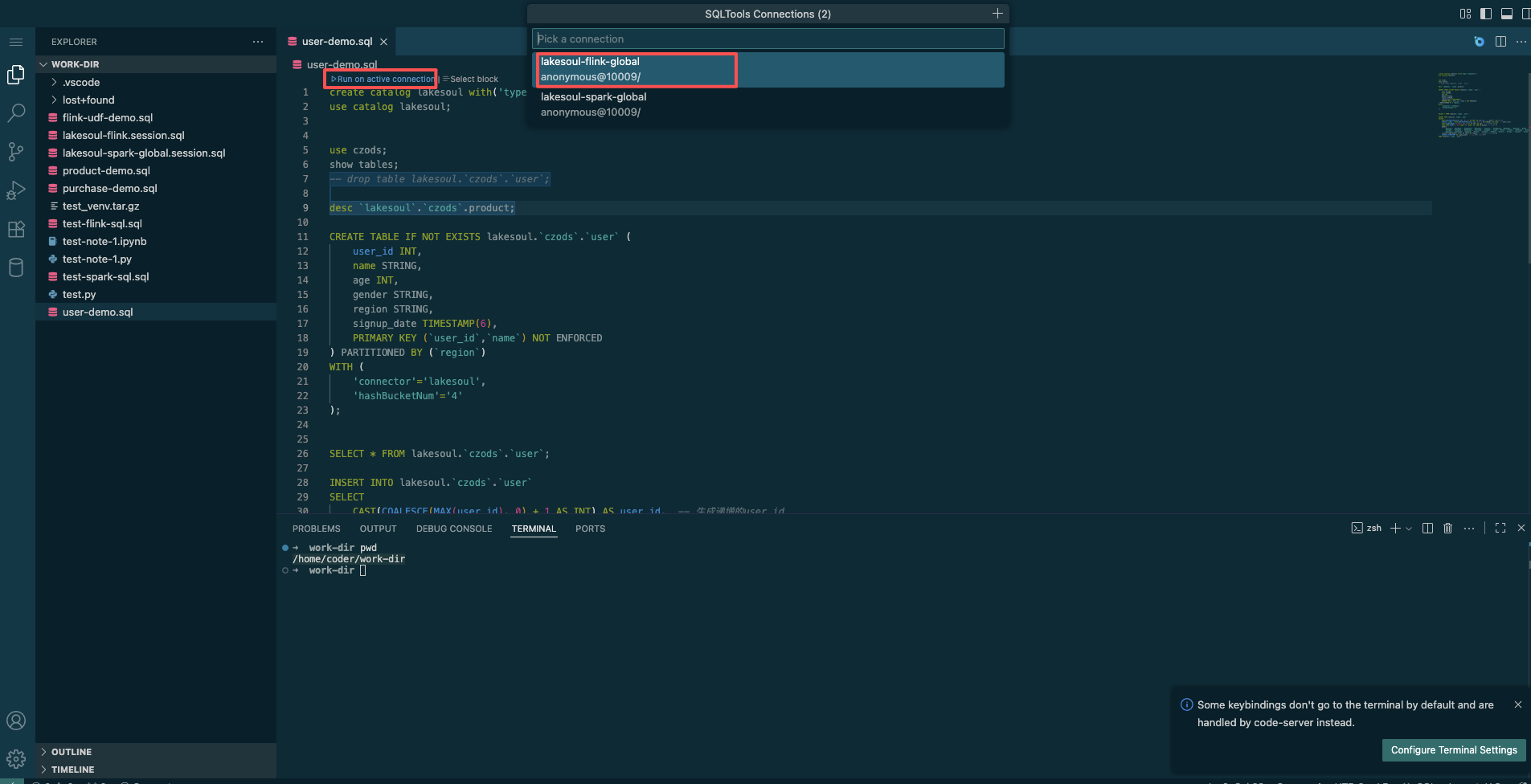
- Select the code to execute, right-click, and choose
Run Selected Query, then select thelakesoul-flink-globalorlakesoul-spark-globalconnection to execute the selected SQL.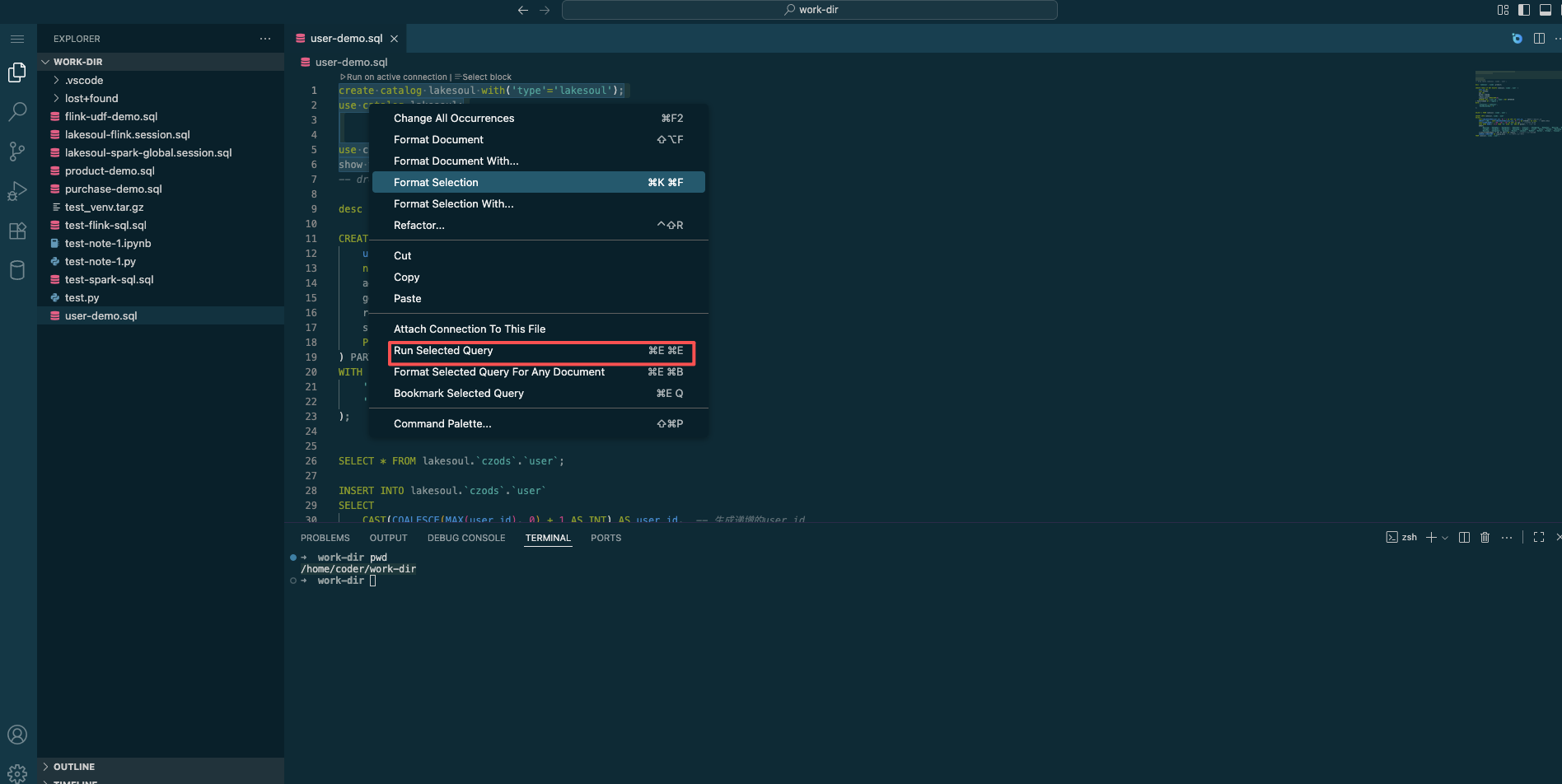
- After execution, the results of the current SQL or selected SQL are displayed in the right-side output panel.
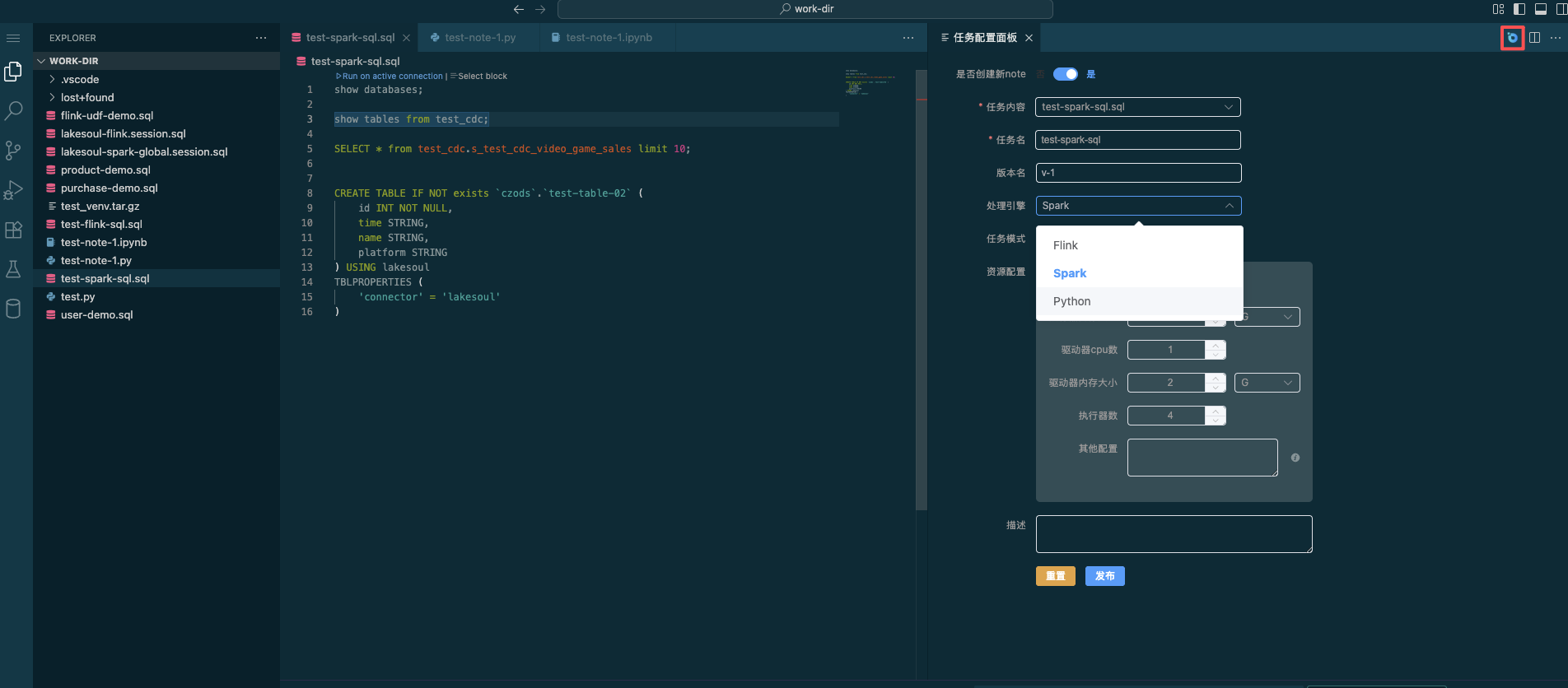
- Click the Task Configuration button in the top right corner to publish Flink streaming/batch or Spark batch SQL for approval. After publishing, it can run in streaming or batch mode with scheduled execution.
In the task configuration panel, choose whether to create a new Note or update an existing launched Note, select the corresponding Flink/Spark SQL file for SQL content, choose the Flink or Spark processing engine (and for Flink, set streaming or batch mode), configure resource settings, and click Publish to submit it to the Approval Task interface in Task Management.
Create Python Tasks and Publish for Approval
Right-click in the left tree panel to create a Python Note named user-note-1.py or user-note-1.ipynb. Once created, you can develop Python code within it.
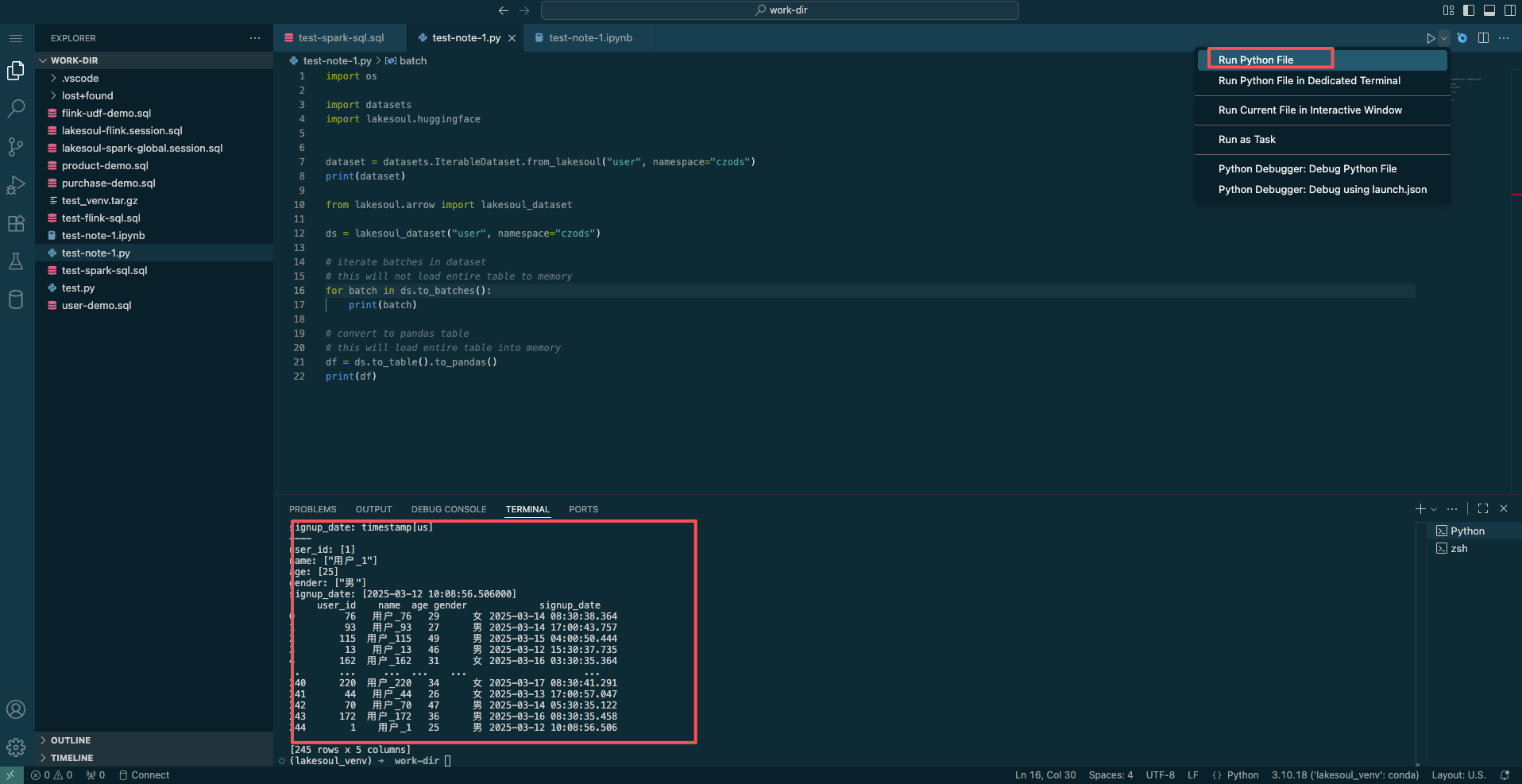
After editing Python code, select the runtime environment, then click the Run Python File button in the top right to execute the code and view the output.
 Click the Run ALL button or the Execute Cell button on individual cells to run the corresponding code.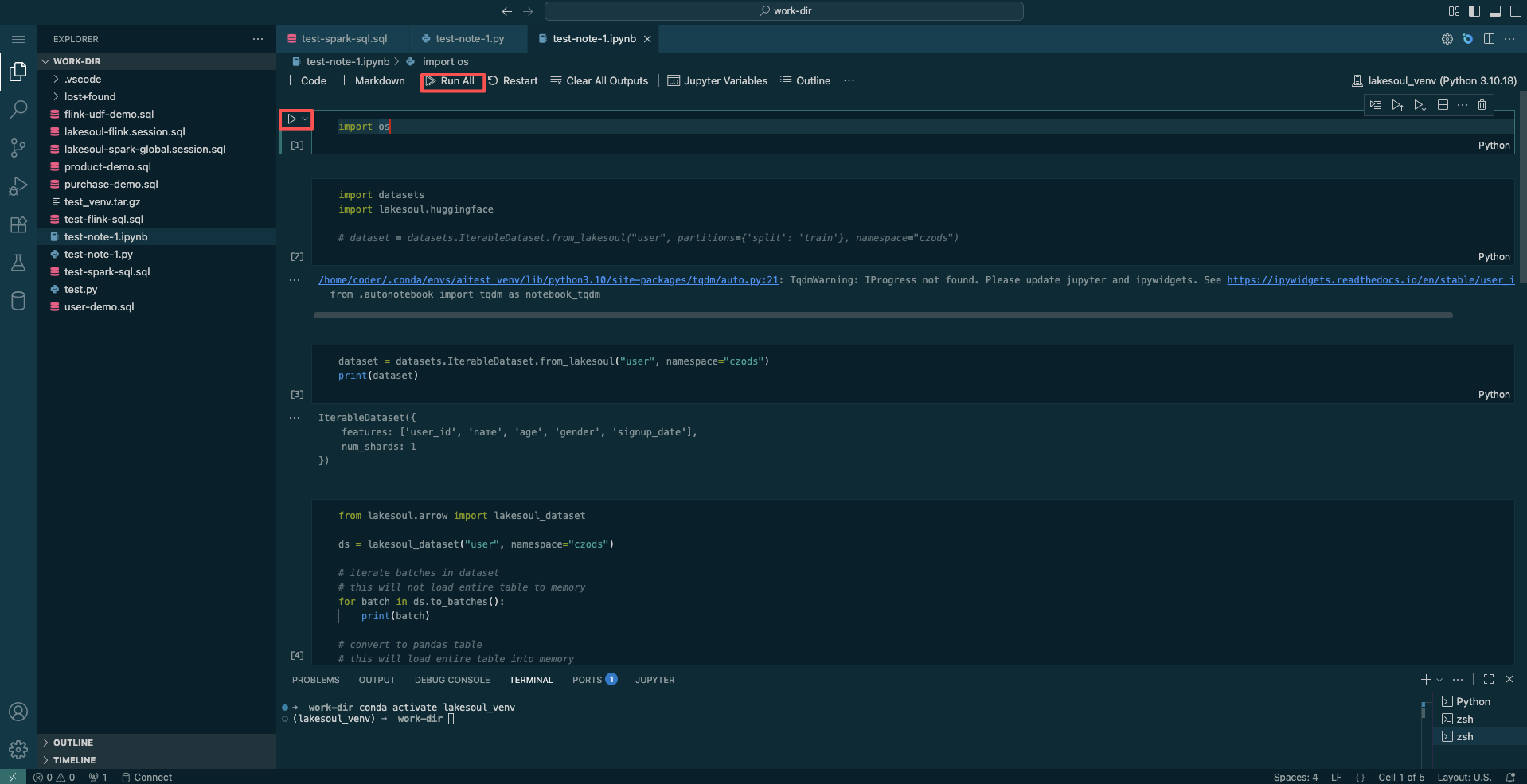
Create a Python runtime environment: the IDE has built-in conda support. Create an isolated Python virtual environment for dependency management:
conda create -n lakesoul_venv python=3.10

conda activate lakesoul_venv

conda install -y -n lakesoul_venv -c conda-forge conda-pack
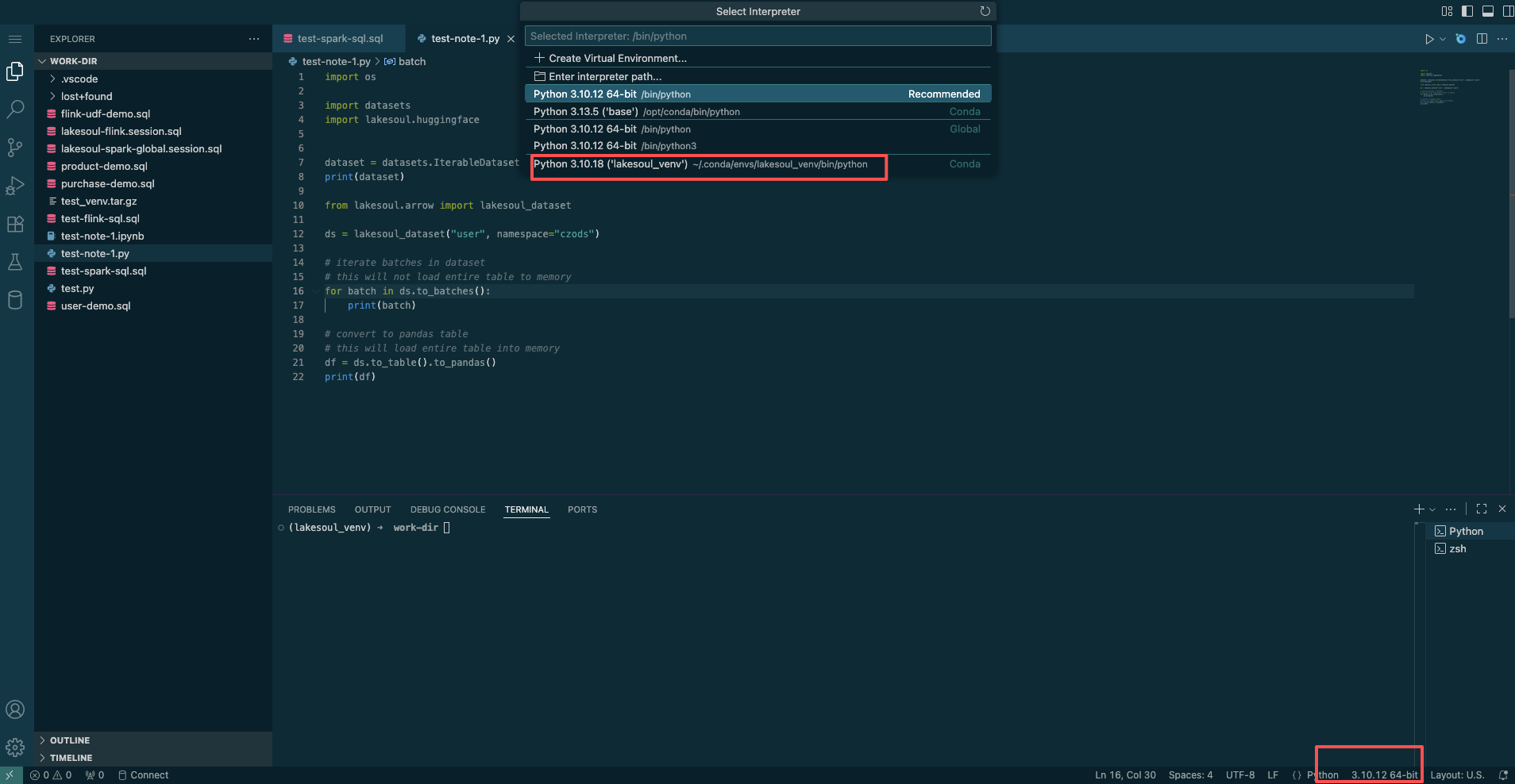
After creating the environment, select the newly created runtime environment from the environment selector in the bottom right corner.
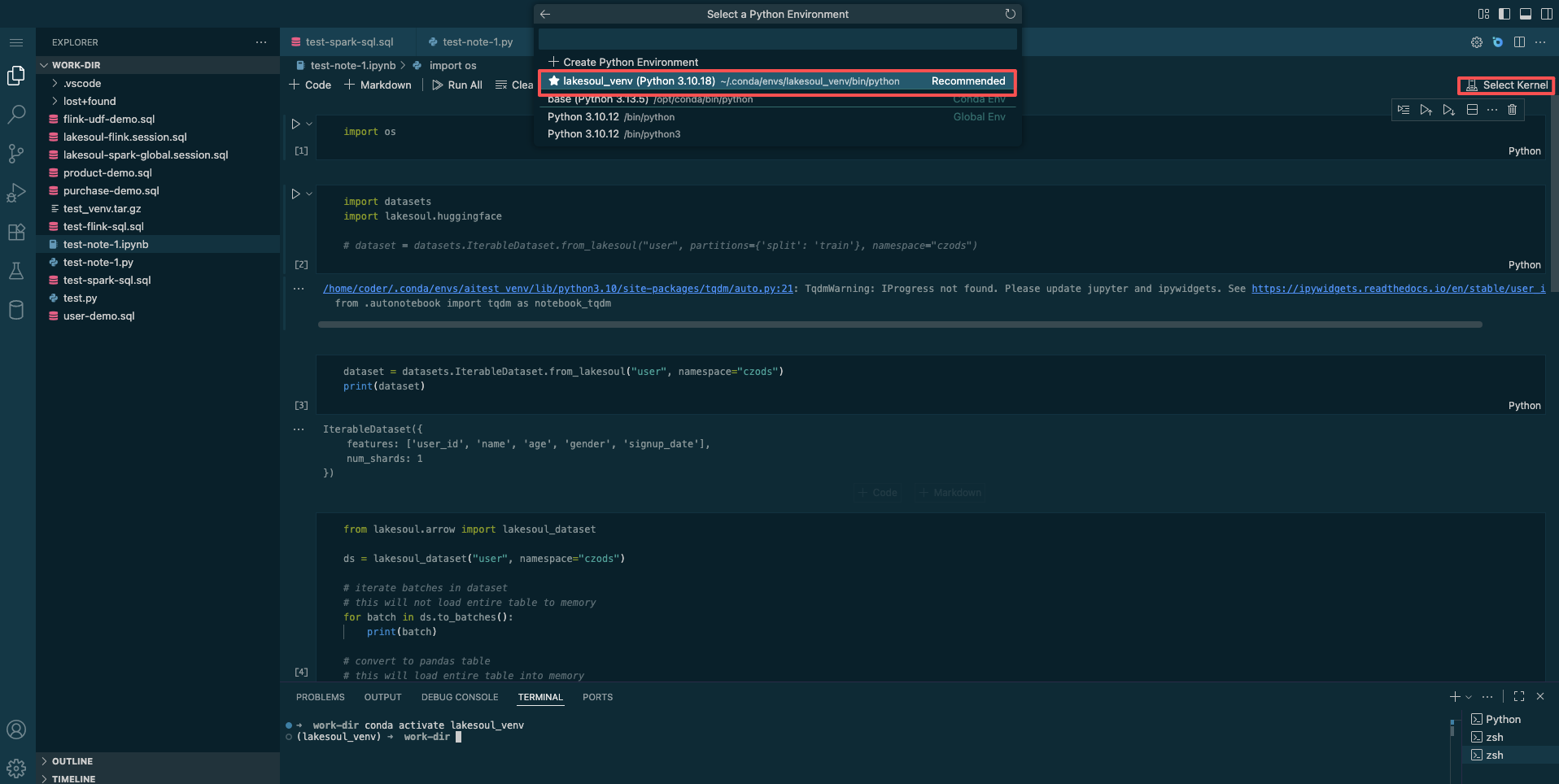
To run Python code in Jupyter mode, click Select Kernel in the top right and choose the corresponding Python environment from the selection list.
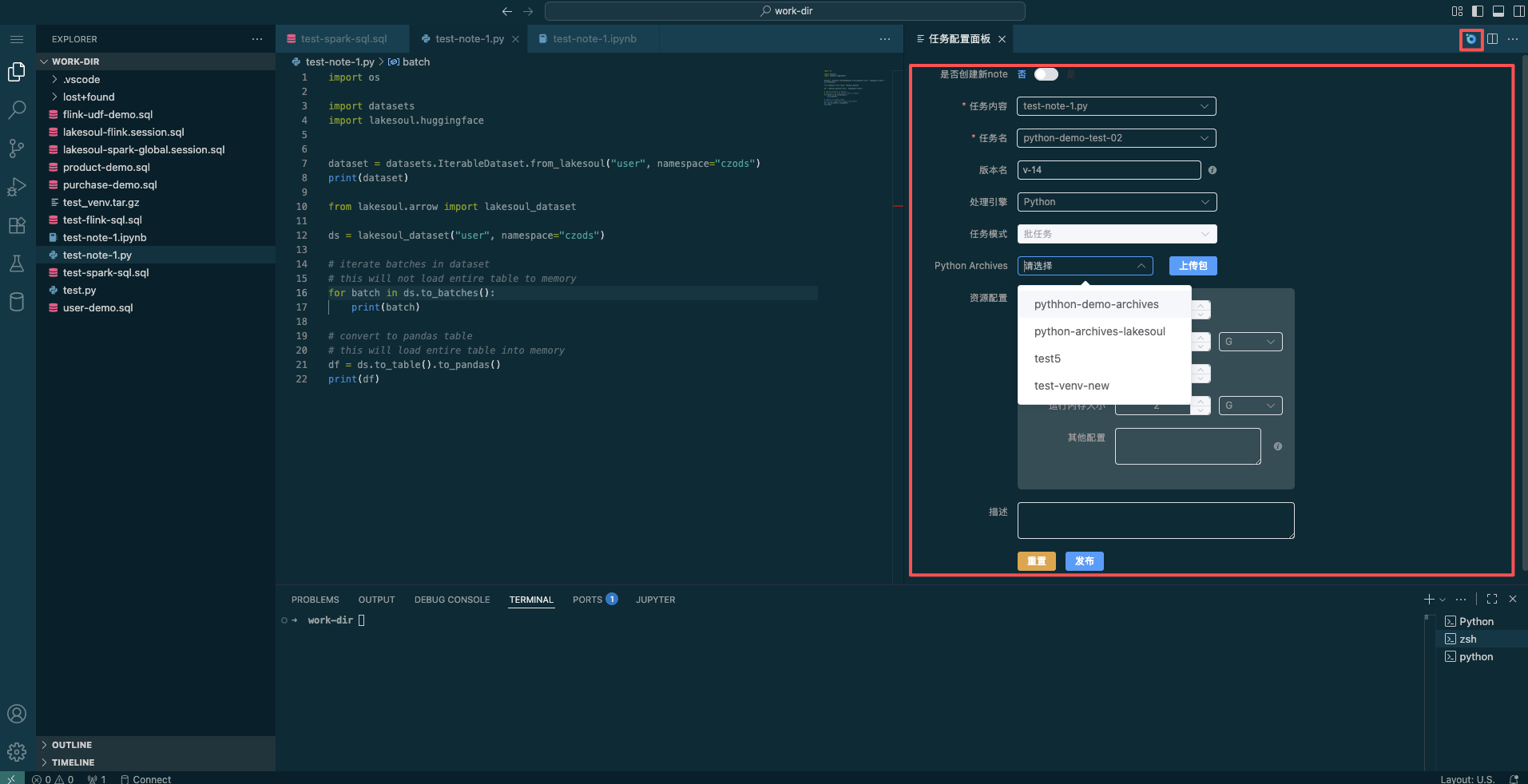
Publish completed Python code as an approval task for scheduled execution after approval. In the task configuration panel, choose whether to create a new Note or update an existing launched Note, select the Python file content, choose the Python processing engine, select the Python runtime dependency environment (you can choose an already uploaded dependency file or click Upload Package to upload a new packaged tar file), set resource settings, and click Publish to submit it to the Approval Task interface.
- When publishing for approval, package the current virtual environment using
conda pack -f -n lakesoul_venv -o lakesoul_venv.tar.gzinto a tar file, and upload it to the package file management via the upload package function. If the launched Python task encounters missing dependencies at runtime, useconda installto install the required libraries.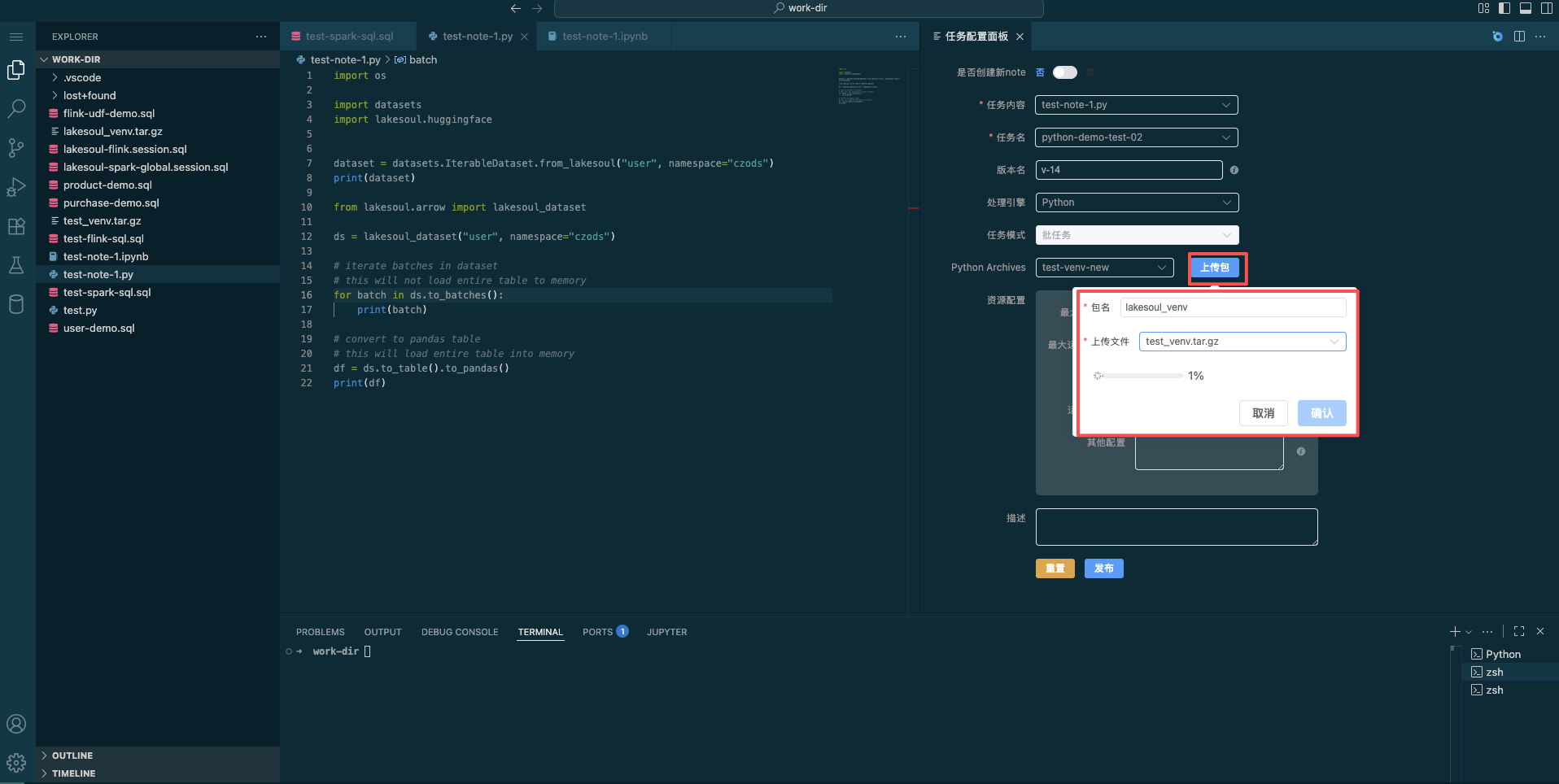
- Click the Task Configuration button in the top right to configure publishing for Python-type tasks.
- When publishing for approval, package the current virtual environment using