Instance Management
LakeInsight Cloud supports creating, running, and managing LakeInsight instances in connected Kubernetes clusters.
Create an Instance
Go to Instance Management → New Instance and complete the 5-step wizard:
- Cluster & storage: instance name, target cluster (only connected clusters), and StorageClass.
- Access configuration: access domain (leave empty to use the cluster's default Ingress domain — for testing only), HTTPS (requires a TLS certificate and key when enabled), admin username (default
lakeadmin), and admin password (6–32 characters). - Object storage: Endpoint, AccessKey, SecretKey, Bucket, and Region of an S3-compatible object store (all required).
- Database configuration: use the built-in PostgreSQL (medium / large), or an external database (host, port, user, password).
- Add-on services: optionally enable Presto, Ray, data governance, and model experiments (Presto requires HTTPS).
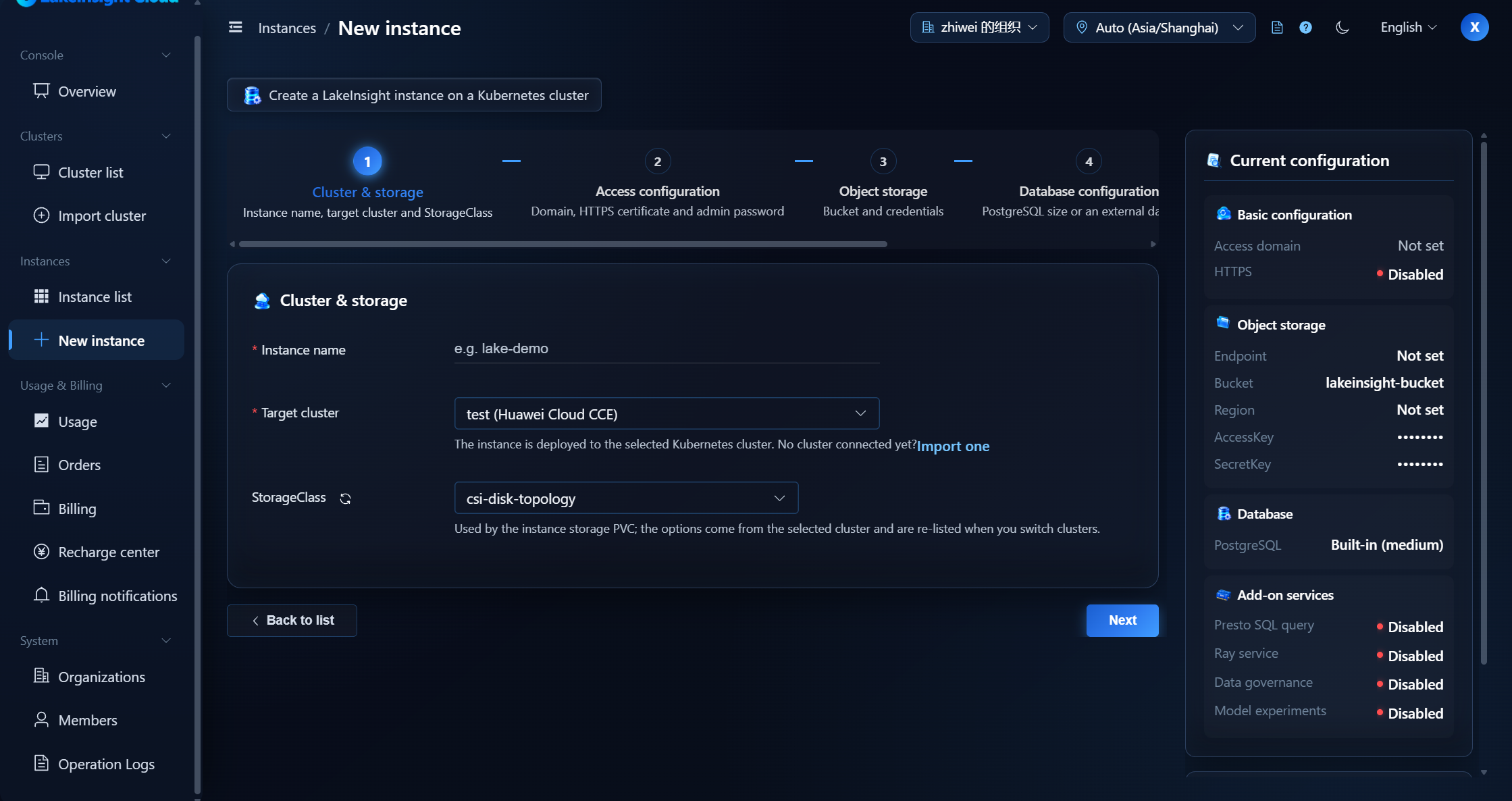
A cluster can run only one instance at a time; if the selected cluster already hosts an instance, stop (uninstall) it first.
Creating an instance consumes the organization balance. Deployment is blocked while the account is in arrears or frozen; settle the arrears first. See Billing Center for details.
Instance Status
After creation, the platform continuously updates the status:
| Status | Description |
|---|---|
| Not deployed | Created but not yet deployed |
| Creating / Deploying / Upgrading / Uninstalling / Deleting | In progress; wait for completion |
| Running | Deployed successfully and ready to use |
| Deploy failed / Uninstall failed | Something went wrong; view details or redeploy |
| Stopped | Stopped (uninstalled); can be redeployed |
| Suspended | The instance is currently suspended |
If an instance stays in an in-progress state for a long time, or shows Deploy failed, open its details to inspect the deploy records and pod status.
Instance List
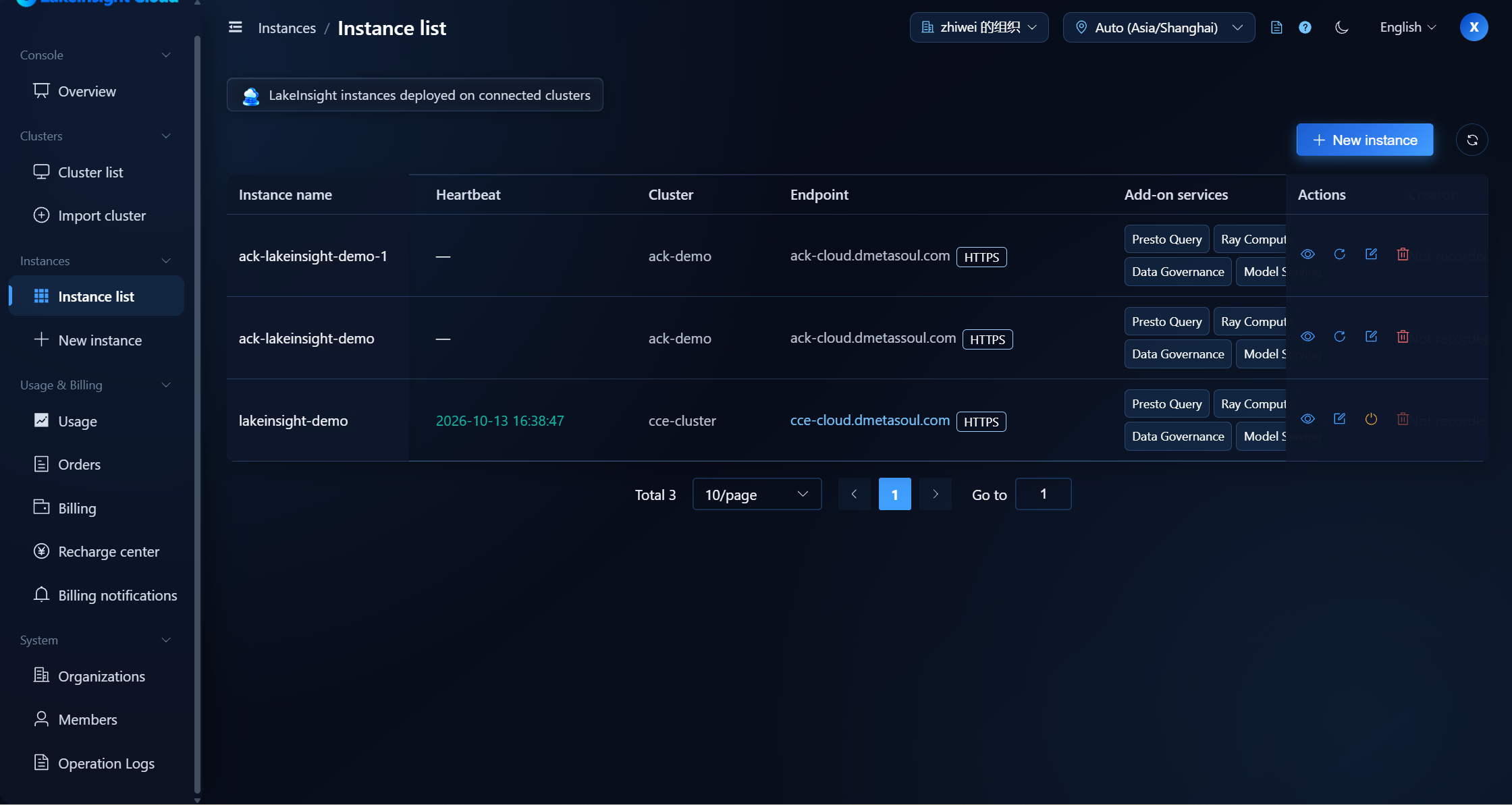
Go to Instance Management → Instance List to view all instances in the organization: instance name, status, heartbeat, deployment cluster, access endpoint, add-on services, and creator. The access endpoint is clickable only while the instance is running.
Instance Details
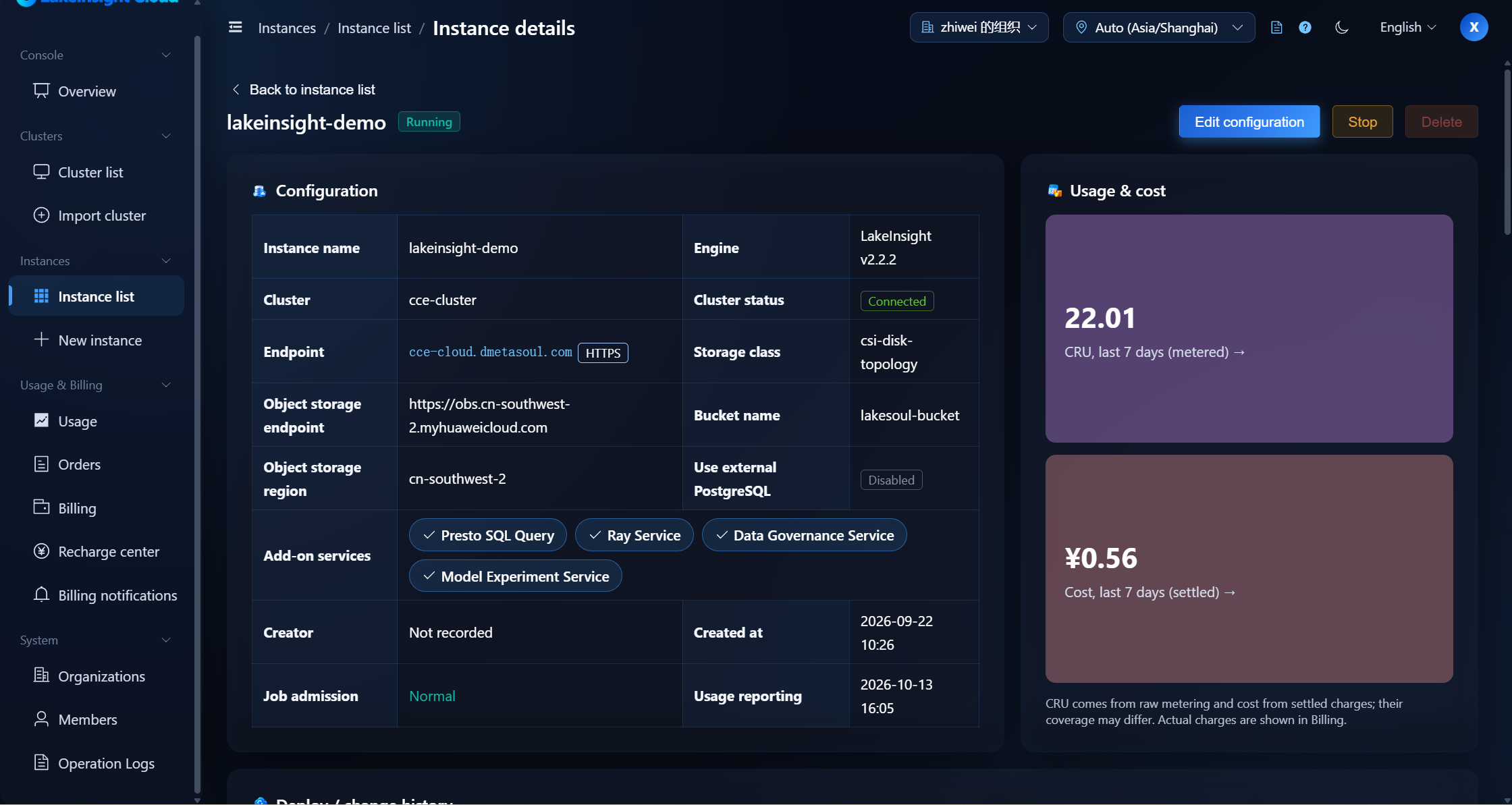
Click an instance to open its details, where you can see:
- Configuration overview: instance name, engine, deployment cluster and cluster status, access endpoint, configuration parameters, add-on services, creator, and creation time
- Job admission: Normal / In grace period / Blocking expected, reflecting how the organization account status affects the instance
- Usage reporting: the last usage report time (a warning appears after 3 hours without a report)
- Usage & cost: last-7-days CRU (raw metering) and last-7-days fees (settled)
- Deploy / change history: type, status, operator; preview / download the deploy YAML and view logs
- Deploy result: the status and logs of the instance's pods
Common job-admission reasons include an elapsed arrears grace period, an account frozen / closed, and being disconnected from the billing center. When the account is in arrears or frozen, creating instances and deploying are restricted.
Instance Operations
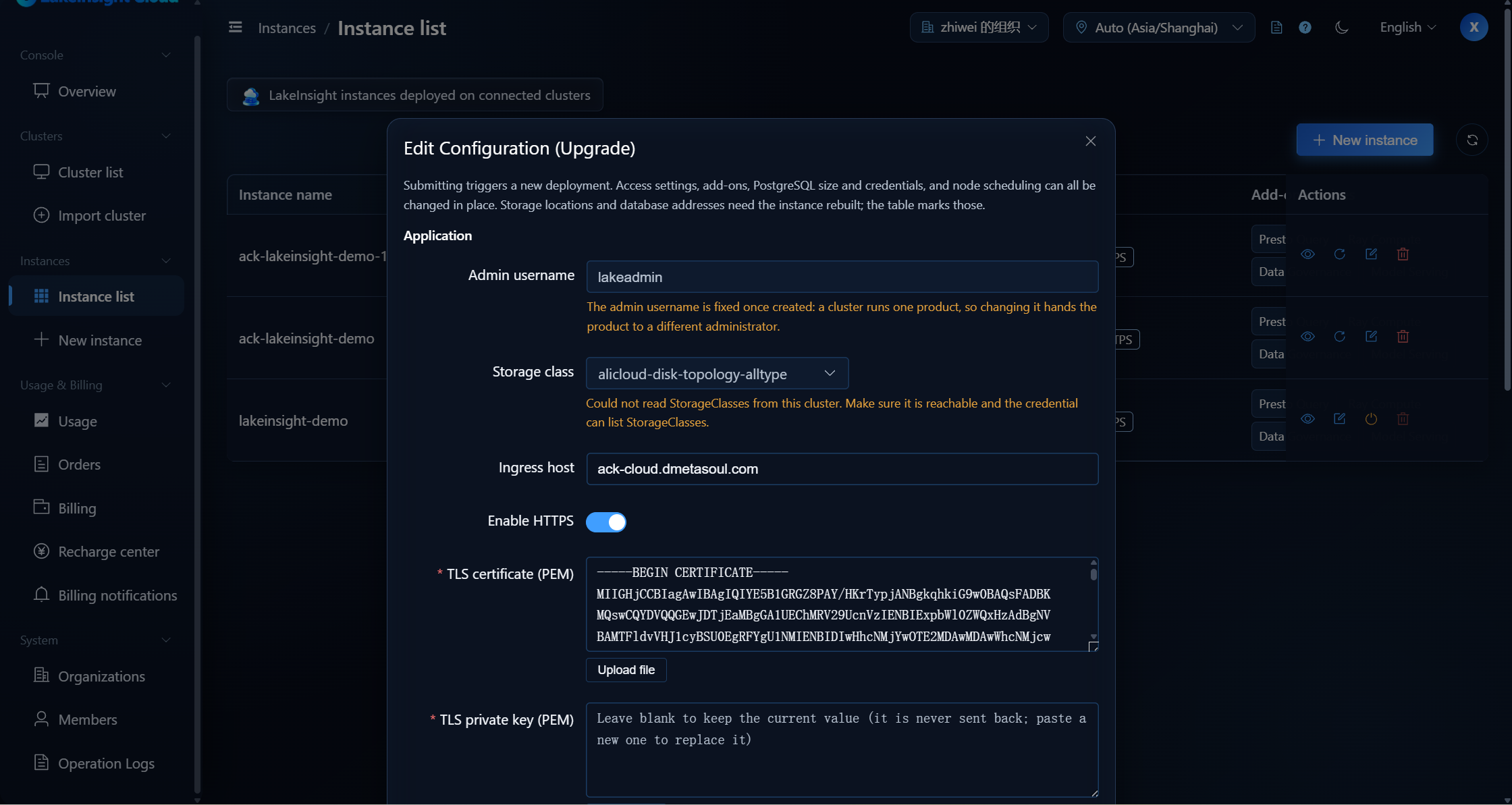
Instance operations such as deploy, upgrade, stop, and delete require the Instance Admin role or higher. Depending on the current status, you can perform the following operations:
| Operation | Available when |
|---|---|
| Deploy | Not deployed |
| Edit config | Not deployed / Running / Deploy failed / Stopped |
| Run upgrade | There is a pending configuration change |
| Redeploy | Deploy failed / Uninstall failed / Stopped |
| Stop (uninstall) | Running / Deploying / Upgrading / Deploy failed / Uninstall failed |
| Delete | Not running |
Stop uninstalls the product and releases the instance namespace (object-storage data is kept, but the LakeSoul metadata is lost); Delete cannot be undone. Please confirm carefully before proceeding.
Using an Instance & Usage
Once an instance is Running, you can access LakeInsight through its access endpoint, which is shown in the instance details. The details also show the instance's last-7-days usage and cost; for organization-level usage and fees, see Usage Statistics and Billing Center.
In the instance details, CRU comes from raw metering while fees come from settled bills, so their coverage may differ slightly. The fees actually charged are based on the Billing Center.