Unified data + AI Development Environment
LakeInsight's development environment is based on CodeServer, providing users with one-stop capabilities from data ingestion to analysis and publishing:
Core Capabilities
- Interactive analysis of data sources and lakehouse data within the platform
- Automated creation of data collection and data export tasks
- Real-time monitoring of task status and log analysis
- Natural language interaction to generate SQL statements, with convenient publishing, approval, and launch workflows
Operation Steps
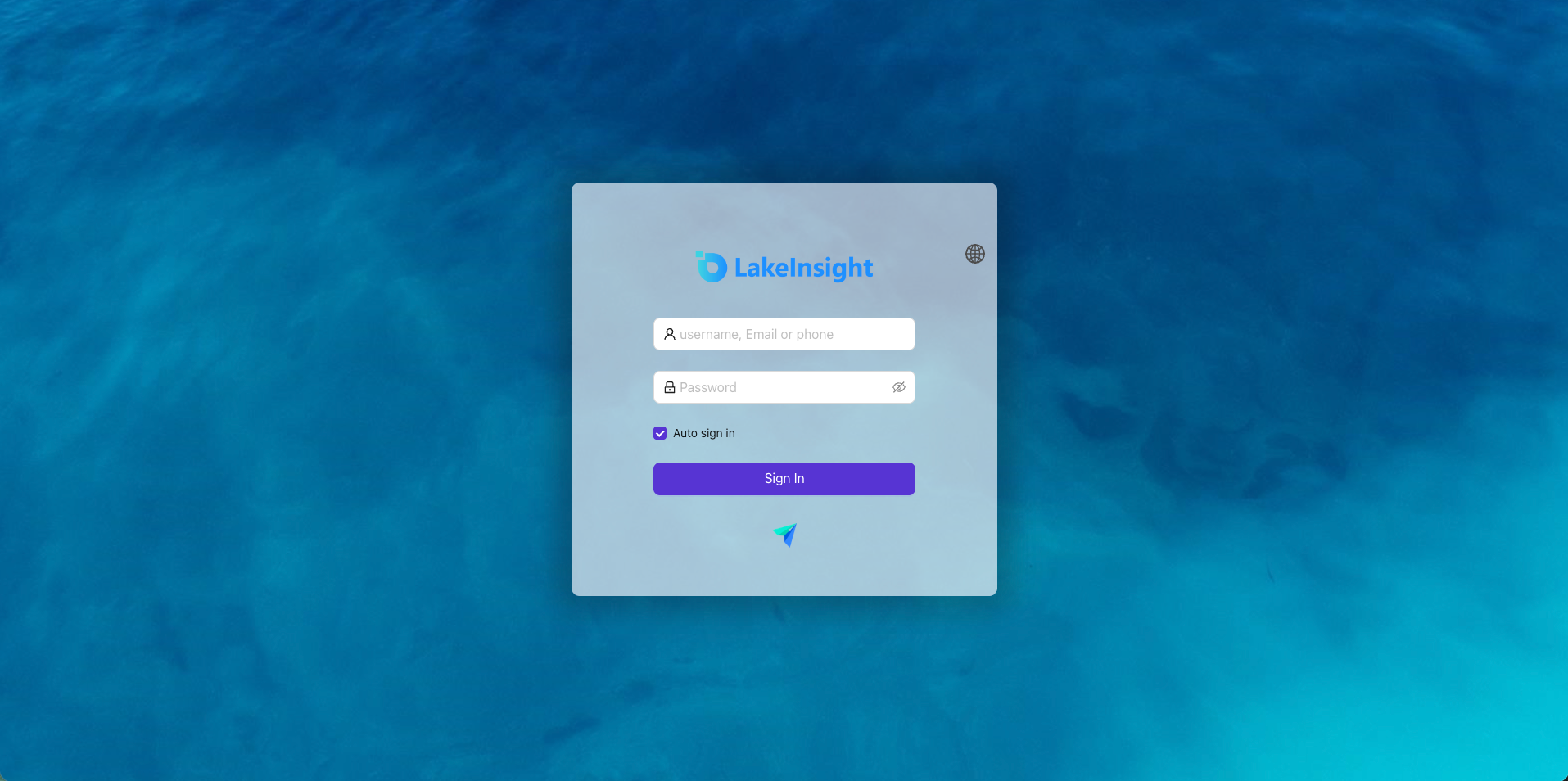
Log in to the LakeInsight platform
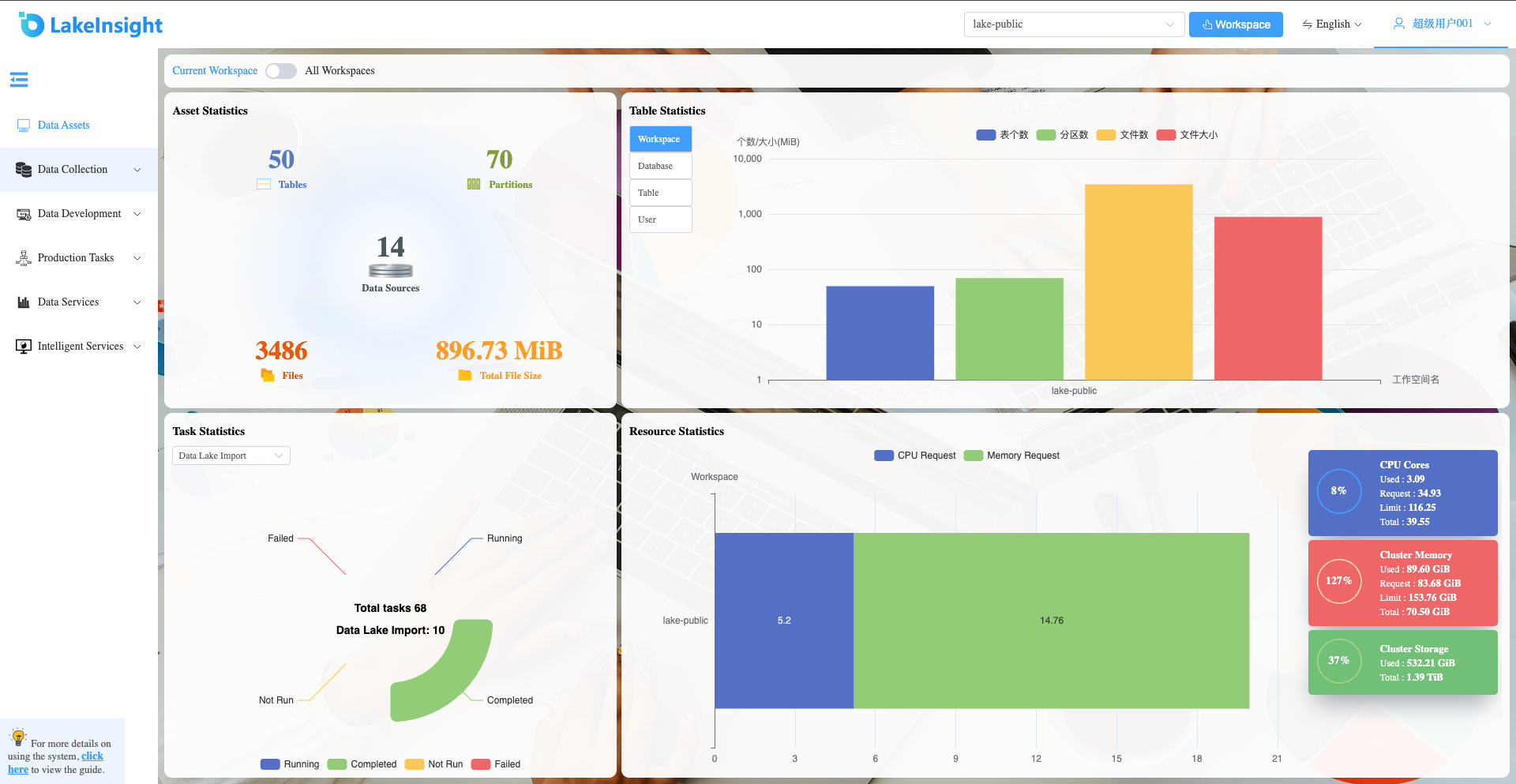
Enter your username and password on the login page to log in. After login, you can see the data asset information under the current workspace.
Create a data source
- In the left menu, under Data Collection > Data Source Management, you can view the list of data sources created under the current workspace.
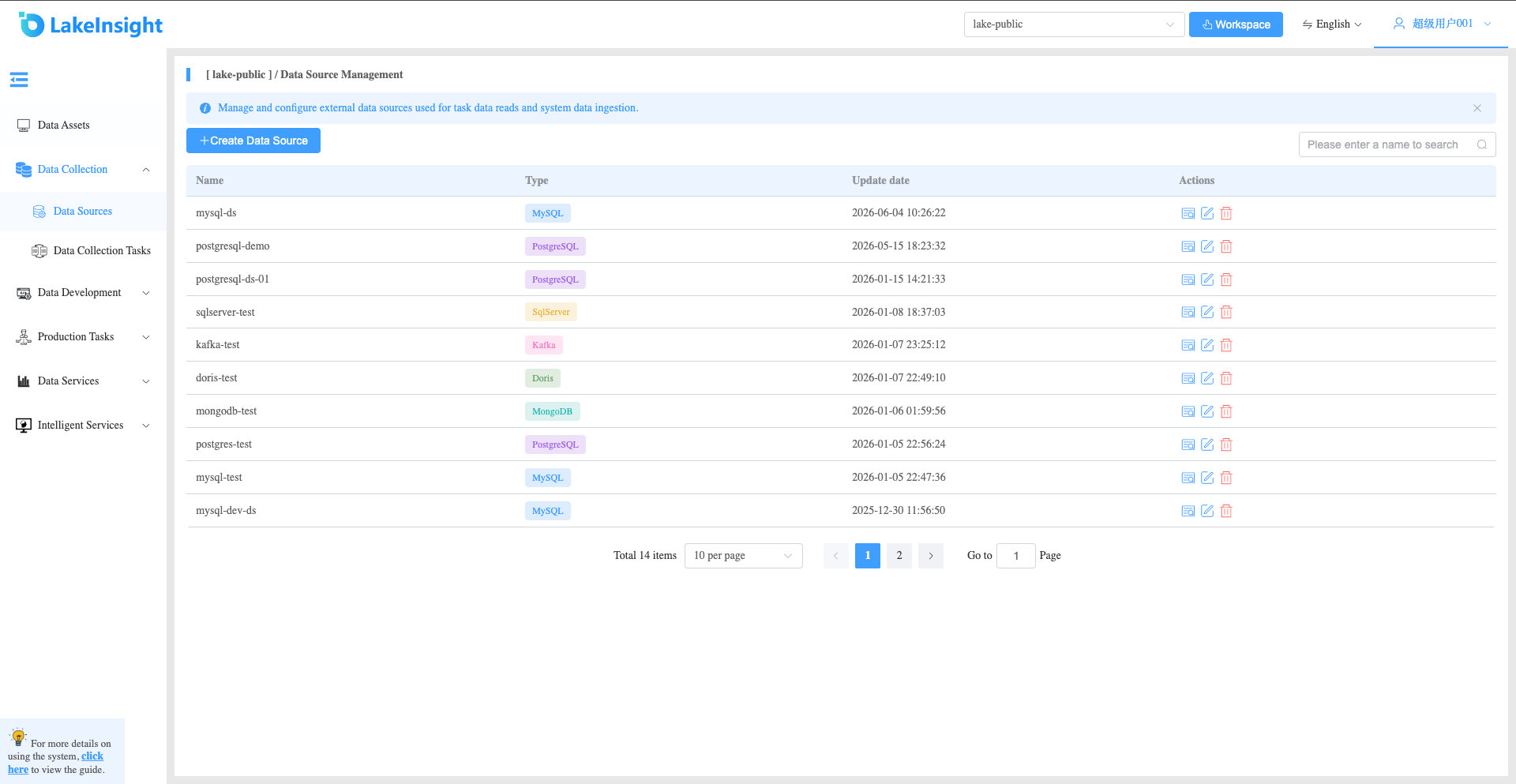
- Click the Create Data Source button to add a new data source. Enter the name, select the data source type, and provide the database address, port, database name, username, and password. Click Create to add the data source.
- The platform currently supports the following data sources: relational databases including MySQL, TiDB, PolarDB, TDSQL, Oracle, SQL Server, OceanBase, Dameng, and PostgreSQL; analytical databases including Doris and AnalyticDB for MySQL 3.0; and NoSQL databases including Elasticsearch, MongoDB, and Redis.
- In the left menu, under Data Collection > Data Source Management, you can view the list of data sources created under the current workspace.
Create a development environment and start coding.
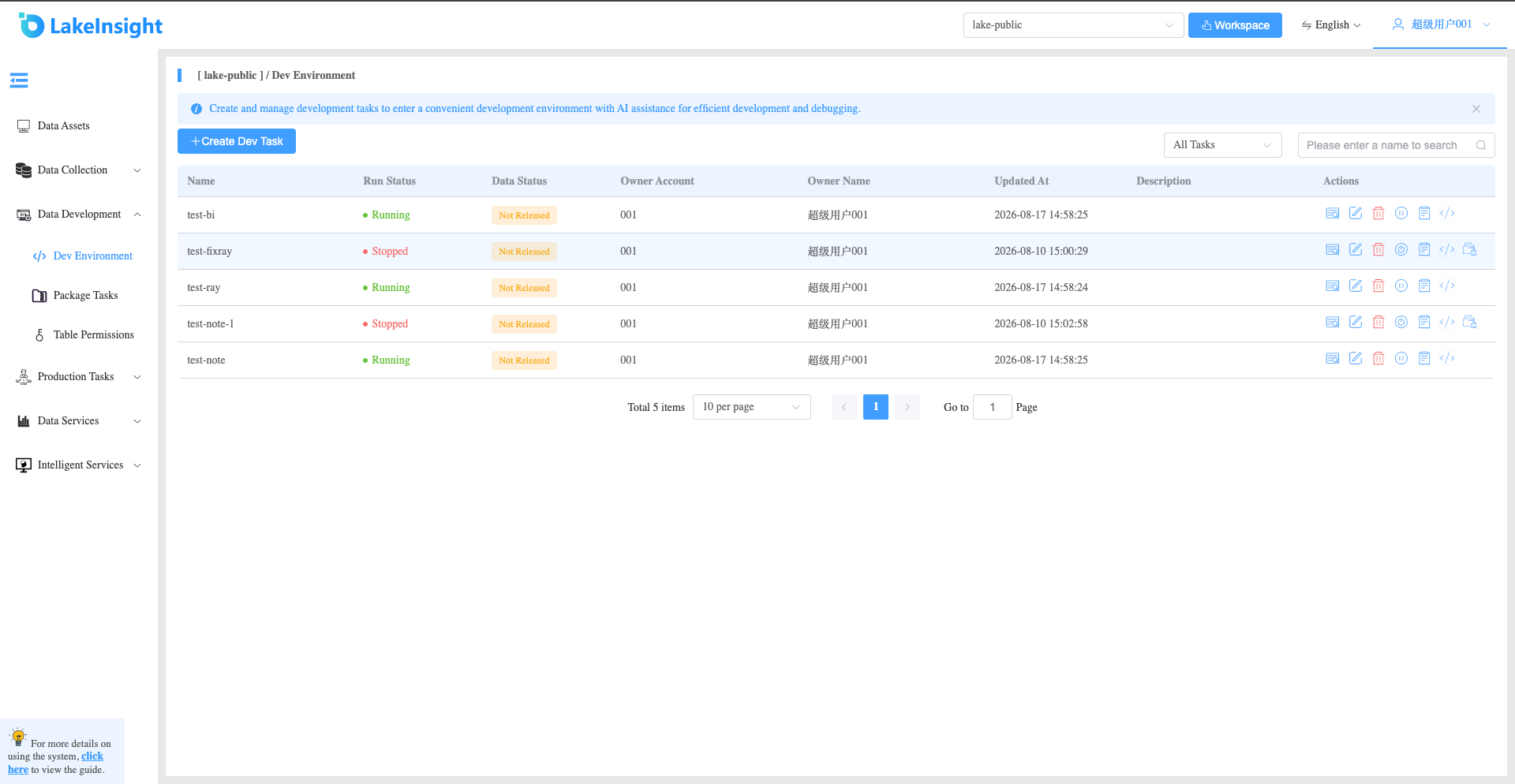
Click Data Intelligence Development > Development Environment in the left navigation to enter the development environment management interface, where you can see the list of development tasks under the current workspace.
Click the Create Development Task button to create a new development environment, edit existing tasks, and manage task start/stop, log viewing, and access the task IDE interface.
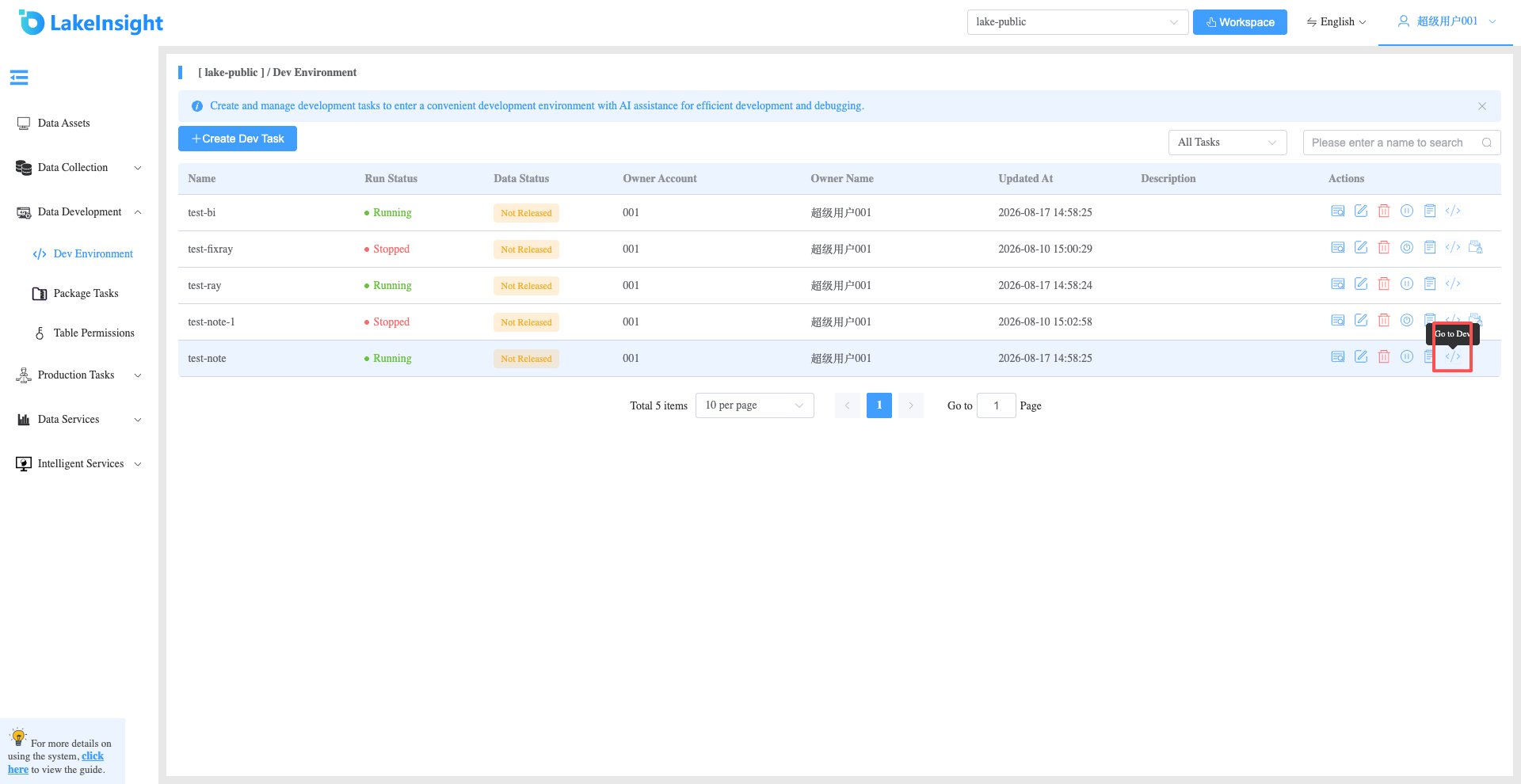
After the development task starts, click the Go to Develop button on the right to enter the development interface.
Start intelligent coding.
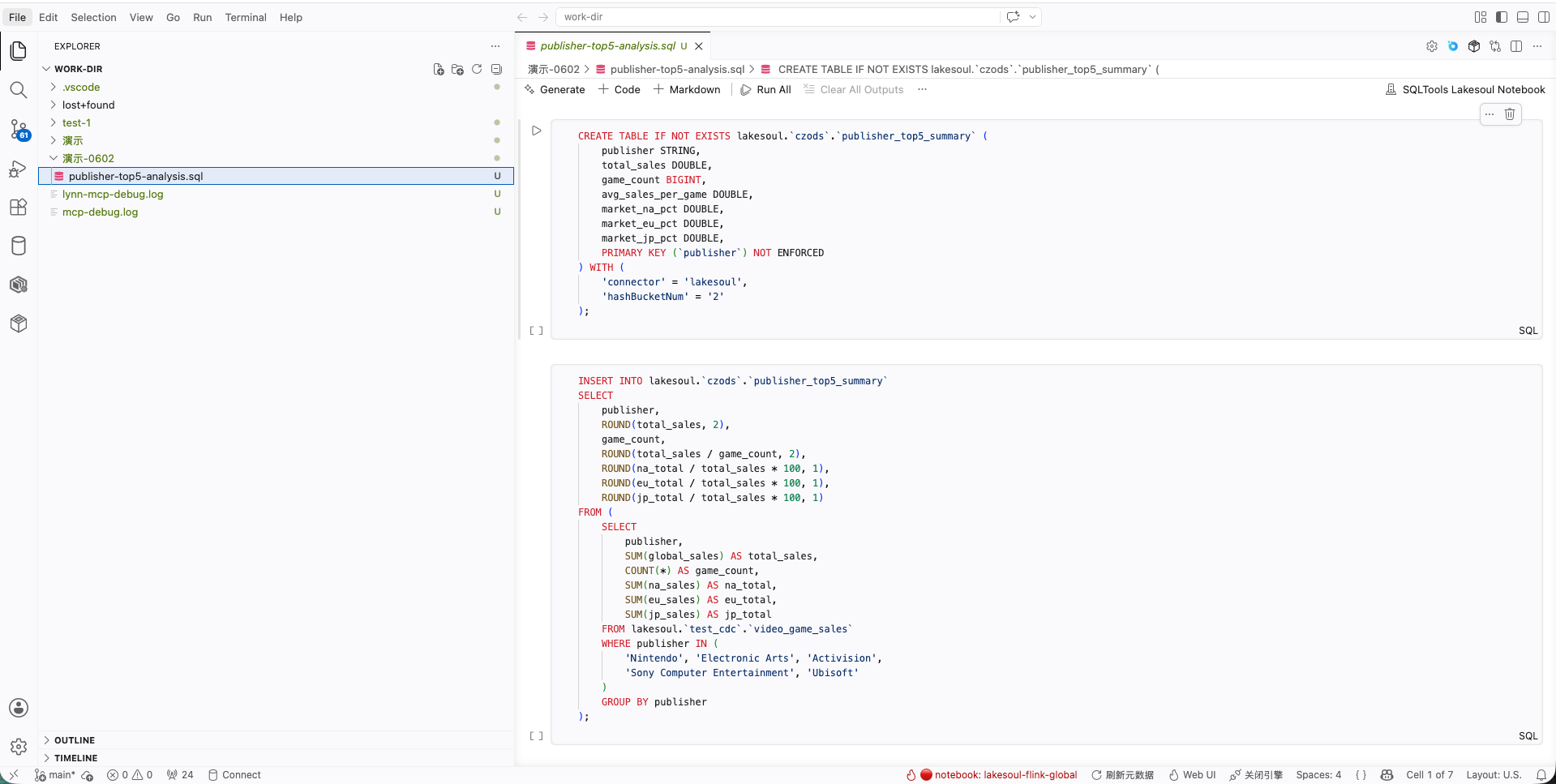 Click the OpenChamber button on the left to open the conversation list.
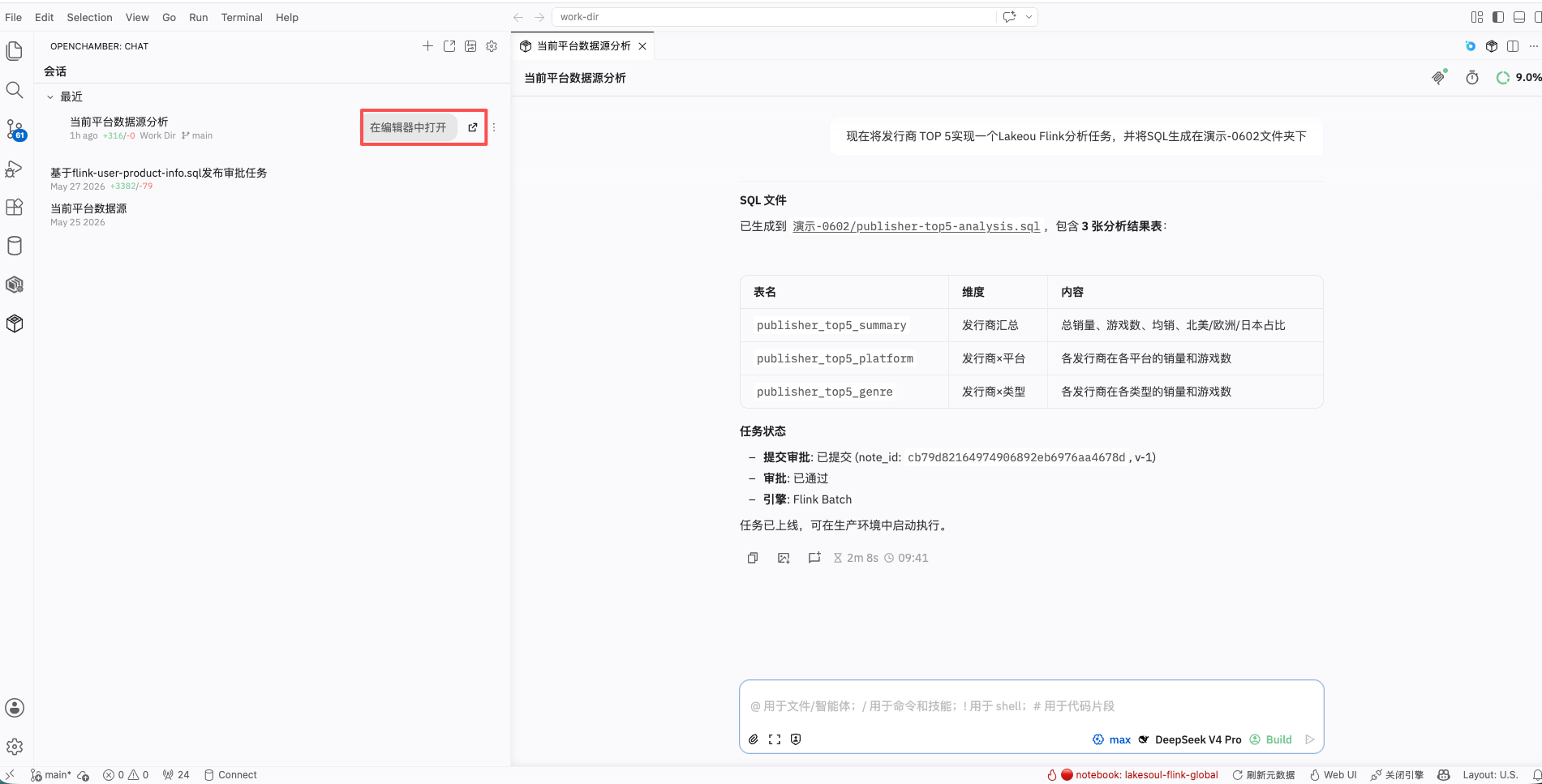
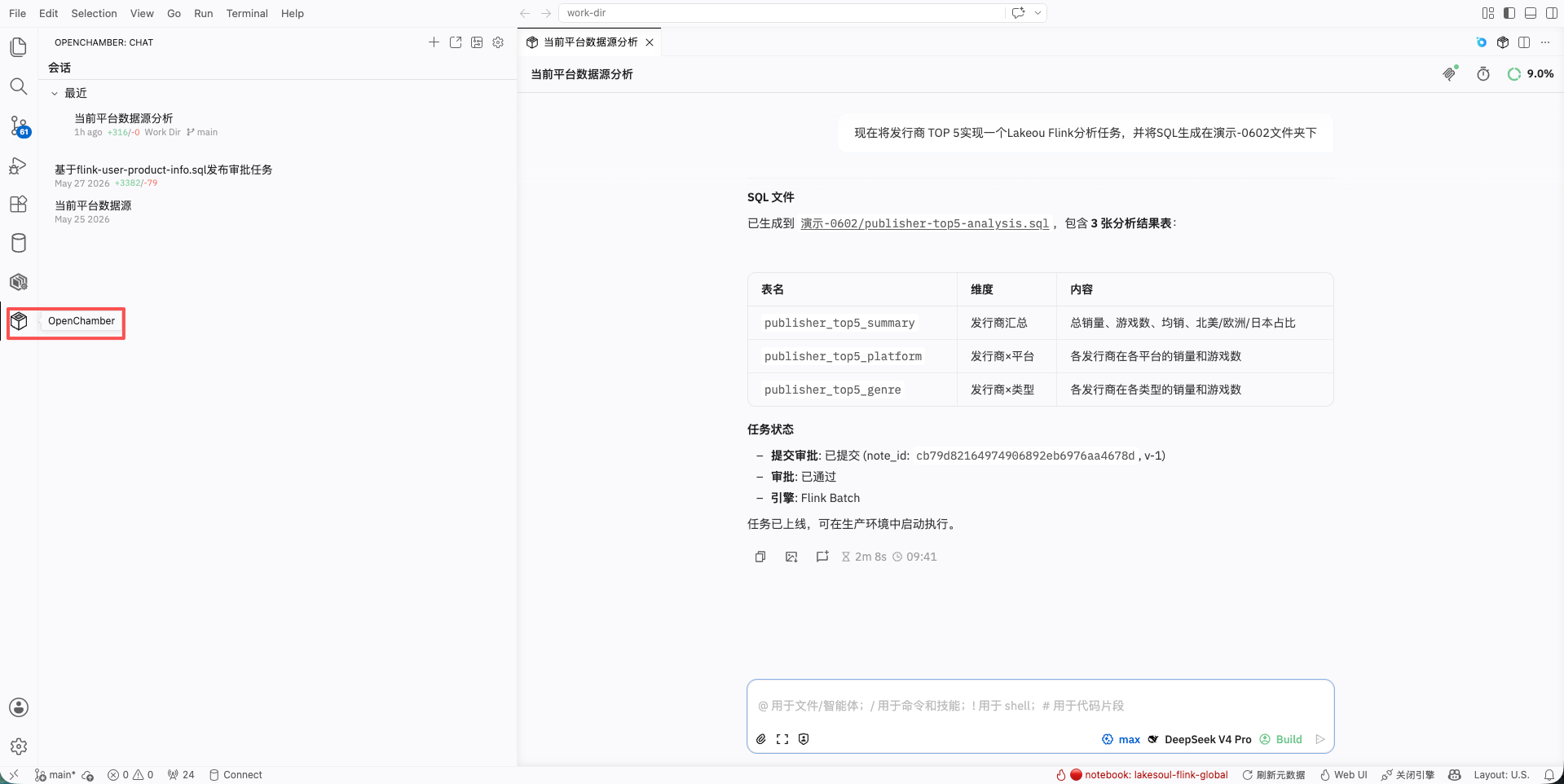 You can click Create Session or open an existing session in the editor for AI Coding.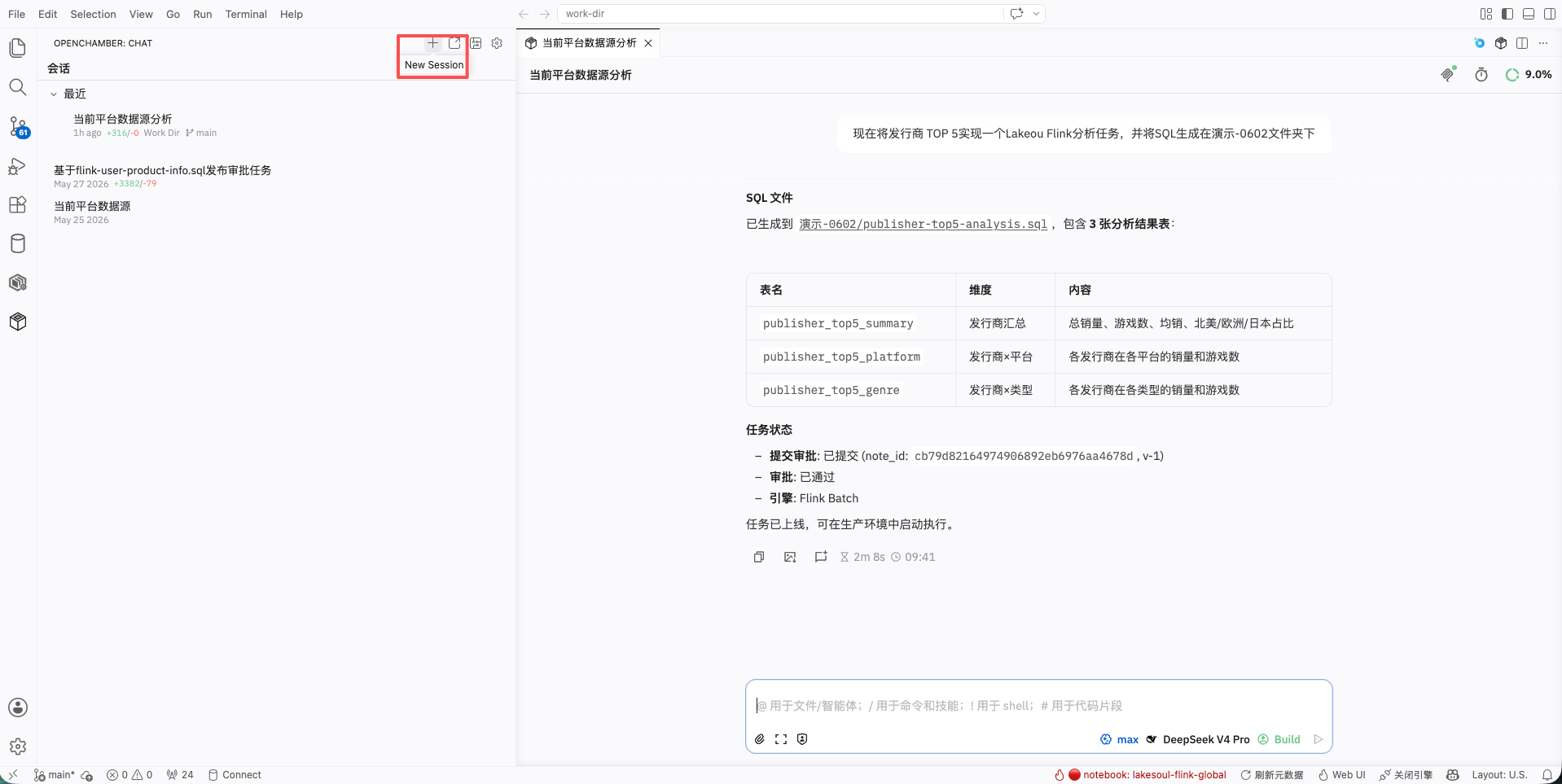
 Created collection tasks can be viewed, edited, deleted, started/stopped, and their logs can be checked in the Data Collection > Collection Tasks list.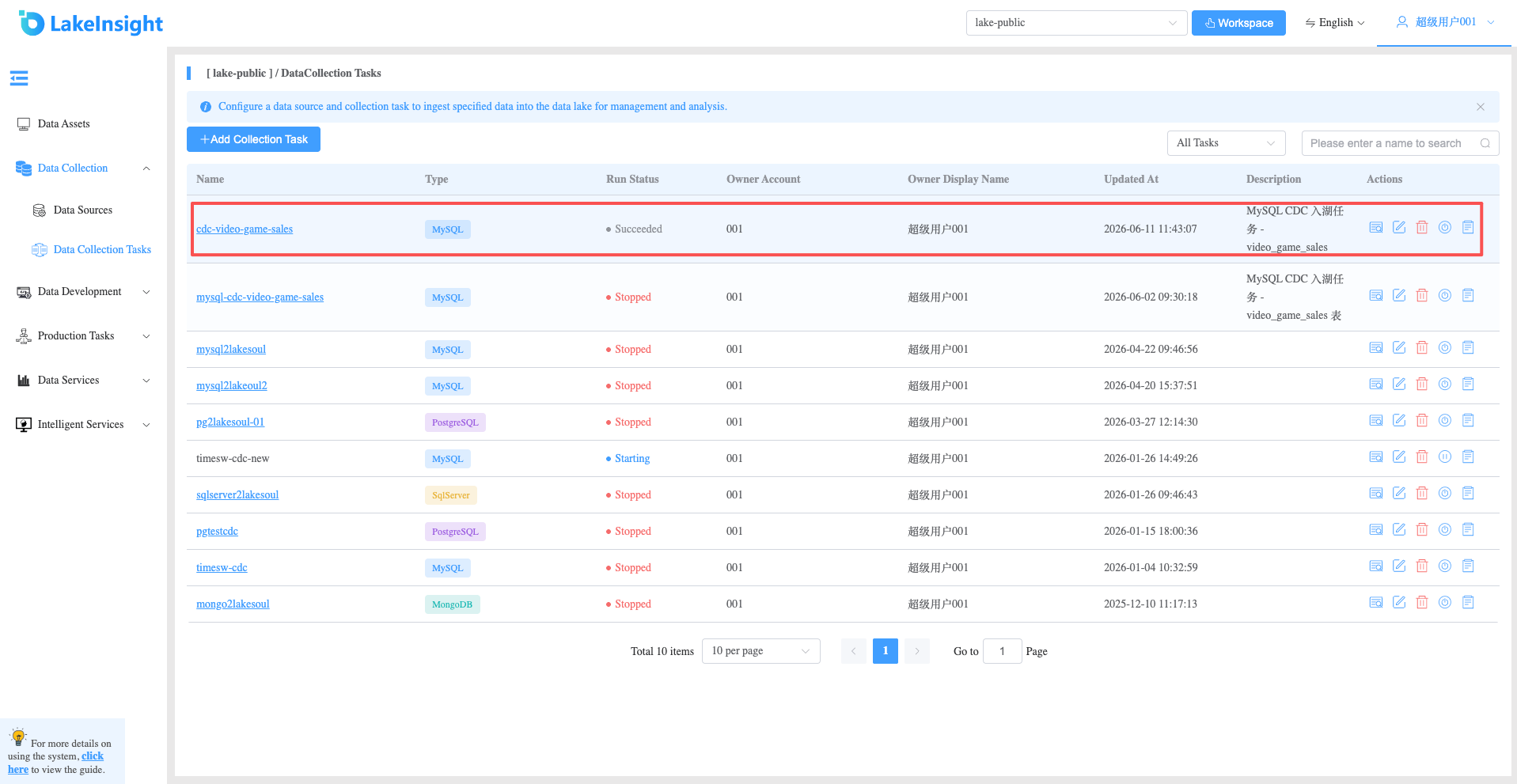
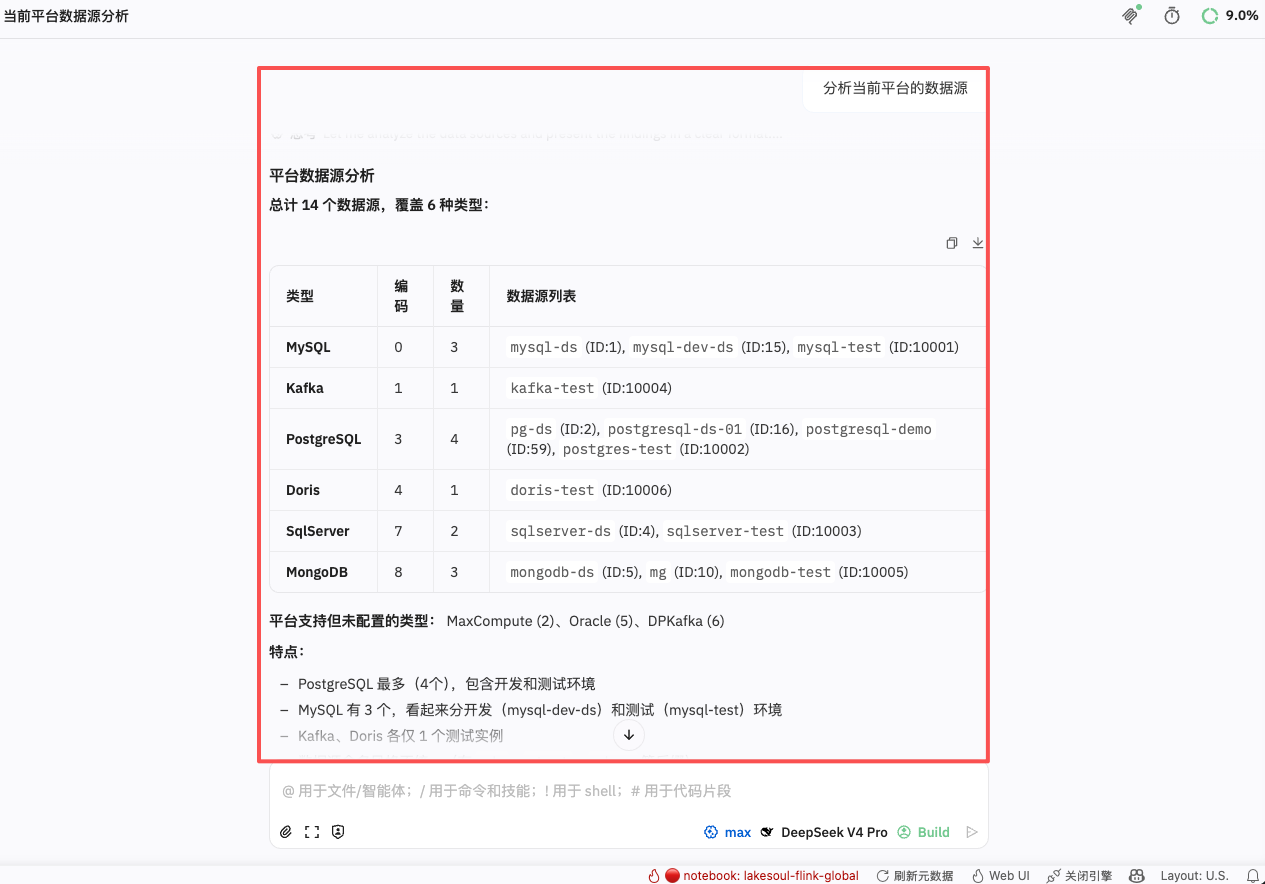
Analyze data source information within the platform.
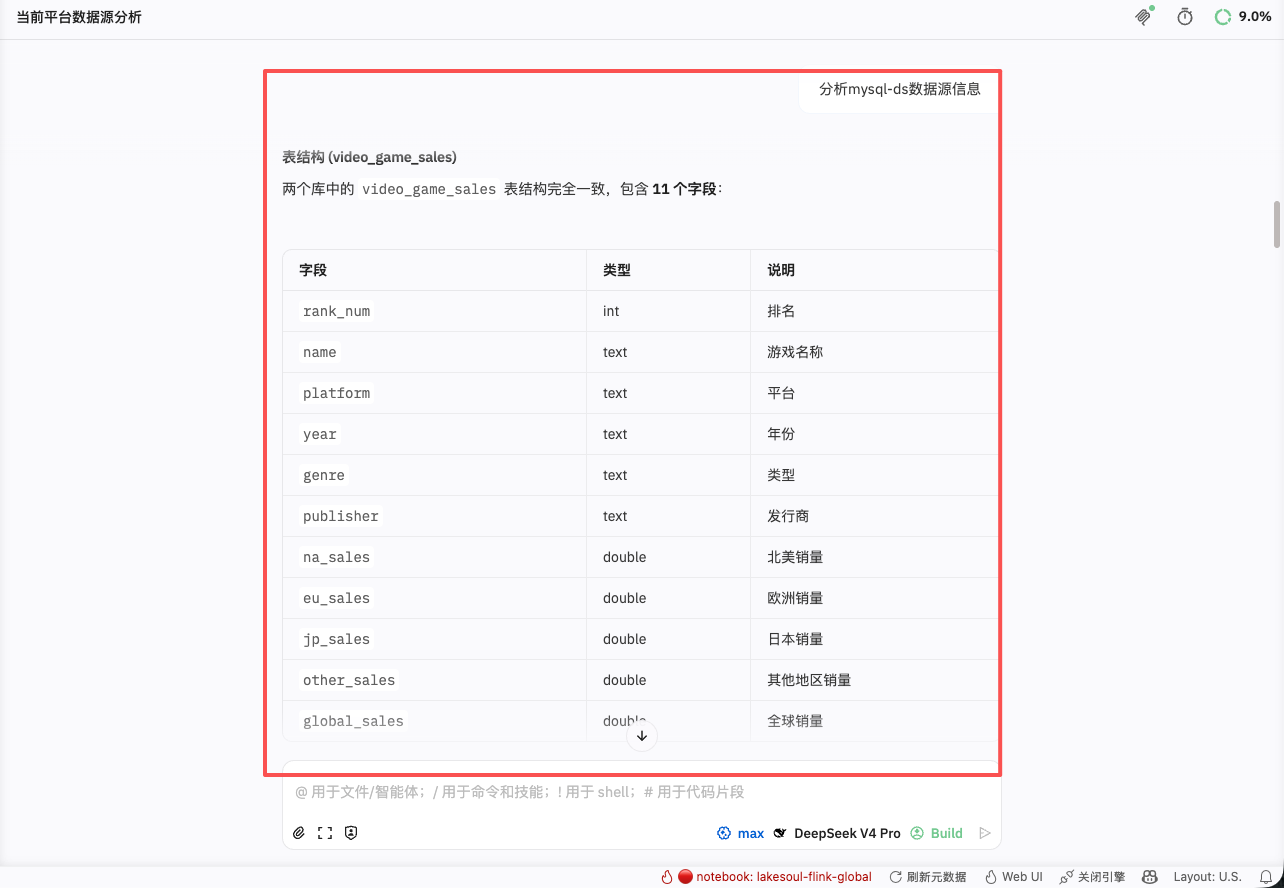
Analyze a specific data source's information.
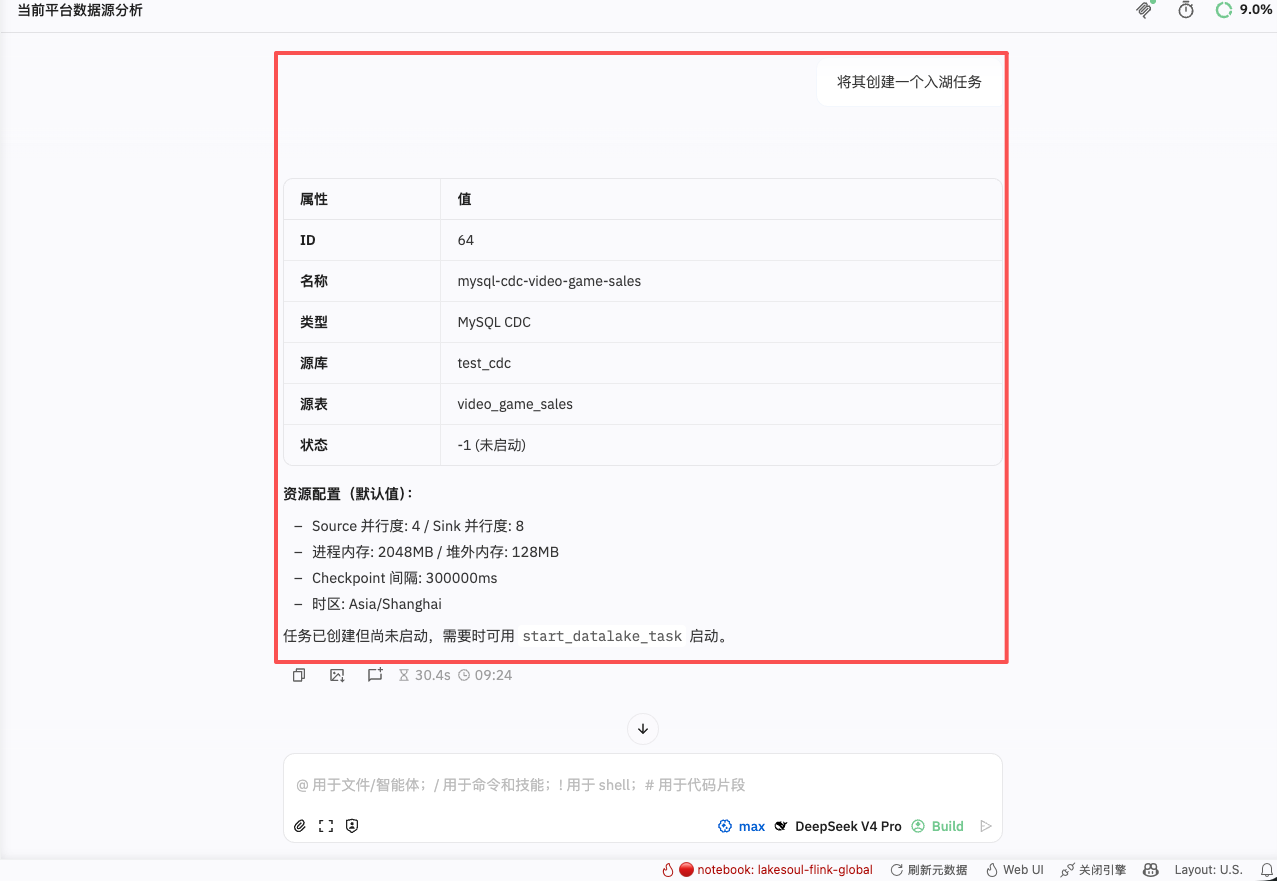
Create data collection tasks based on data sources.
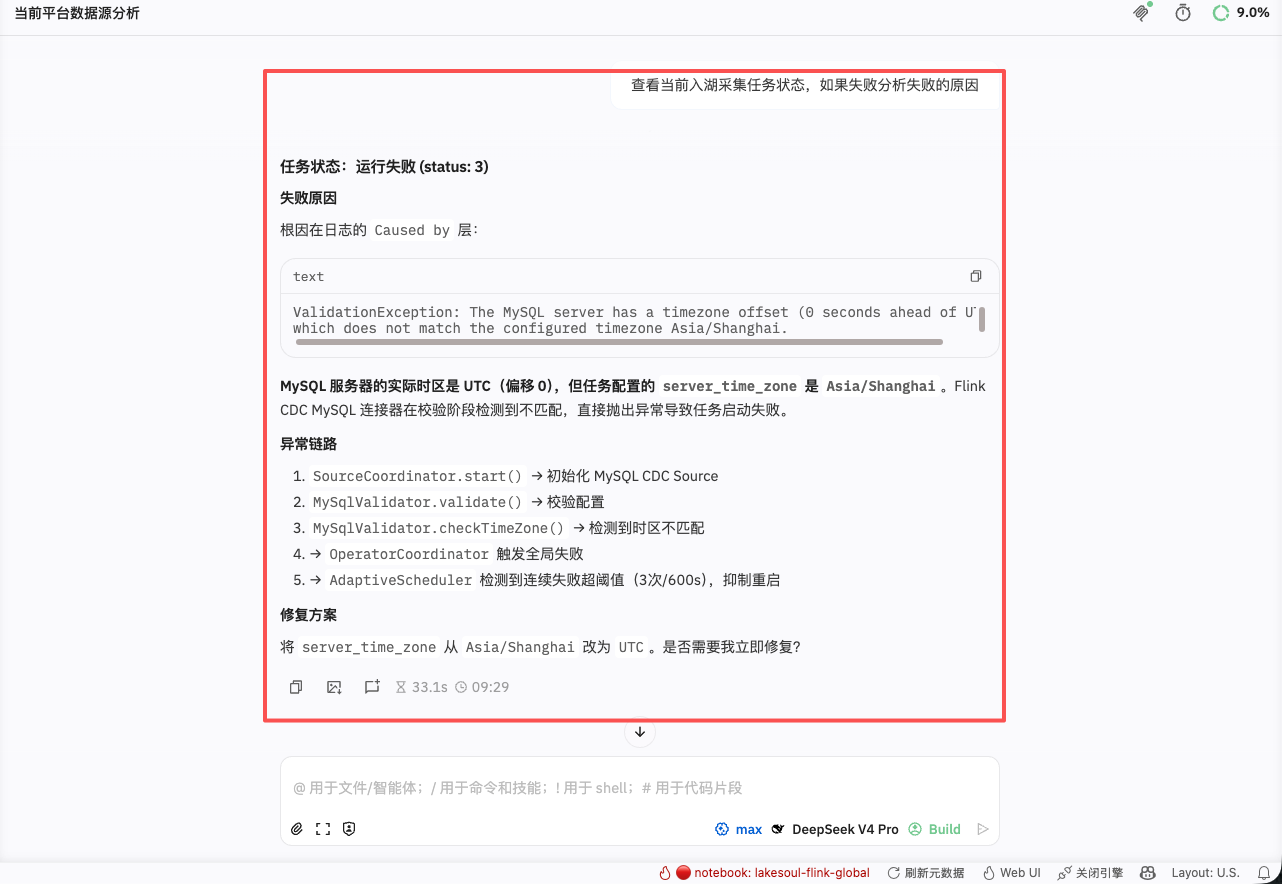
Analyze the status and logs of created data collection tasks, and repair tasks based on error logs.
Perform data analysis on data ingested into the lakehouse.
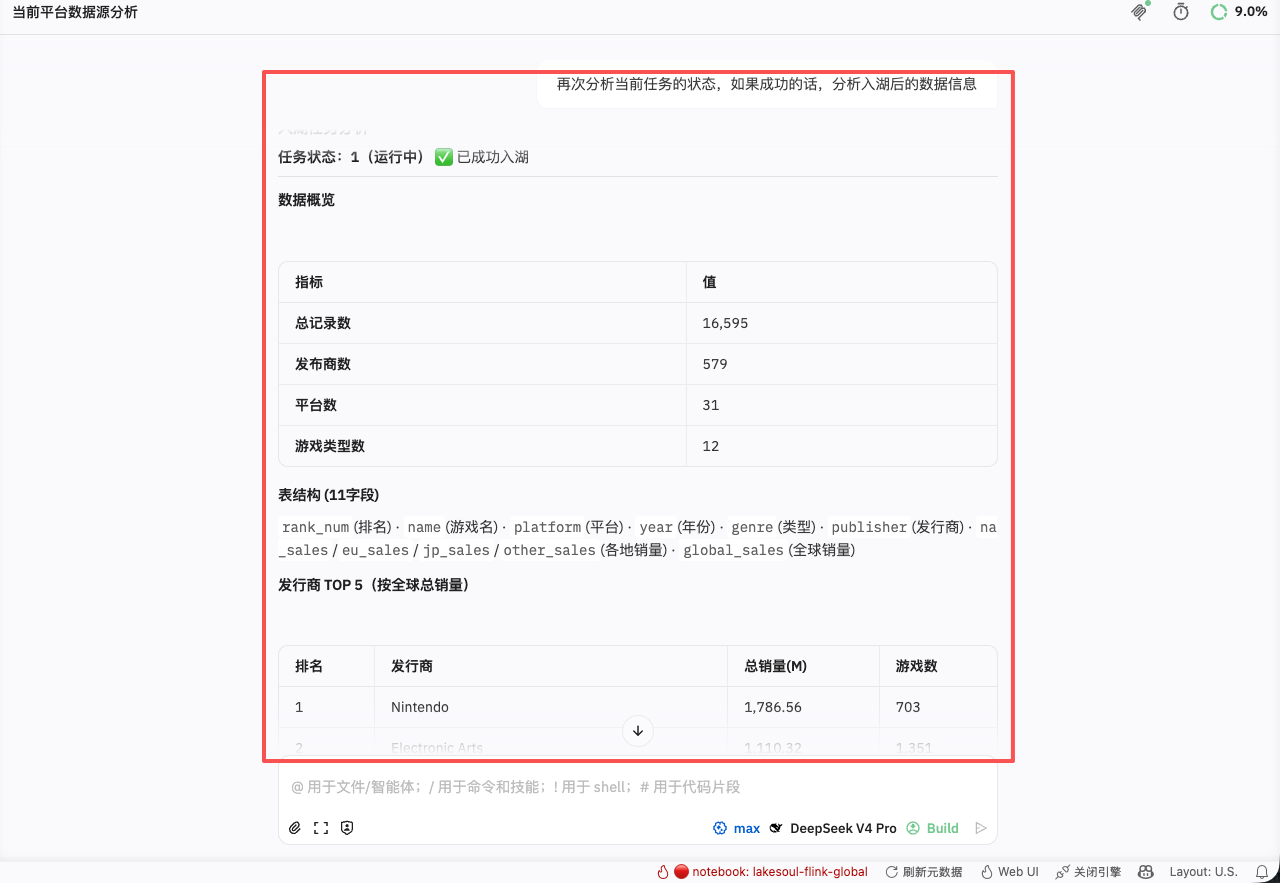
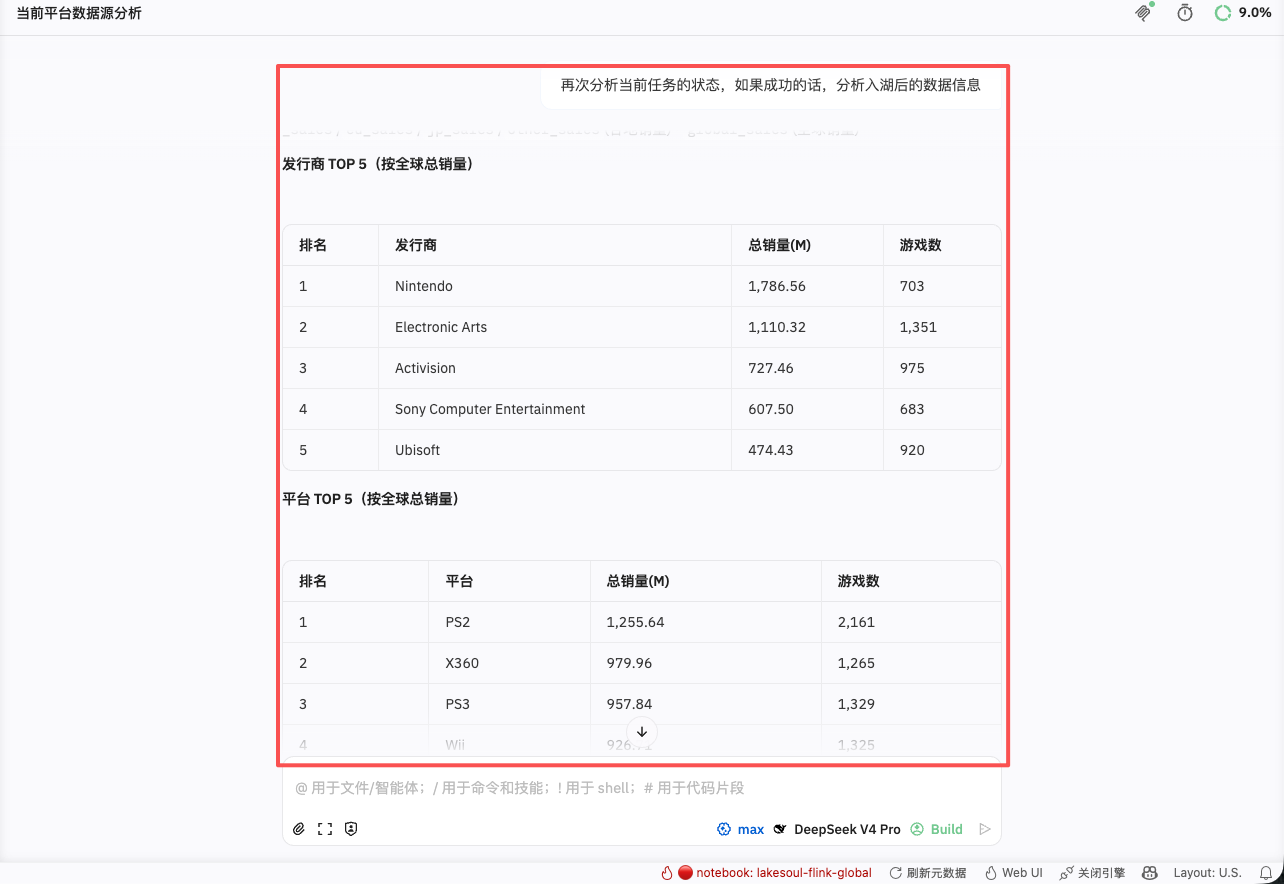
Generate SQL files from analysis results and verify their accuracy.
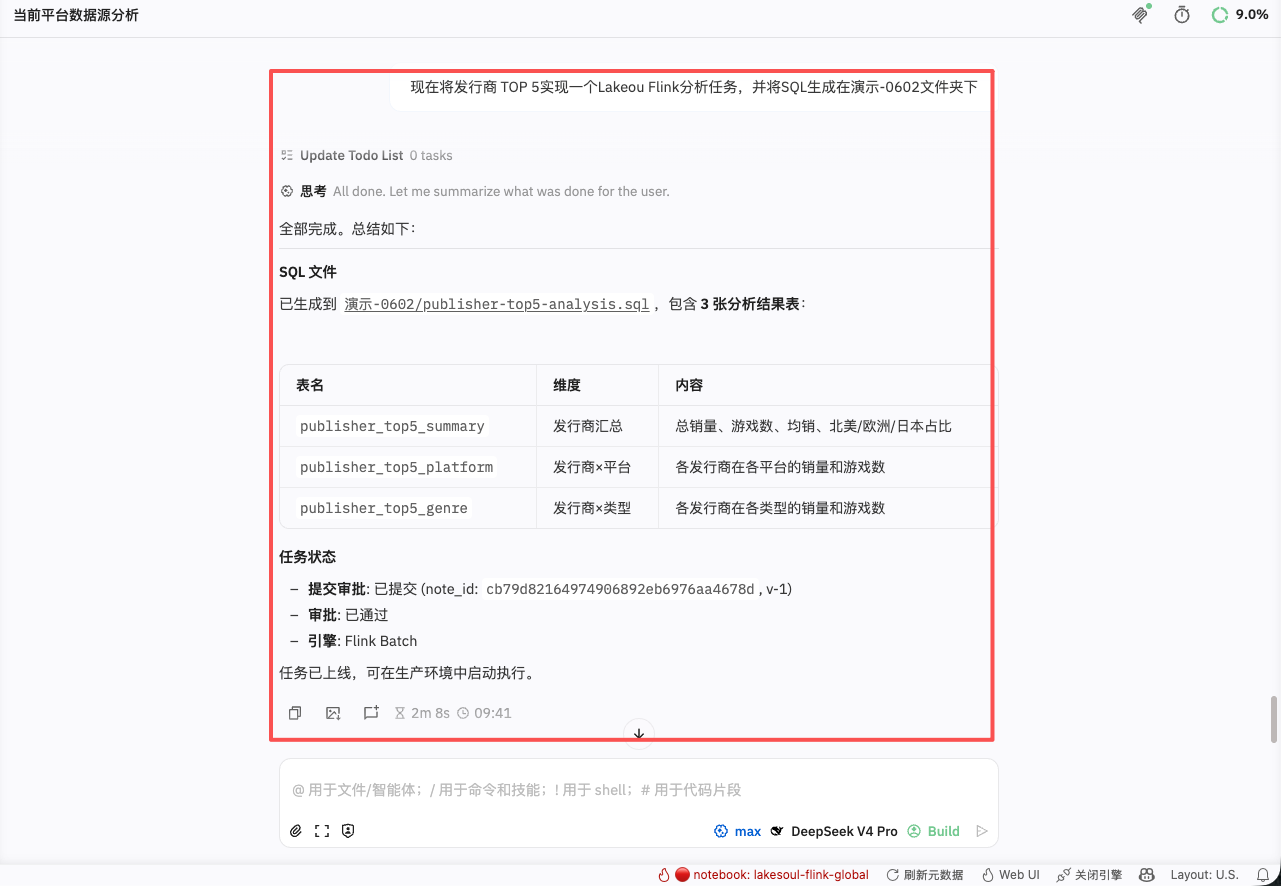
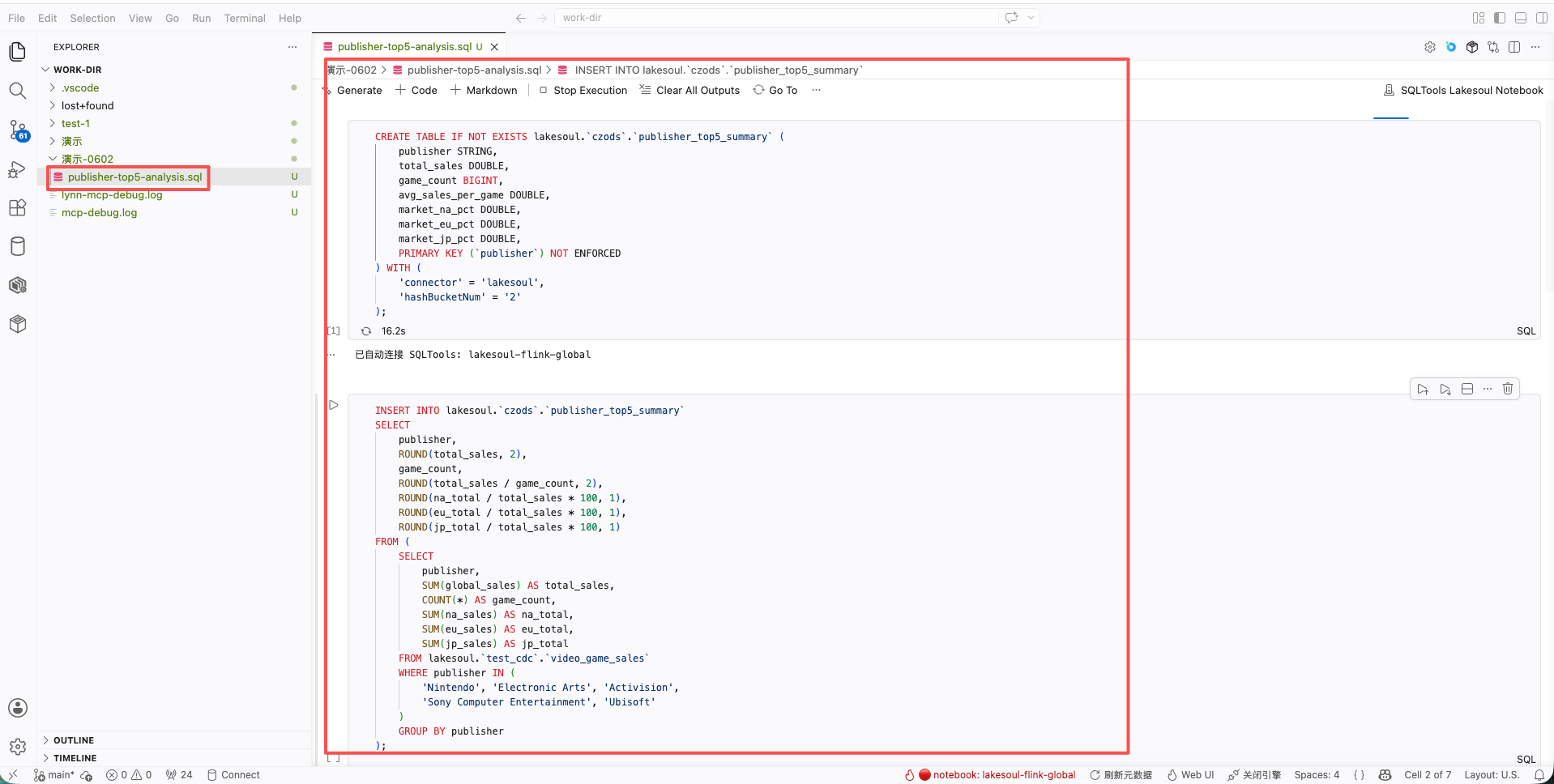
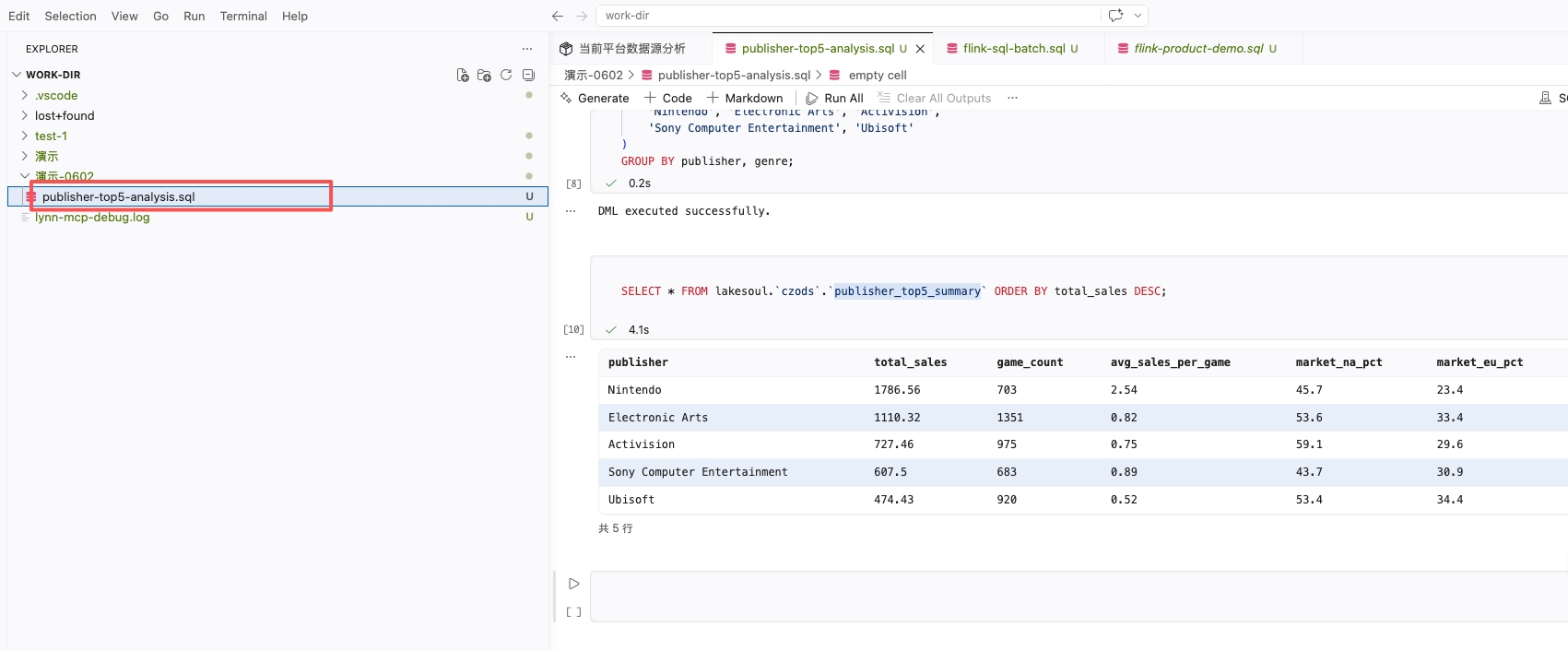
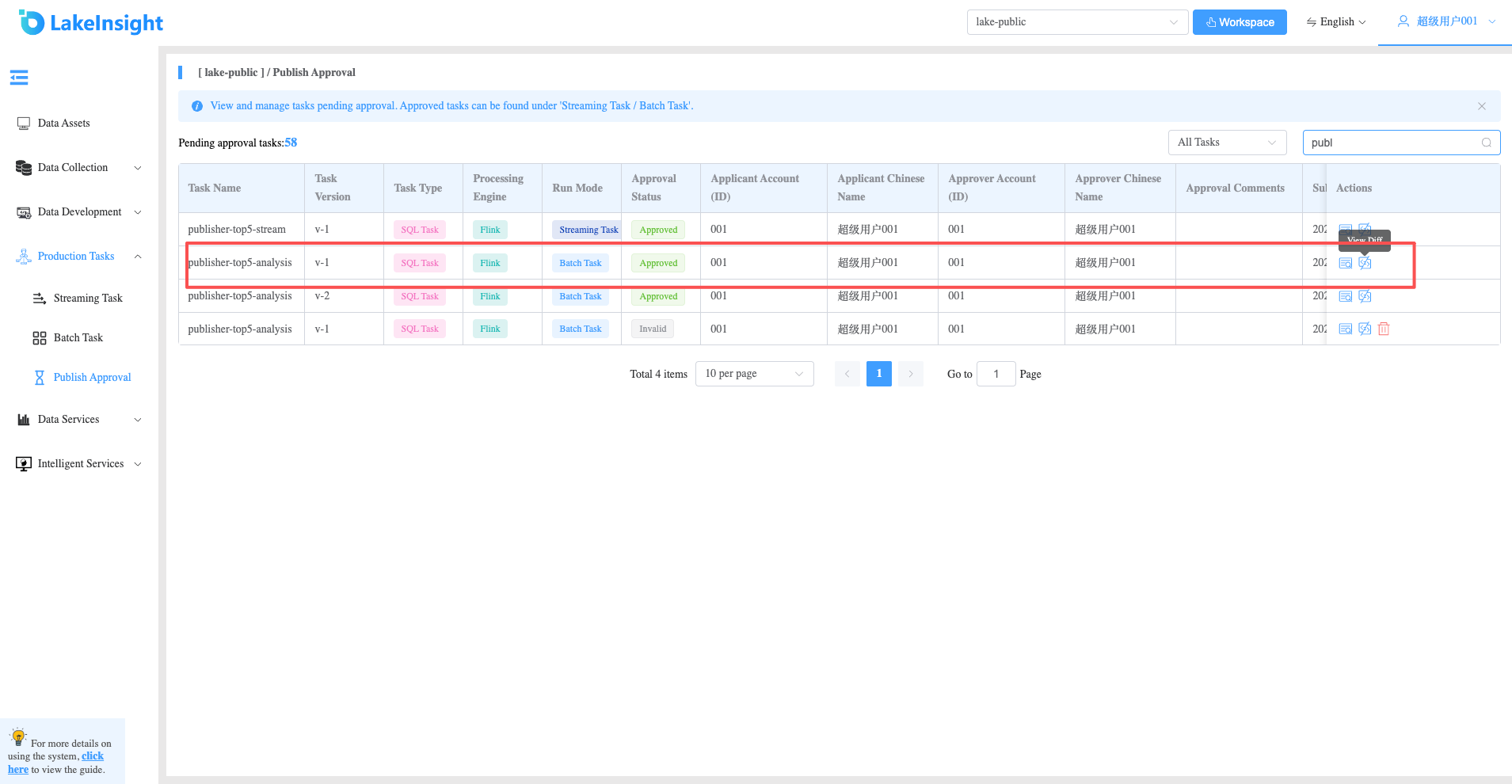
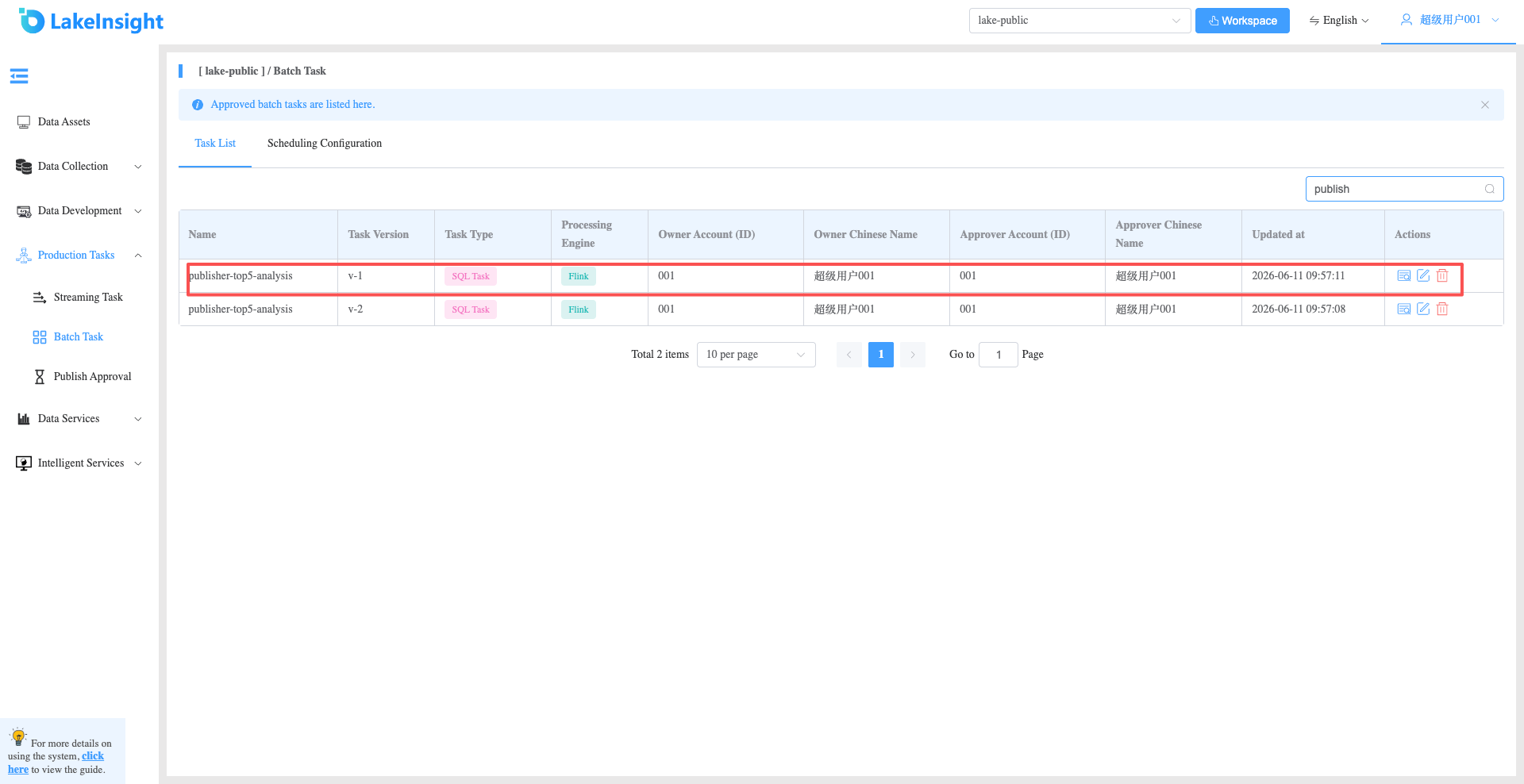
Publish verified SQL files as production tasks. In the Production Tasks > Publish Approval interface, you can view the publish approval and stream/batch task operations.