Ray Cluster Management
Open Intelligent Services > Ray Cluster Management to view Ray clusters in the current workspace. Switch between the following cluster types:
| Cluster type | Created through | Lifecycle |
|---|---|---|
| Standalone | Cluster management page | Shared by multiple tasks; retained after tasks finish and explicitly started, stopped, edited, or deleted |
| RayJob-managed | A task configured to use RayJob-managed, when the task runs | Owned by its RayJob; released according to task cleanup settings or cleaned up from this page |
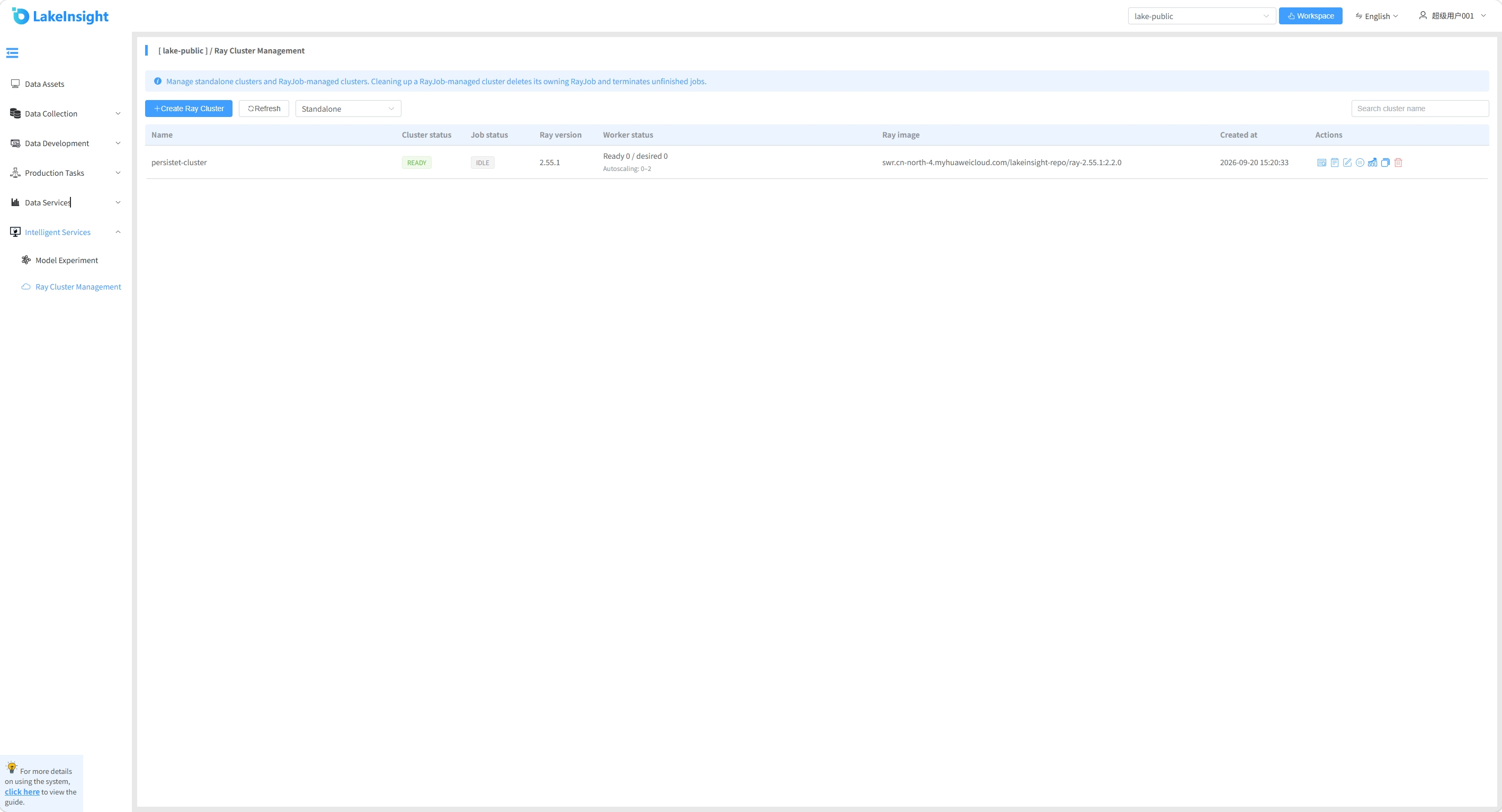
Use the cluster-type selector to switch between the Standalone and RayJob-managed lists. The table shows cluster status, task status, Ray version, Worker status, image, and creation time:
- Cluster status indicates whether the RayCluster itself is available. For example,
READYmeans the cluster is ready, whileSUSPENDEDmeans a Standalone cluster is stopped. Use details and diagnostic logs to investigate clusters that are creating, starting, or unhealthy. - Task status is the RayJob execution state and is independent of cluster status. A Standalone cluster may have no owning task. A RayJob-managed cluster shows its task status or an orphaned-cluster message.
- Worker status uses “Ready N / Desired M” for the currently ready and currently desired Worker counts. The desired count changes with load when autoscaling is enabled.
Create a Standalone cluster
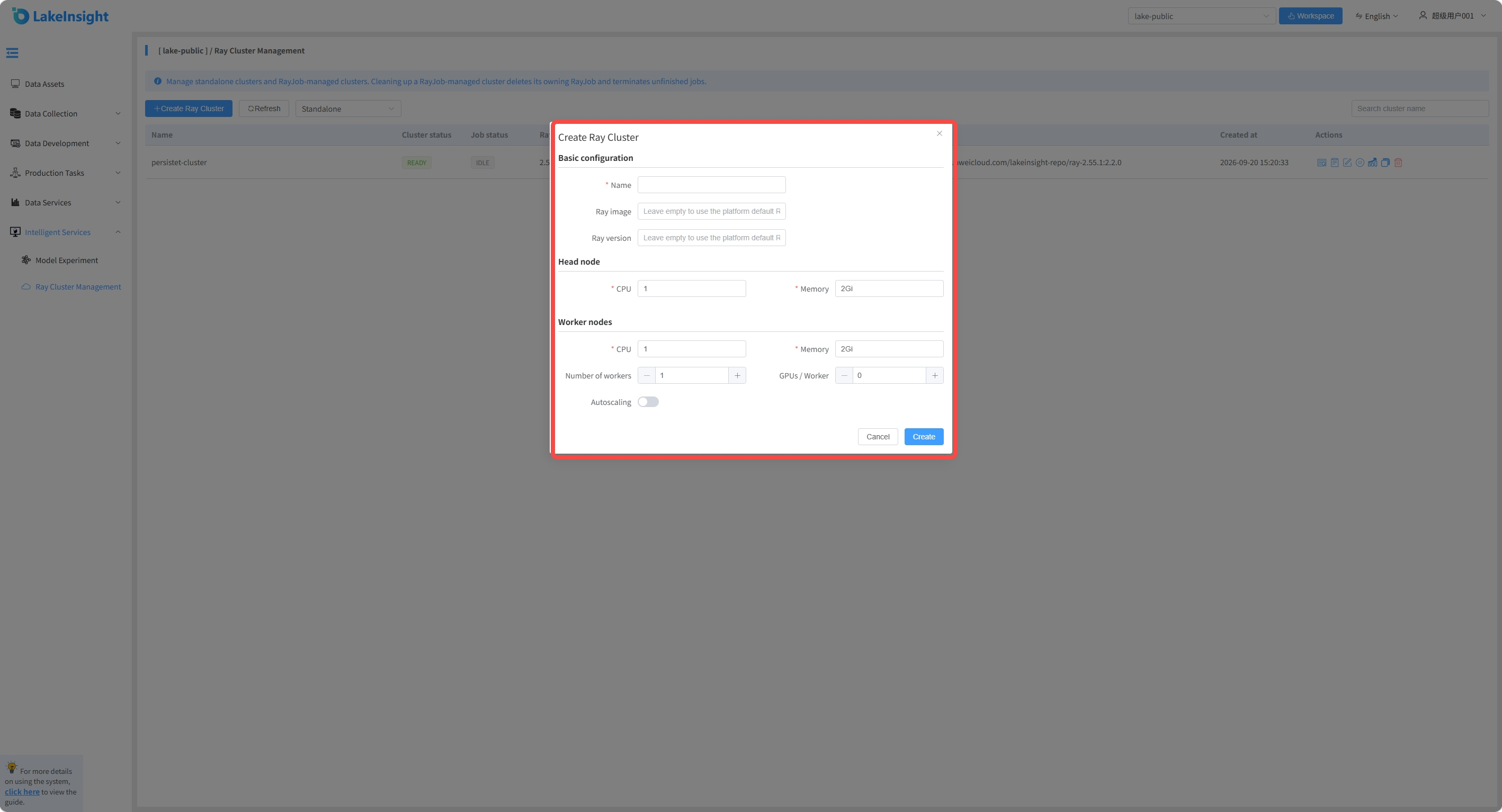
Click Create Ray Cluster and configure its name, Ray version, image, and Head/Worker resources.
- Name: Lowercase letters, digits, and hyphens, starting and ending with a letter or digit.
- Ray Version / Ray Image: Custom values are supported. The configured Ray version should match the image. A blank image selects the platform's default GPU image when GPU / Worker is positive, or the default CPU image otherwise. An explicit image takes precedence.
- Head CPU / Memory: Resources for the Head Pod. The platform configures zero schedulable Ray CPUs on the Head; compute tasks use Workers.
- Worker CPU / Memory: Resources per Worker Pod, not totals for the cluster.
- GPU / Worker: NVIDIA GPUs per Worker, defaulting to
0, allocated throughnvidia.com/gpu. Nodes must provide GPU resources and the image must contain compatible dependencies. This input currently does not support AMD GPU resource names. - Autoscaling: When disabled, the configured Worker count is fixed. When enabled, configure minimum and maximum Worker counts; the initial count uses the minimum.
With autoscaling disabled, enter a fixed Worker Count. For example, a value of 1 keeps one Worker. Each Worker receives the CPU, memory, and GPU resources entered in the form.
For example, autoscaling with minimum 0 and maximum 2 can start with one Head and no Workers. Workers are added as tasks request compute resources. The maximum of two Workers excludes the Head.
After enabling autoscaling, the fixed Worker Count is replaced by Minimum Workers and Maximum Workers. The meanings of Head resources, per-Worker resources, GPU, and image settings remain unchanged. The minimum controls how many Workers are retained when the cluster starts, and the maximum limits scale-out.
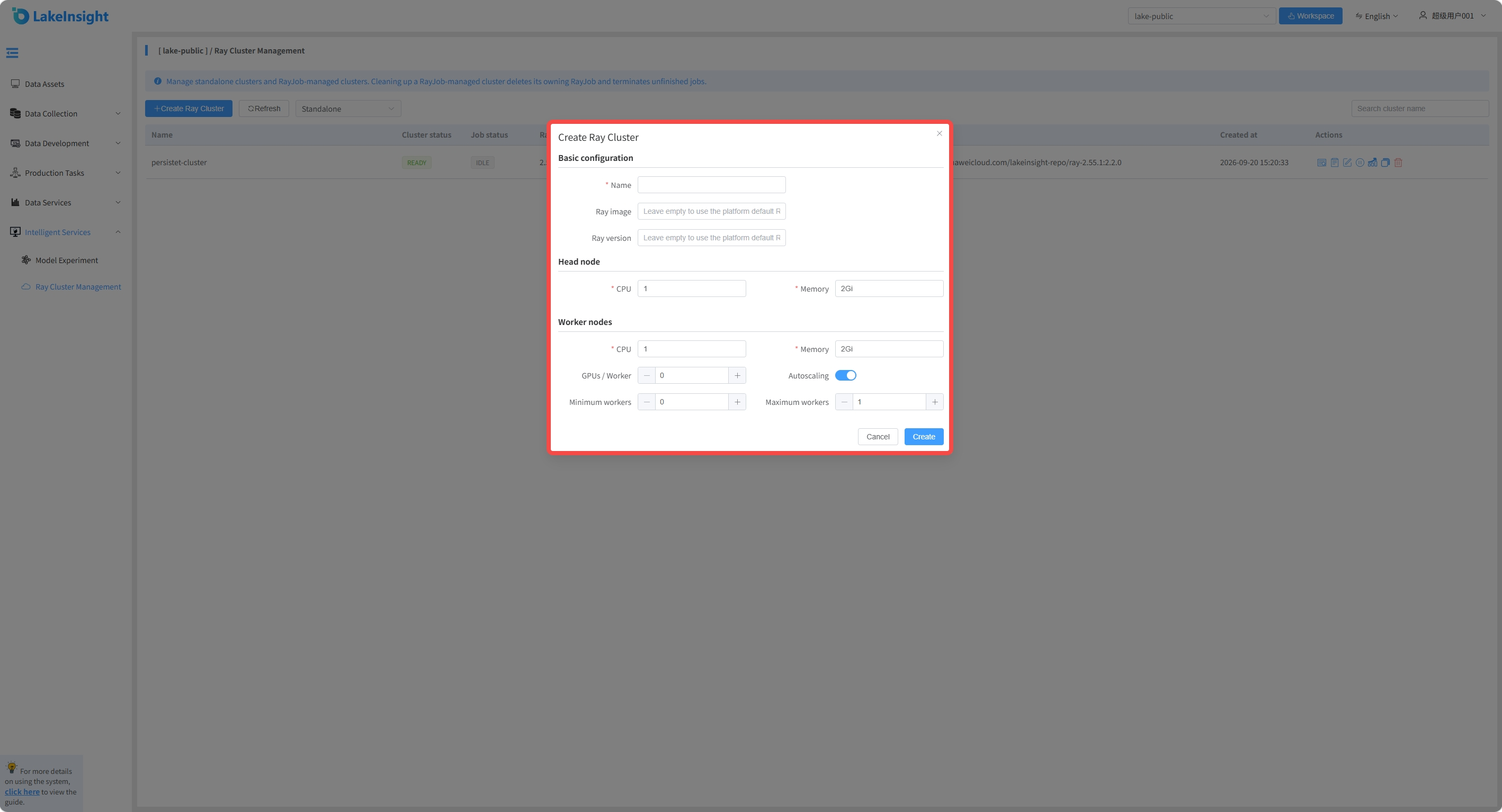
After creation is submitted, wait for READY before selecting the cluster in a task publishing or editing form.
View status and resources
- Cluster status indicates cluster readiness or suspension. Task status indicates job execution. A
READYcluster does not imply that a particular task succeeded. - Worker status: Ready N / Desired M shows ready Workers and the controller's current desired count. Until the controller reports a desired count, the configured replica count is used. With autoscaling, the desired count changes with workload demand; it is not the maximum.
Ready 0 / Desired 0is normal when the minimum is zero and there is no Worker demand. - Details shows Head/Worker CPU, memory, GPU, scaling range, and image settings. The list and statuses refresh by polling, rather than instantaneously.
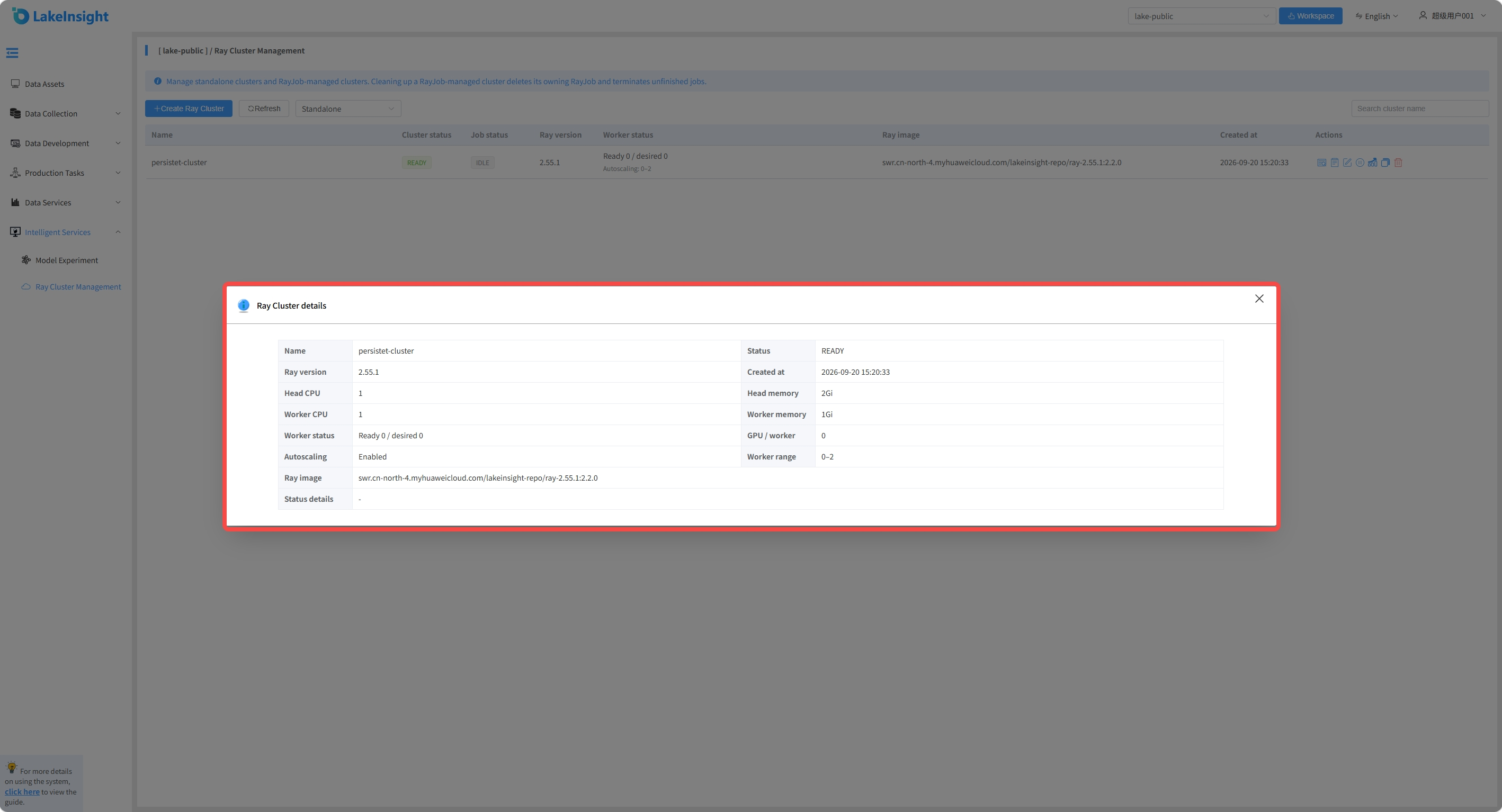
Click Details in the action column to view the Ray version and image, per-node Head/Worker resources, GPU count, autoscaling state, and Worker range. These are the current cluster settings. For an autoscaling cluster, use the list status or Dashboard for the live Worker count.
View diagnostic logs and Dashboard
Click Diagnostic Logs to inspect Kubernetes Events associated with the cluster and logs from current Head/Worker Pod containers. Use this view for Kubernetes-level problems such as image pull failures, insufficient GPU or other resources, scheduling failures, and Pod startup failures. The page shows a limited amount of recent output, and container logs may no longer be available after a Pod is deleted.
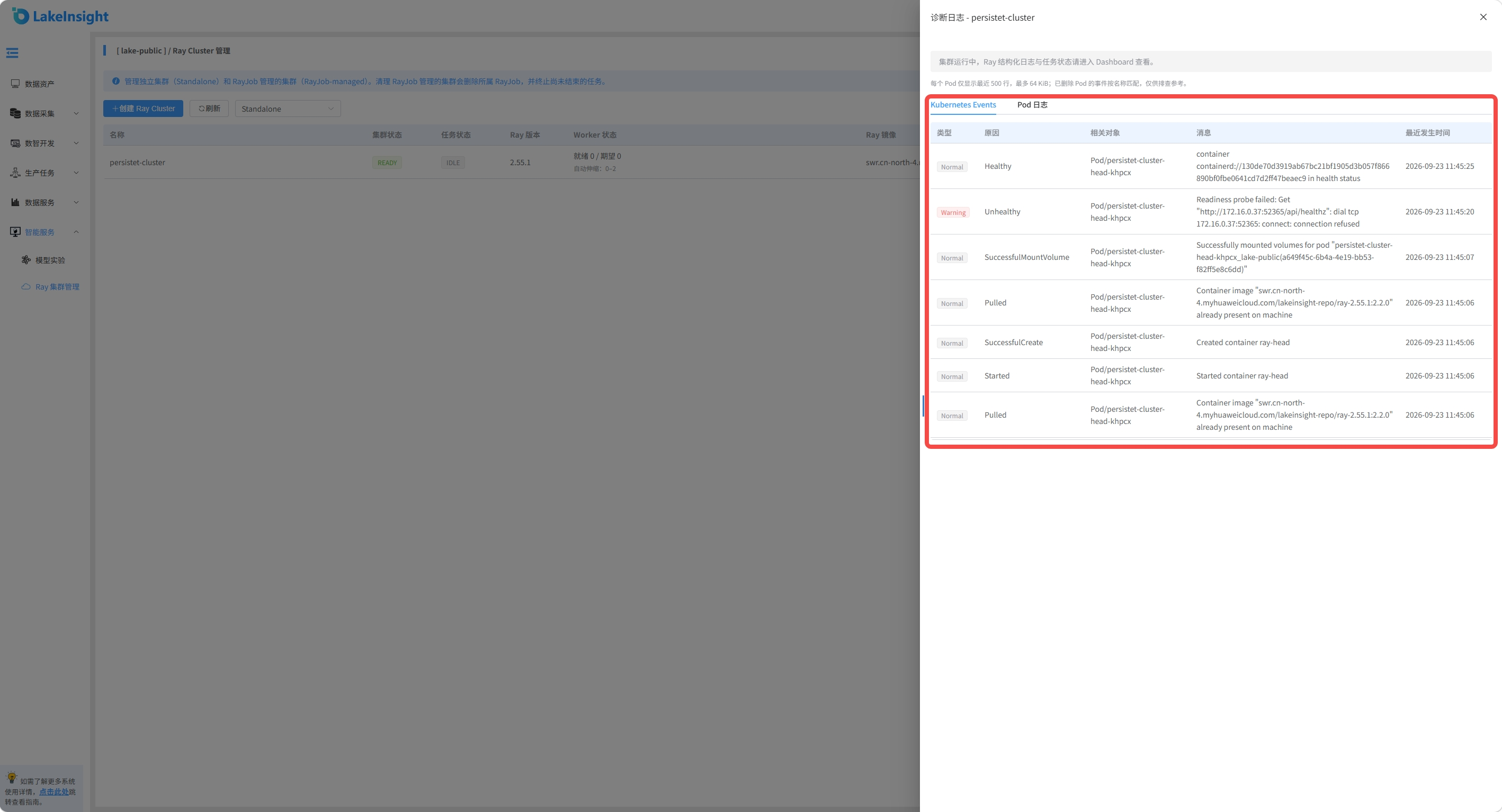
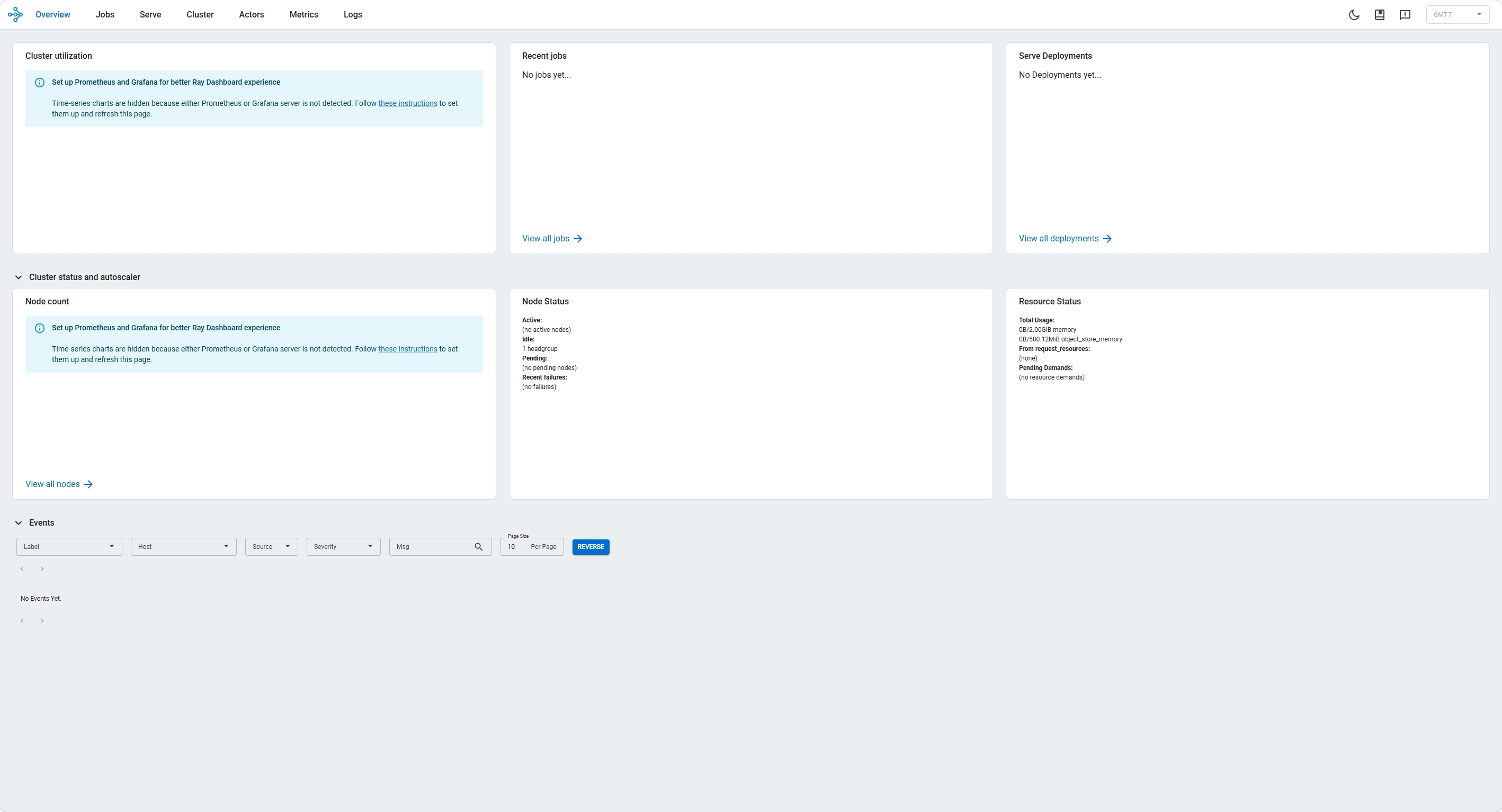
After the cluster reaches READY, prefer Open Dashboard in the action column for Ray cluster resources, jobs, tasks, and runtime logs. Dashboard is the better view for jobs already submitted to Ray. If the Head has not started, Dashboard is unreachable, or Pods are not ready, return to Diagnostic Logs and inspect Kubernetes Events and Pod logs.
Bind Ray tasks
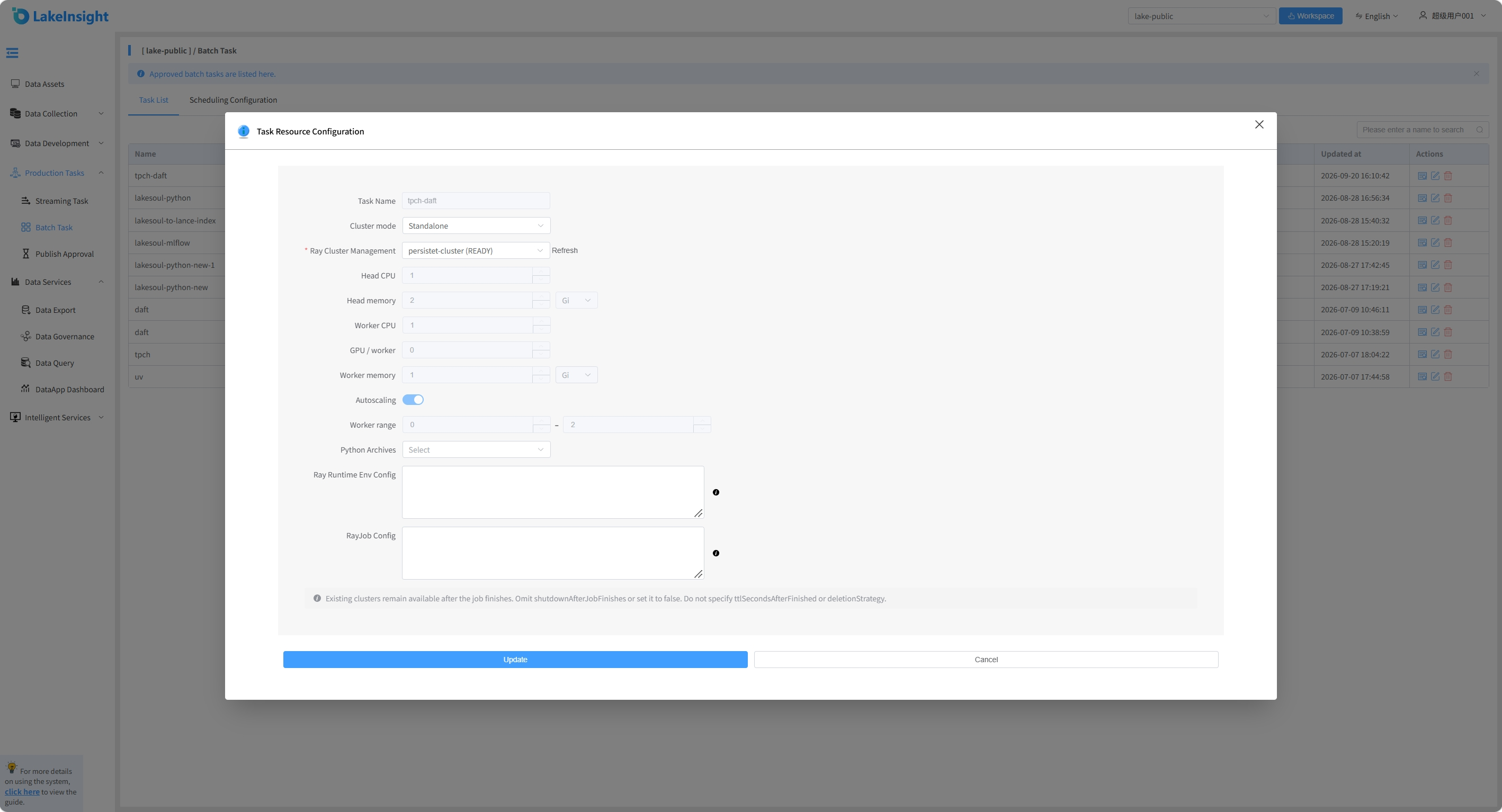
When publishing a Ray task from the IDE or editing a published task, choose Standalone and select a ready, unsuspended cluster in the current workspace. Head/Worker settings display the cluster's current resources as read-only values. The task uses the cluster's image. Project packages, Python Archives, and Runtime Env remain task-level settings.
After publishing a task, open Task Resource Configuration from the production task list. Change the cluster mode or select another cluster, then click Update to save.
Standalone: Head/Worker CPU, memory, GPU, autoscaling, and Worker range reflect the selected cluster's current configuration. These fields are read-only in the task form. Python Archives, Ray Runtime Env, and RayJob configuration remain editable task settings.
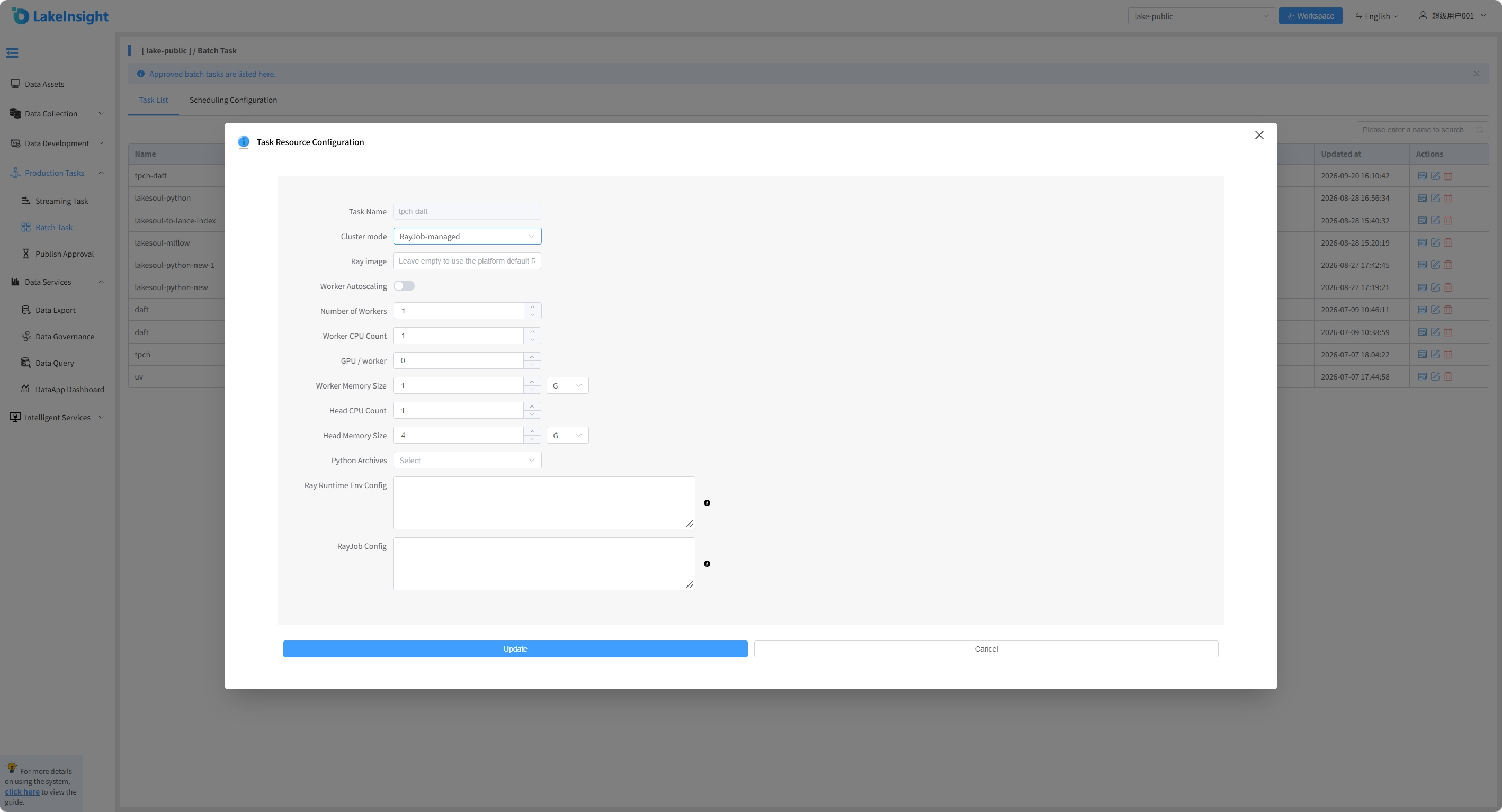
RayJob-managed: A dedicated RayJob-managed cluster is created when the task runs. Configure its Ray image, Head/Worker CPU and memory, GPU per Worker, and either a fixed Worker count or autoscaling limits. Python Archives, Ray Runtime Env, and RayJob configuration can also be configured for the task.
Bindings contain both the cluster name and UID. After deleting and recreating a cluster with the same name, select it again in each task configuration; the platform does not automatically bind tasks to the replacement. Changing a task's cluster configuration does not migrate an already running job.
For a Standalone cluster, RayJob settings must omit ttlSecondsAfterFinished and the entire deletionStrategy block. Omit shutdownAfterJobFinishes or set it to false. See Ray Job publishing configuration for complete rules and examples.
Stop, edit, start, and delete
- Stop suspends the Standalone cluster and releases its Head/Worker Pods. Running jobs are interrupted and corresponding active platform task records are marked failed. Stopping does not wait for tasks to finish. Review the impact shown in the interface first.
- Edit requires stopping the cluster and waiting for
SUSPENDED. Update the image or resources, save, then start the cluster to apply the configuration. - Start restores the cluster. Wait for
READYbefore submitting new tasks. Starting a cluster does not automatically resume previously failed tasks. - Delete releases the cluster and its Pods. Review both running jobs and tasks bound to the cluster; bound tasks must select a cluster again before subsequent runs.
Clean up RayJob-managed clusters
Select RayJob-managed to view task-created clusters and their owning RayJobs. Their resources are managed through task configuration, and they are not Standalone targets for binding other tasks.
Clean Up Resources deletes the owning RayJob and its associated cluster, terminating unfinished tasks. Orphaned clusters whose RayJob no longer exists can also be cleaned up. Save any logs needed for investigation before cleanup, as logs may become unavailable when Pods are removed.
Without an explicit cleanup policy, the platform adds shutdownAfterJobFinishes: true and ttlSecondsAfterFinished: 1800, automatically releasing the RayJob-managed cluster 30 minutes after completion. Override this policy in the task's RayJob configuration: set shutdownAfterJobFinishes: false to disable automatic cleanup, or configure a custom TTL or deletionStrategy.deletionRules. Explicit cleanup settings take precedence without injected defaults. Standalone clusters are unaffected. The new defaults apply to subsequently submitted RayJobs, not existing resources.