Orders
Every recharge order created in the Recharge Center appears under Orders. Go to Usage & Billing → Orders to view all recharge orders under the organization, with status filters.
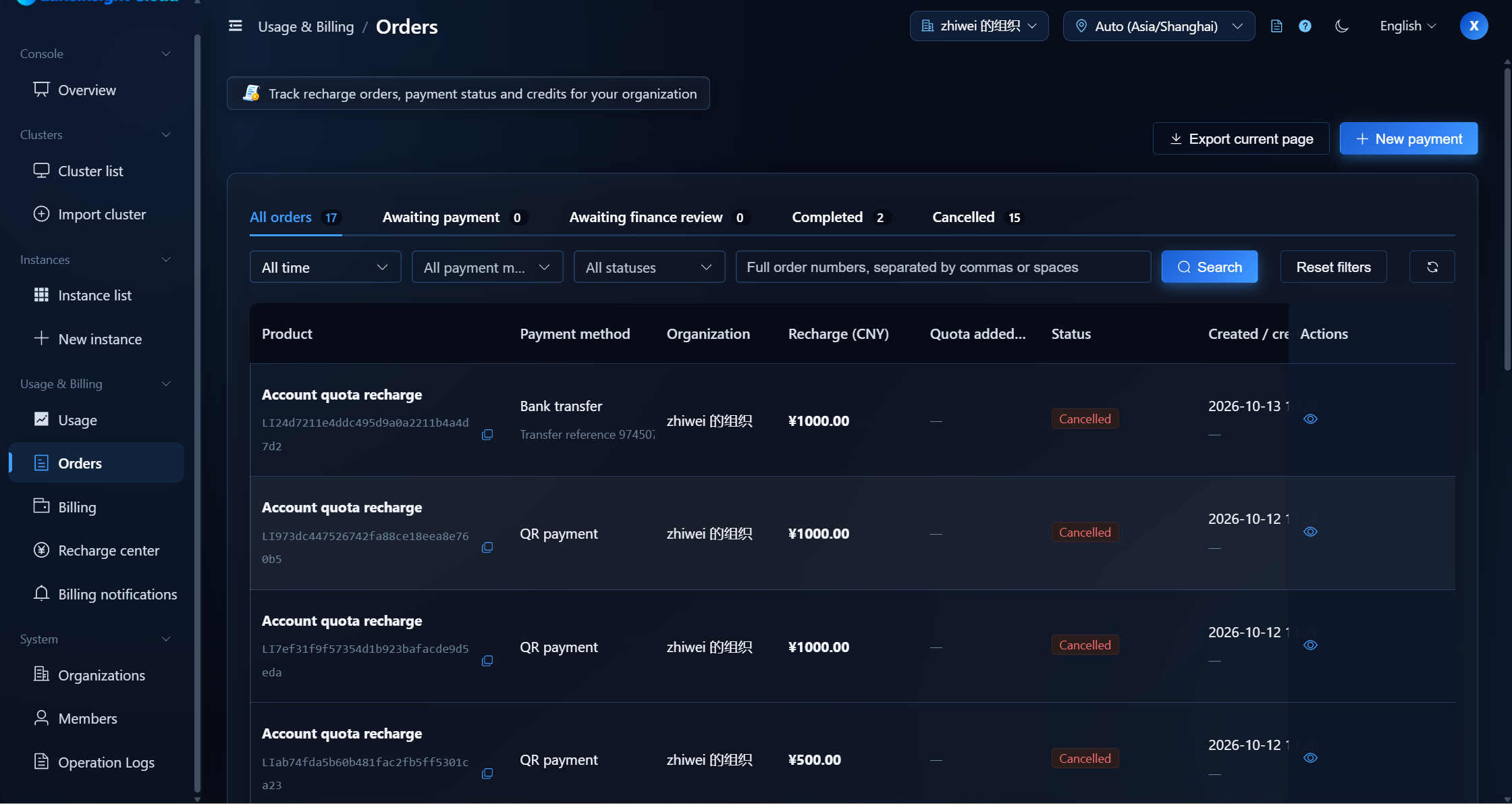
Order Status
| Status | Description |
|---|---|
| Waiting for payment | Order created; complete the payment within the validity period |
| Confirming | Payment status is being confirmed; refresh for the latest status |
| Partially paid | Part of the funds has been credited; additional payments are welcome |
| Awaiting review | Remittance details submitted; waiting for finance to verify |
| Credited | Recharge credited; the new quota has been added |
| Cancelled | Order cancelled; do not use the old QR code to pay |
| Expired | The payment validity period has passed; if unpaid, cancel and create a new order |
| Submit failed | The order failed to submit; check the original order or contact an administrator |
| Review required | The status needs manual review; contact an administrator to confirm payment and crediting |
tip
Closing the payment window does not cancel the order. Unfinished orders can be resumed or cancelled under Orders; after cancellation, do not use the old QR code to pay — if you have already paid, the system will still credit the balance once the payment is confirmed.
Order Details
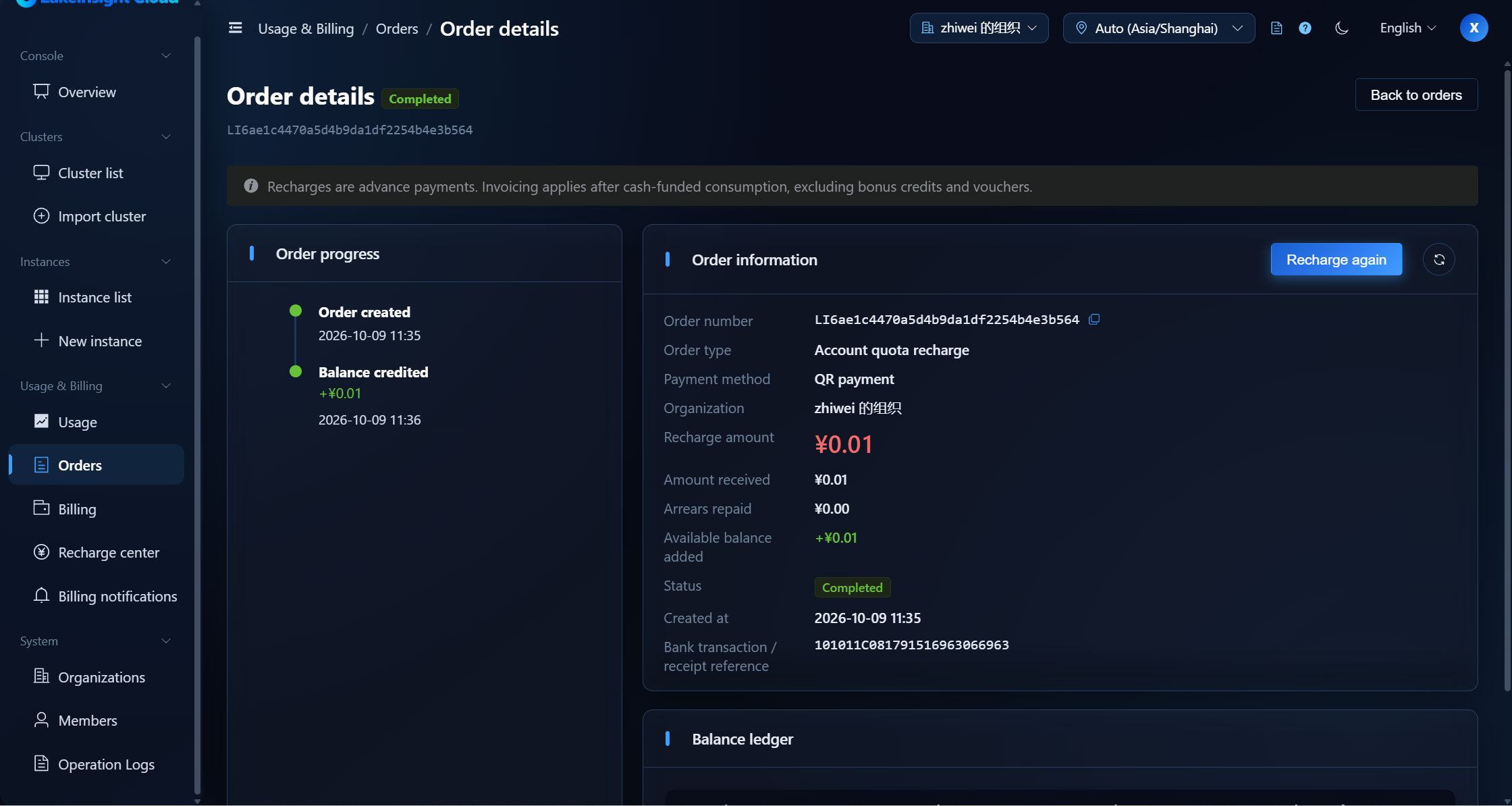
Click an order to open its details page, where you can see:
- Processing timeline: create order → submit remittance details → finance review → quota credited
- Credit ledger: the bank transaction, received amount, arrears settled, and quota added for this credit
- Remittance info: the receiving account, remittance code, and filled-in remittance details (for transfer orders)
- Receipt attachments: the uploaded bank receipts
- Payment validity: the order's expiry time, plus actions such as resume payment / cancel
Export
The order list supports exporting the current page for offline reconciliation.
Next Steps
To start a recharge, see Recharge Center.
To view billing messages, see Billing Notifications.