Recharge Center
Go to Usage & Billing → Recharge Center, select a recharge amount, and complete the payment. The recharge amount is credited to the organization's shared balance, which is shared by all instances under the organization.
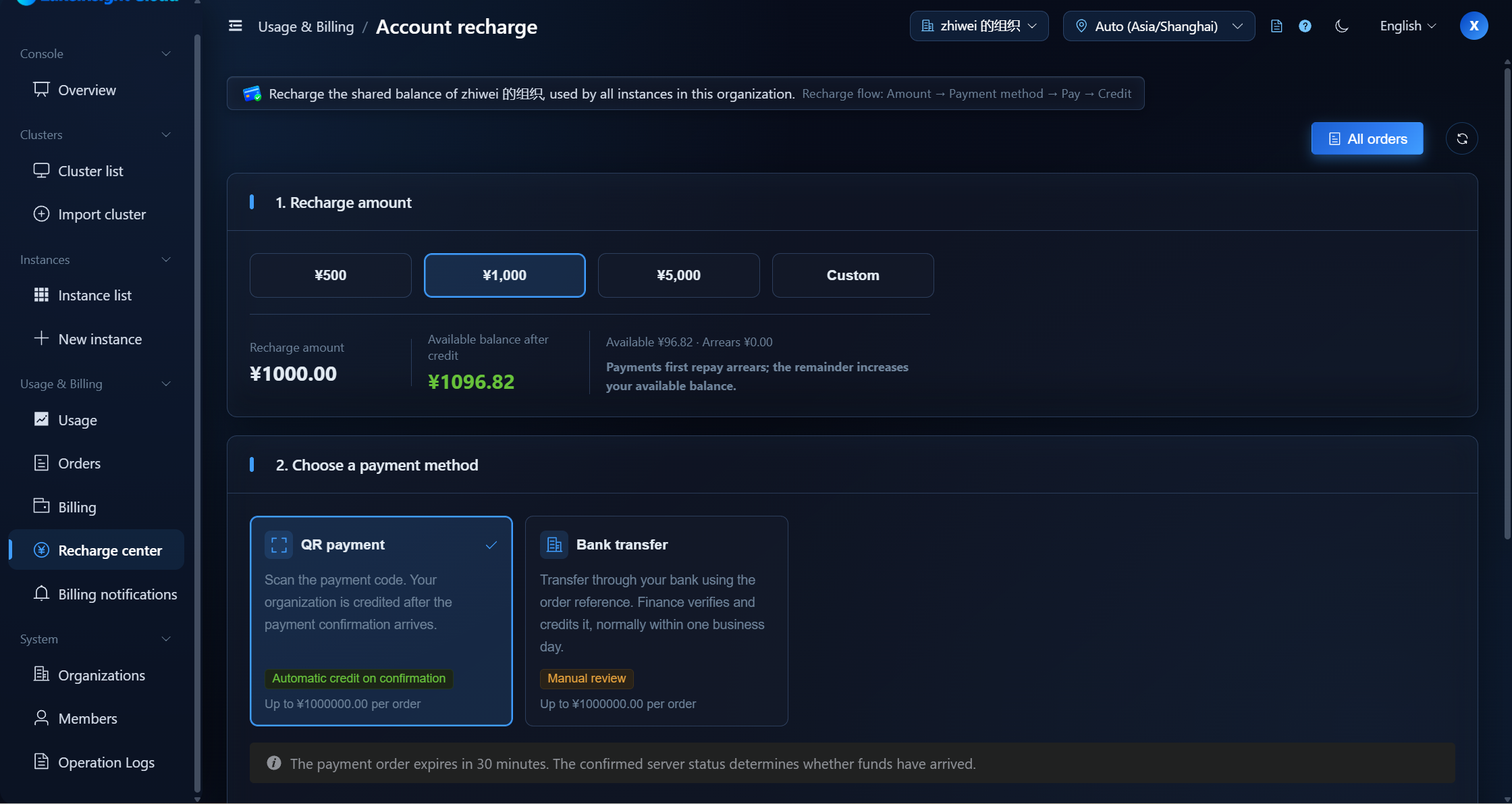
Recharge Amount
- Preset amounts: ¥500 / ¥1000 / ¥5000 (options outside the allowed range are hidden), or choose custom and enter an amount
- Each payment method has a single-transaction maximum; the allowed range is shown on the page
- The page shows the recharge amount, the available balance after the recharge, and the current available balance and arrears — crediting order: arrears are settled first, and the remainder adds to the available balance
Payment Methods
| Method | Crediting |
|---|---|
| QR code payment | Credited automatically once the payment confirmation is received |
| Corporate bank transfer | Credited after manual review by finance, usually within 1 business day |
Crediting Rules
- After an order is created, complete the payment within the validity period (subject to platform configuration); expired orders are closed
- Crediting order: arrears are settled first, and the remainder adds to the available balance
- QR code payments are credited automatically by the payment callback; corporate bank transfers are credited after finance verifies the bank transaction
- Closing the payment window does not cancel the order. Unfinished orders can be resumed or cancelled under Orders
If there is an unfinished order, resume or cancel it before creating a new recharge order. After cancellation, do not use the old QR code to pay; if you have already paid, the system will still credit the balance once the payment is confirmed.
QR Code Payment
- Select the recharge amount, choose QR code payment, and submit.
- Complete the payment by scanning the aggregated collection QR code shown on the page with a supported app.
- Once the payment confirmation is received, the balance is credited automatically.
Corporate Bank Transfer
Step 1: Complete the transfer
- Choose Corporate Bank Transfer and submit; the page shows the order's 8-digit remittance code plus the fixed account name, bank, and account number.
- Make the transfer through online banking or at a counter, and enter the remittance code in the transfer memo (one code per order — do not omit it or use another order's code).
- After transferring, you can contact your account manager to help reconcile.
Step 2: Submit the remittance details
- Fill in the payer name, last four digits of the account, payer bank, transfer date, amount transferred, and bank transaction / receipt reference.
- Upload the bank receipt (JPG / PNG / PDF; by default up to 5 MB each and up to 10 per order, subject to platform configuration).
- Submit and the order enters awaiting review; finance verifies the bank transaction and credits the balance, usually within 1 business day.
- In case of a partial credit, additional payments can reuse this order's remittance code with a new receipt. If the remittance details are rejected, correct them as prompted and resubmit.
For a corporate bank transfer, the receiving account details (account name, bank, and account number) shown on the recharge page are the source of truth.
Next Steps
To view recharge orders and their progress, see Orders.
To learn about fees and billing rules, see Billing Center.