Invoices
Go to Usage & Billing → Invoices to request VAT invoices for settled cash consumption. Recharges are prepayments: only the cash actually consumed is invoiceable; gift quota and discounts are excluded.
The platform records the request and archives the invoice. Finance issues the invoice on the tax authority platform and returns the official file, which you can preview and download on this page.
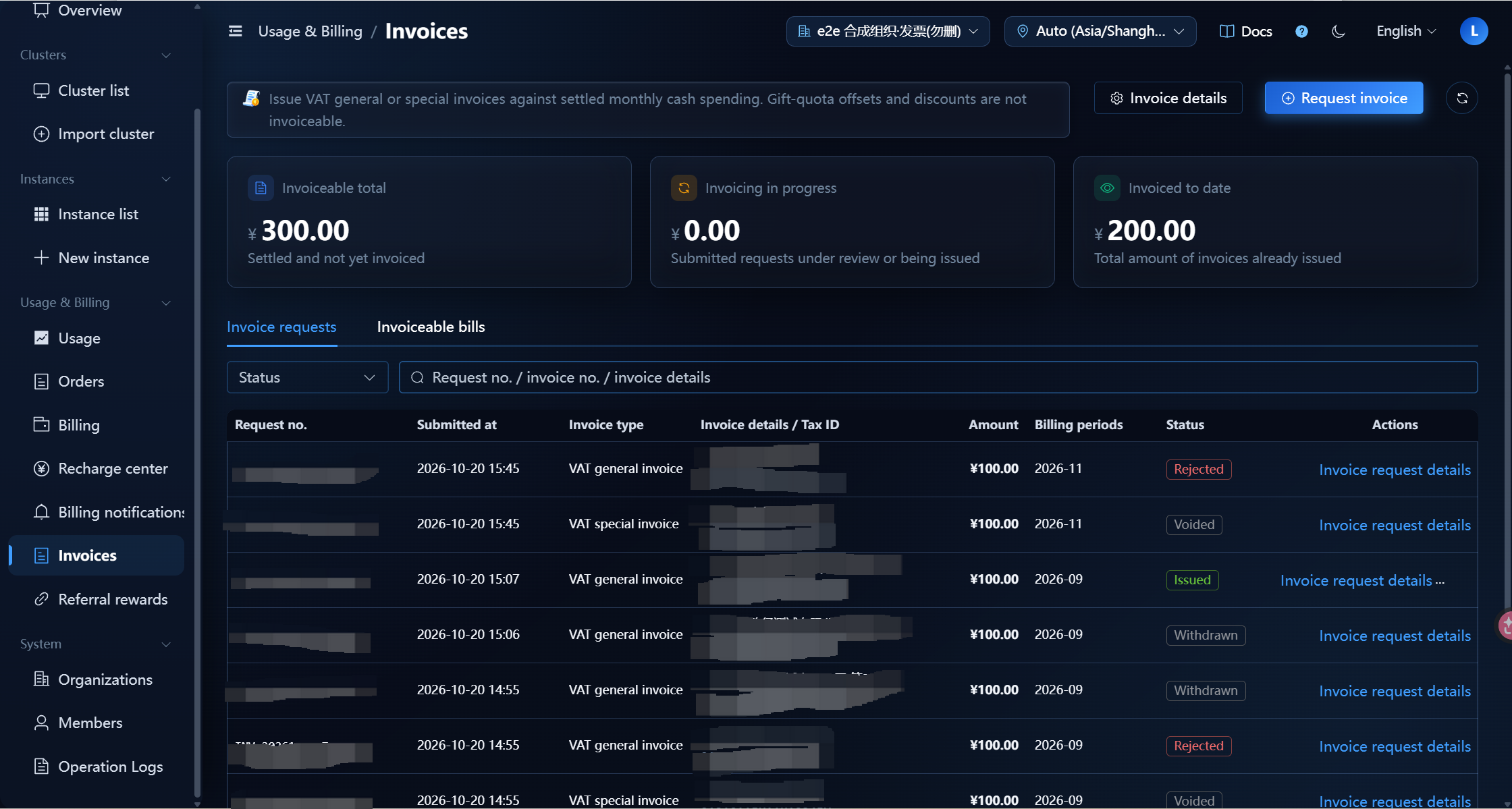
What You Can See
- Invoiceable amount: the settled amount that can still be invoiced; in-progress and issued amounts are excluded
- Invoicing in progress: amounts already submitted and locked by pending or issuing requests
- Invoiced to date: total amount issued so far
The page has two tabs:
- Invoice requests: all requests in the organization, with status and keyword filters
- Invoiceable bills: invoiceable amount per billing period, including discounted payable, gift offset, outstanding arrears, already invoiced/locked, and remaining amount
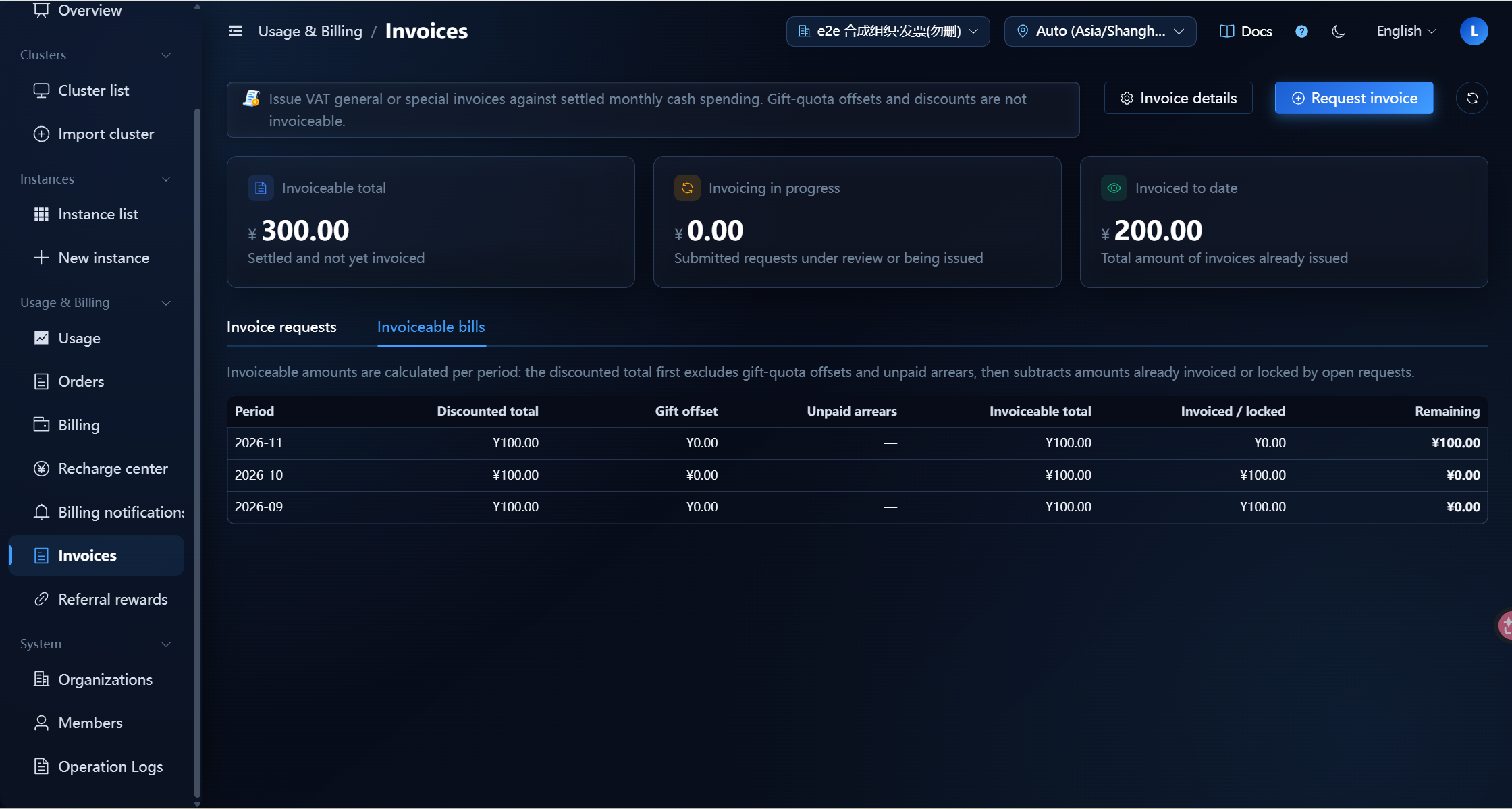
The top KPI is the sum of the Remaining column. In Invoiceable bills, Invoiceable total is the base amount for the period; Invoiced / locked and Remaining show what has been used and what is still available.
Invoice Titles
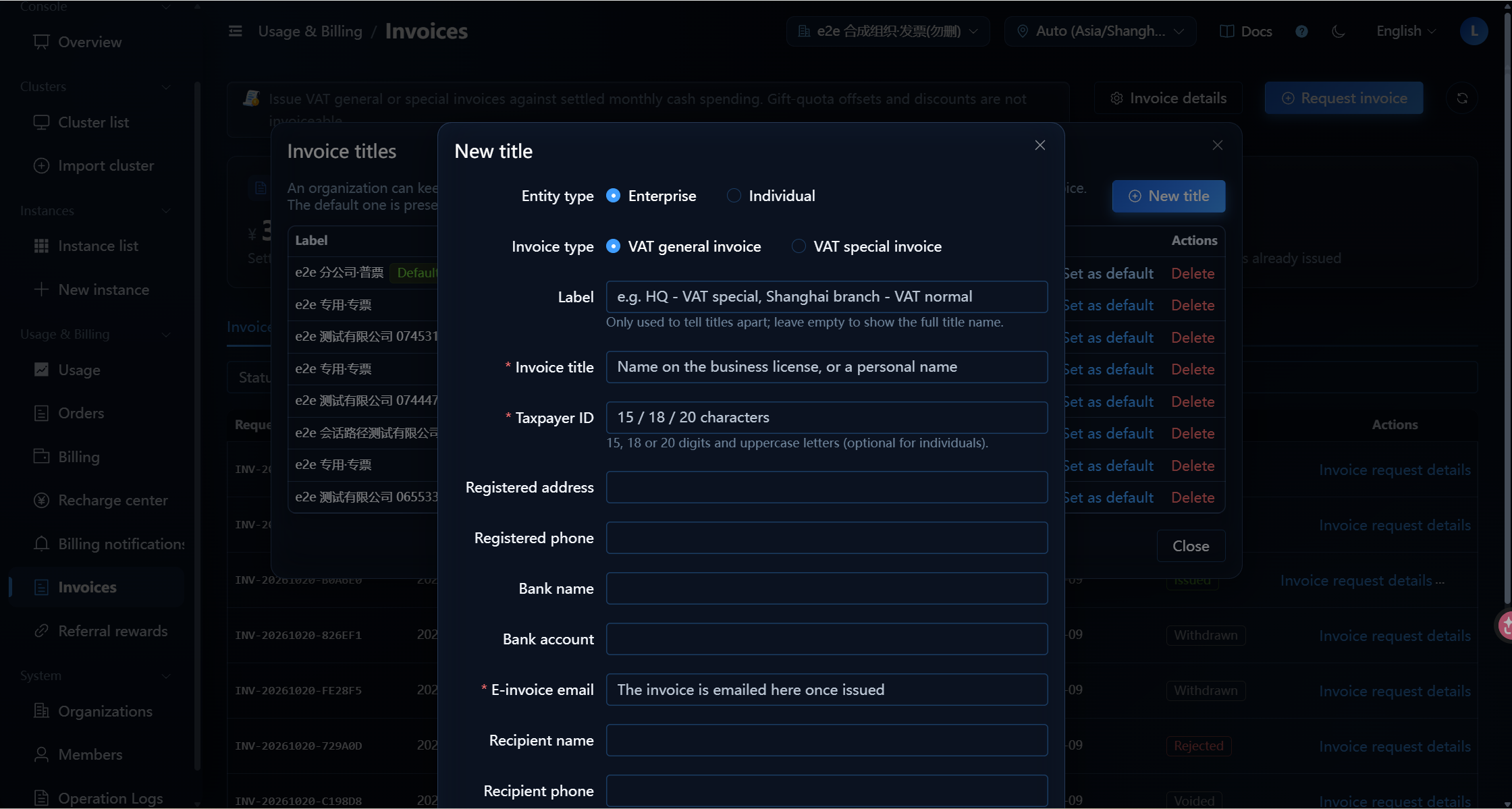
Click Invoice details to open the title manager, then New title to add one. You can keep up to 20 titles (for different legal entities or invoice types) and mark one as default.
| Field | Notes |
|---|---|
| Entity type | Enterprise or individual; individuals can only request a VAT general invoice |
| Invoice type | VAT general or VAT special |
| Title name | The name on the business license, or the individual's name |
| Taxpayer ID | 15 digits (legacy tax registration number) or an 18-character Unified Social Credit Code (digits and uppercase letters, excluding I, O, Z, S and V); required for enterprises |
| Registered address / phone | Required for a VAT special invoice |
| Bank name / account | Required for a VAT special invoice |
| Recipient email | Email address for the e-invoice; used when email notifications are enabled |
| Mailing address | For paper invoices, if needed |
- The default title is preselected when you submit a request.
- Changing a title only affects new requests; submitted requests keep the snapshot taken at submission.
Submitting a Request
- Click Request invoice.
- Select one or more billing periods with an invoiceable balance. The total updates automatically; multiple periods can be combined into one invoice.
- Choose the invoice title (its invoice type is shown), enter the recipient email, and add a remark if needed.
- Submit. The request enters Pending review and the selected amount is locked.
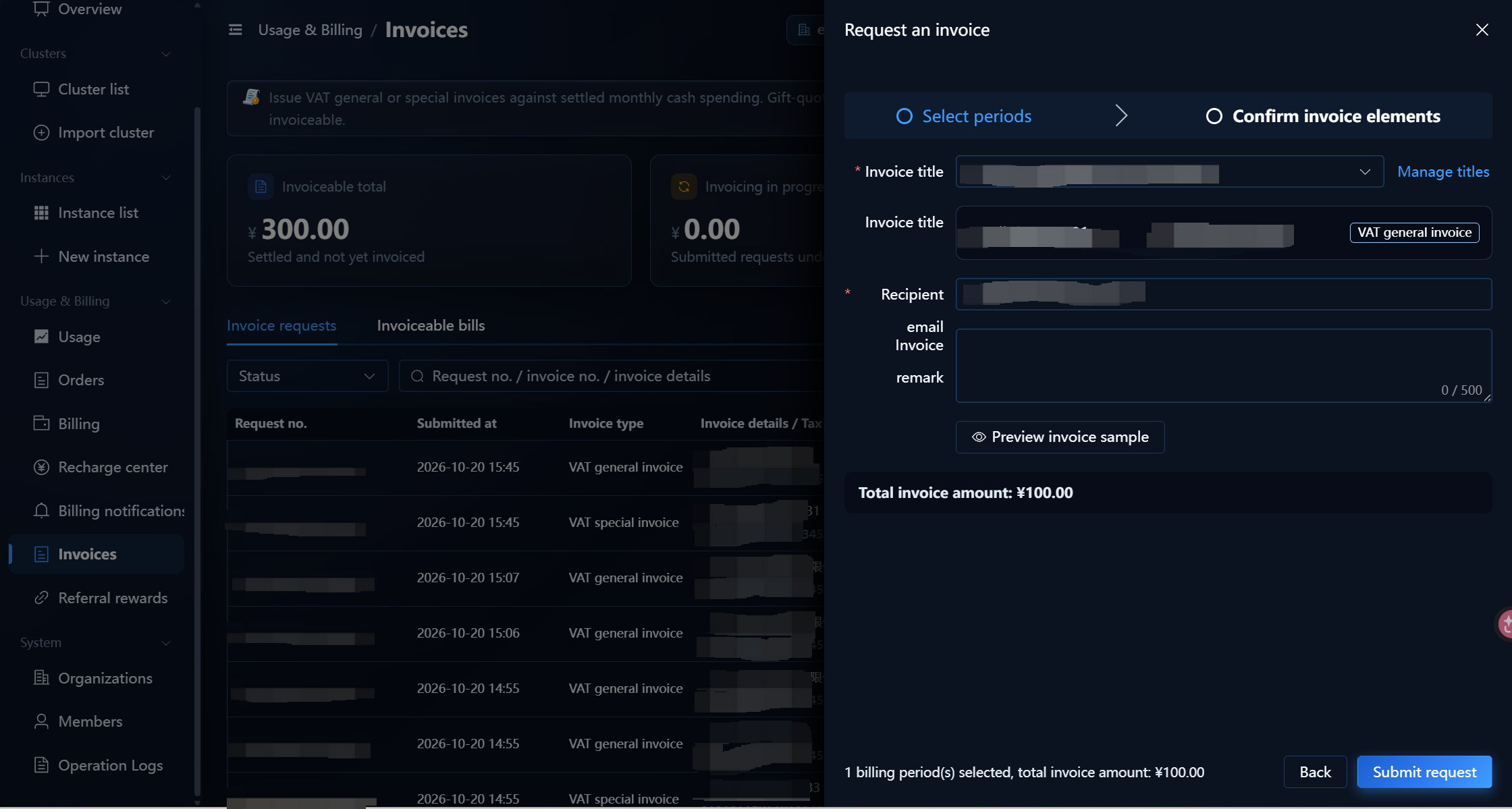
Only an Org Admin can submit requests or manage titles. Other members can view invoiceable amounts and request records.
Request Status
| Status | Description |
|---|---|
| Pending review | Submitted and waiting for finance to review |
| Issuing | Finance is issuing the invoice; the amount stays locked |
| Issued | The official invoice is available; download it from the request details |
| Rejected | The request was rejected; check the reason and submit again |
| Withdrawn | You withdrew the request; the amount is released |
| Voided | The invoice was voided with a red invoice; the red invoice file is kept once returned |
- You can withdraw a request while it is pending review; the locked amount is released immediately.
- A request cannot be withdrawn while it is being issued.
- When email notifications are enabled, the platform emails the official electronic invoice to the recipient email. The request details also keep the blue invoice files (PDF/OFD) returned by finance and, for a voided invoice, the red invoice file.
Next Steps
To understand the fees and invoiceable amount, see Billing Center.
To add balance before consuming, see Recharge Center.